
Lecture
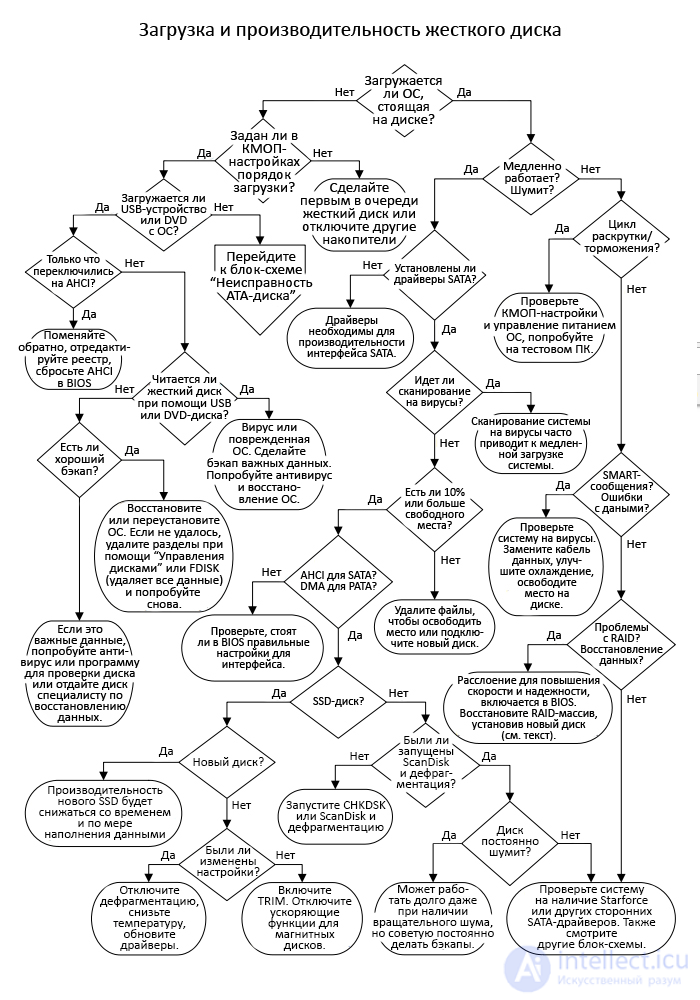
Does the OS installed on the boot disk load (at least partially)? That is, does the Windows boot screen appear, or at least "running" dots when the kernel loads? Was this disk previously installed in another PC? Then boot in safe mode, because Windows on the new PC will incorrectly detect the drivers for all devices. It is possible, however, that a disk taken from another system will start booting even if the disk parameters and addressing mode were determined incorrectly. On older PCs, HDD parameters that were not always automatically detected by the new motherboard could be entered manually. In addition, the cause of the boot failure may have nothing to do with the disk itself and may be due to a conflict between devices, corrupted data, a poorly performed installation, etc. If performance problems occurred with the second (non-bootable) disk, follow the "Yes" branch in the flowchart.
Have you checked the boot order of all installed devices in the CMOS settings? This order specifies which disk should boot first, and this first device should be the boot hard disk, except in cases where you have problems with the installed OS. These days, boot order issues occur quite often, since almost all new PCs support booting from USB flash drives, USB storage devices, and SSDs. If the USB port is first in the boot order, and a device that can be interpreted as a disk is connected to it (like a memory card from a camera left in a card reader for reading photo data), the BIOS may try to boot from it and simply hang without moving on to the next device in the queue. If you prefer to use a USB device or DVD disc as the primary boot disk, disconnect all devices from the USB ports and remove the disc from the DVD drive before booting the PC. If the hard disk still doesn't boot, put it first in the queue and try again.
Can you boot from a bootable USB flash drive, SSD, or CD/DVD with an operating system? If not, you need to change the boot order, putting USB or DVD first. However, the USB test isn't perfect, because if you've never tried booting from a USB device before, the BIOS may not support it 100%. You need to use the USB port on the back of the PC (that's where the motherboard's I/O block connectors are located), not the one on the front of the case, which may work slower or share a data channel with some other device.
Similarly, if you try to boot on an old PC using a DVD or an old CD with an operating system, it may happen that the CD/DVD drive spins up too slowly, and the BIOS eventually times out. Try ejecting the disc by pressing the Reset button, then quickly close the drive so the disc has time to spin up by the time the BIOS checks it. Also test this DVD on another PC to make sure it actually boots (if there are fingerprints on the disc, wipe it with a flannel cloth).
If you managed to boot via the USB port, but couldn't boot with a hard disk with a working OS or a bootable DVD with an OS, it looks like you have a problem with the ATA controller or cable. To resolve it, return to the "ATA Disk Fault" flowchart. If you can't boot from a USB device or DVD disc, even though your PC could do this before, the problem is most likely in the motherboard, and to resolve it, go to the "Motherboard, CPU, or RAM Fault" flowchart.
Did you just enable AHCI mode in the CMOS settings to speed up the performance of the SATA hard disk or SSD? AHCI (from "advanced host controller interface") is an Intel standard that allows you to squeeze the best performance out of SATA devices, bypassing BIOS limitations, which only understands old IDE devices and typically runs SATA devices in compatibility mode. But switching to AHCI after the OS has already been installed on the boot disk can cause a boot failure. The reason is that some versions of Windows (Windows Vista and Windows 7), which support SATA, do not install AHCI drivers unless AHCI mode was enabled in the BIOS before the operating system was installed.
If this is exactly your problem, then it is of course too late to advise enabling AHCI before installing the OS, but nothing stops you from switching back. Restore the original BIOS settings so the PC can boot, after which you will need to install all the necessary motherboard drivers for the SATA controller in Windows and edit the corresponding registry entry. In different versions and "service packs" of Windows it may be different, so look for the appropriate instructions (preferably with screenshots) online. Once you've made all the necessary changes, you can enable AHCI again in the BIOS and reboot.
Can you, after booting with a USB device or a DVD disc with an OS, enter the command line and read information on the hard disk that failed to boot? Can you read the hard disk's data when it's installed in an external USB enclosure? If you can, then the problem is likely a corrupted operating system. The cause of the failure could be a virus, a disk write error, or a runaway program that wrote data to the wrong place on the disk. As long as you have access to important data, back it up, and then run ScanDisk, CHKDSK, or a similar program and try to use it to repair the disk. You can also try to repair or reinstall the operating system (the available options depend on the OS version and the PC manufacturer) using a Windows DVD. Most operating systems can be reinstalled without deleting any data or programs. They usually ask for permission before deleting any data. But if the hard disk, while trying to boot, makes repeated clicking sounds, there is a chance that there is physical damage in the boot sector, and in this situation you can only hope for data recovery.
Do you have a good backup? I don't mean a situation where you just connected an external hard disk intended for creating automatic backups. I mean a situation where you have verified that this external disk has all the data you need, and you have access to it. Web backup services are more reliable than local backups, and if you only care about a handful of small files (like the novel you're working on), it's enough to simply send them to your Yahoo!, Hotmail, or Gmail email. If you have a good backup and restoring the OS didn't work, you can try deleting all partitions on the disk using FDISK or the Windows "Disk Management" utility, and then start over. This means you will lose all information on the disk, so if you store any critically important data on it and you're not sure what to do, it's better to ask a specialist for help.
If you don't have a good backup, and the disk stores critically important data, I recommend buying the latest antivirus and a program that checks the disk for errors and bad sectors. If you find that critically important information has been damaged, you can give the disk to a data recovery specialist. This is an expensive but feasible procedure, unless the data was maliciously erased, and the hard disk platters have no physical damage. Unfortunately, it is harder to recover data from an SSD, because SSDs are prone to catastrophic failures in software management, and the data on the chip is not organized as simply as the data on mechanical HDDs.
Has the disk started working slower (i.e., slower than usual, based on prior experience)? Is it noisy (meaning either general noise or the fact that the read/write head is constantly seeking across the platters)? You can download a testing program from the internet that checks hard disk performance using read/write tests and can identify problems with the interface or BIOS settings. But this is hardware testing, and it says nothing about the presence of malware or data fragmentation. If the disk's status LED on the front panel of the PC keeps blinking after the OS has finished loading and before you start working, this can be considered "slow" disk operation.
Do you hear the disk spin-up sound when you do anything requiring disk access? If you have an SSD, then instead of the spin-up sound there should be the noise of the PSU fan or the cooling system fan, since an SSD has no moving parts. When a "regular" disk starts cyclically spinning up/slowing down, this indicates either poor power supply, incorrect instructions from the controller, or that the disk is faulty.
You can deprive the controller of incorrect instructions by simply disconnecting the data cable. Did the spin-up/slow-down cycle stop? Obviously, during this test the PC won't be able to boot -- you may see a message saying something like "hard disk error". It could also be that the problem is overly aggressive power management settings for the disk, or that the OS or BIOS (via the CMOS settings) is telling the hard disk to power down after 60 seconds of idle time. Turn off power management in the CMOS settings (at least for the hard disk, if such an option is available in the CMOS settings). Also check the power management settings in the Windows "Control Panel" and disable hard disk power management there.
If the disk still cyclically spins up/slows down even without the data cable, then the problem is either the power supply or damaged disk electronics. Try connecting a different power cable to the disk, and if that doesn't help, test the hard disk in another PC or in an externally powered USB enclosure. Does the disk still spin up/slow down? If so, it is apparently faulty. Since the problem is in the disk's electronic components, all that remains is to send it to a data recovery specialist (if it has any important data on it and you don't have a good backup).
The SMART error notification system seems to have been with us forever, and hard drive manufacturers in particular have made productive use of its capabilities. But it is not always supported by motherboard BIOSes, and even if it is supported, it is often disabled by default in the BIOS. SMART tracks dozens of drive operating parameters, counts errors, determines temperature, etc., and all of this can be accessed through the OS if you install a test program (they come in different varieties and are usually free) that supports SMART data. On hard drive manufacturers' websites you can usually find free programs for diagnosing their products (and not only their own brand). If the BIOS supports the SMART system and it is properly configured, you may receive various messages from it. For example, if the number of errors on the drive reaches a preset critical limit, SMART will send you a message about an impending failure. If the BIOS has sent you a SMART error message, you should back up your data as soon as possible and replace the drive.
Data errors on a hard drive can be discovered in various ways. First, they may appear as error messages from the BIOS; second, during a check with ScanDisk or CHKDSK; third, they may cause a «blue screen of death», after which, on the next Windows boot, it usually displays a message saying the system was shut down improperly and a scan needs to be run to check data integrity. More modern hard drives can, by default, independently cope with a moderate number of errors on the magnetic platters by moving data from one place to another and closing off bad sectors on the disk. Therefore, the appearance of error messages should be taken as seriously as possible.
Is your drive accumulating data errors? Have you reinstalled the OS more than once, or does the CHKDSK/ScanDisk program keep telling you that it is recovering lost files? Go to the hard drive manufacturer's website, download the diagnostic program from there, and run it. Or, if you have an old PC, run a «Thorough» type scan in ScanDisk – it checks the surface of the disk platters, and if you have a large drive, this scan may take all night. If the drive's physical errors are identified and corrected (the program marks them as bad and takes them out of use), and new errors are found on the next test, this means the drive is faulty.
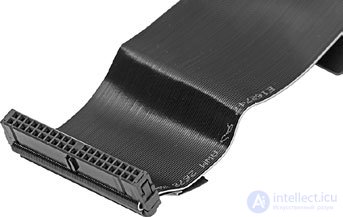
Fig. 9.3. 80-conductor UltraDMA ATA cable
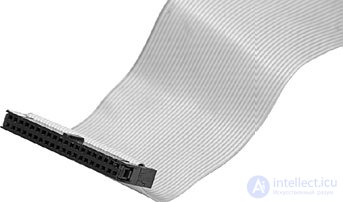
Fig. 9.4. 40-conductor standard ATA cable
As always, check the IDE/SATA data cable, and if it is not working, replace it. Check the PC for viruses. In addition, errors can occur due to overheating of the drive, so if the room is very hot, I recommend installing an air conditioner or moving the PC to another room. However, having an air conditioner in the room does not always allow you to cool the air inside the case – for example, in cases where there is poor air circulation inside the case, or the drives are stacked on top of each other like a stack of pancakes. Another (unlikely) possibility is interference on the cable from radio frequency noise, which may be caused by a poor-quality or partially faulty adapter connected to the bus. As a result, it becomes a sort of radio antenna operating at an incorrect frequency and interfering with error correction. Back up all your data (in fact, this is the very first thing you should do when your drive starts sending error messages) and format the drive. Some OSes allow you to do a quick format, but I recommend doing a slow one. How do you know which is slow and which is quick? A slow format will take several hours.
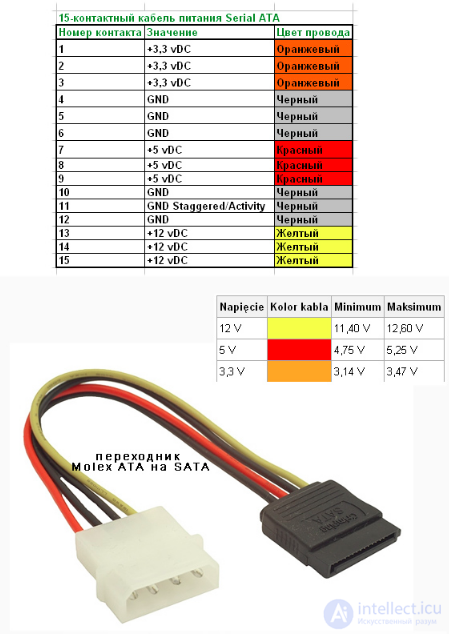
The most common RAID version today is RAID 0, aimed strictly at improving performance. If your PC has two drives installed to ensure data safety, then you most likely have a RAID 1 array. This RAID version «mirrors» every bit of data on both drives, so if one of the drives fails, the system should inform you that it needs to be replaced, but will continue to work as usual. But the problem is that many people confuse data integrity with data safety. If your PC is infected by a virus or other malware, or if you accidentally delete some data, this infection/deletion will be «mirrored» on both drives. The only way to protect your data is to constantly back it up and keep several copies of important files off the PC.
If you have a server with three or more HDDs installed, you most likely have RAID 5. This RAID version supports data striping and parity (a type of error checking), so if one of the drives fails, the array will restore itself without losing any data, and the faulty drive can simply be replaced with a new one. If you have reached this point but still have not found the cause of the problem, it is most likely software-related (some copyright protection programs can slow down drive performance) or due to incompatibility between the controller and the operating system.
Have you installed the SATA drivers that came with your motherboard? Have you updated them to the latest version? Many people who build PCs at home skip this step, wanting to assemble the system as quickly as possible, and as a result don't even notice the difference, because the BIOS itself, without any drivers, can handle the interface between the SATA controller and Windows, but does this job not well enough. Performance largely depends on the efficiency of communication between the SATA controller and the operating system, and it is precisely for this that the system needs drivers.
The most common cause of slow booting, and also of reduced PC performance for the following 30 minutes (or so), is a virus scan running in the background. After the PC boots, don't launch any programs, just wait until the LED indicating hard drive activity stops blinking. If 5-15 minutes have passed since boot and this LED is still showing heavy hard drive use, this usually means that the antivirus program started a full system scan right after boot. This happens if the antivirus is configured to scan the PC right after startup, or if the scan was scheduled for the middle of the night (when the PC was off), in which case it is now trying to catch up on its schedule.
First, make sure the drive is not 100% full. I always leave about 20% free space on the drive for temporary files and the Windows swap file, but drives have now become so large that 10% is enough for these tasks. Many programs generate large temporary files without reporting this fact in any way, so know that you always need more free space than you actually think. When you delete files and folders from the drive to free up space, you also need to empty the «Recycle Bin», otherwise that space will remain occupied. Here, the main culprits are usually music and video. To completely fill your drive with text, it would take about a couple of thousand years and ten thousand Leo Tolstoys writing nonstop.
Are the BIOS settings for the hard drive controller set correctly? For SATA drives, AHCI mode is required (if the BIOS supports it), and if it is not enabled, before proceeding further, read the text for the decision point «Just switched to AHCI?» For PATA (IDE) controllers, you need to select the fastest DMA or UDMA mode, and never PIO. Also check the hard drive mode if you have an old version of Windows and your drive has started producing errors after which Windows started crawling like a turtle. Some versions of Windows automatically revert to PIO mode after receiving a certain number of hard drive timeouts. This problem usually affects secondary drives rather than the boot (primary) drive, but can happen with any PATA device, including a DVD or CD drive. If you search the internet for «DMA switching to PIO», you can find free programs that will spare you the need to edit the registry (if you're not confident in that area).
Is the drive that has performance problems an SSD? Mechanical drives and SSDs have several common methods for solving performance problems related to the operating system and what was discussed above. However, due to differences in the technologies underlying SSDs and magnetic hard drives, the final stages of diagnosing/fixing faults in these devices also differ. For example, if you have an SSD, you probably don't want to defragment the drive.
Have you defragmented the drive recently? If you have Windows 10, to run defragmentation, find a drive, right-click on it, then click «Properties» > «Tools» > «Optimize» (in the «Optimize and defragment drive» section). In older versions of Windows, the defragmentation menu is located at «All Programs» > «Accessories» > «System Tools» > «Disk Defragmenter». If the drive is fragmented, first run CHKDSK or ScanDisk. Some versions of Windows also have the SFC.exe utility (System File Checker), which is run with the administrator command «sfc /scannow». A guide to using this utility can be found on the Microsoft website.
If CHKDSK or ScanDisk failed to check the entire drive, close all other programs (all secondary tasks can usually be closed in «Task Manager», which is opened with the keys Ctrl + Alt + Del ) and try again. If that doesn't work either, restart in Safe Mode and try again. If ScanDisk still fails, I recommend backing up your data and formatting the drive. This may be a hard decision to make if you have already defragmented the drive and there is little data on it, but in this state the drive is simply slowly grinding itself to death. As an alternative, you can buy or download a good antivirus and anti-spyware program, since the cause of all these problems may be a virus or a pack of spyware programs turning your drive's life into a real nightmare.
If your drive, having spun up, makes noise like a quiet airplane, emitting a high rotational sound, this is simply mechanical noise. This is not the best sign, and in such a case I usually advise replacing the drive, but I've also seen such noisy drives work reliably for years. However, if the drive has started to sound like a coin rattling in a tin can, I advise making a backup of your data as soon as possible, but if it has sounded like that for several years already, the issue may simply be poor assembly. Make sure the drive is attached to the case with all 4 screws.
If there are no physical damages visible on the drive, and the diagnostic program has not shown any faults, then perhaps the issue is that some third-party driver is degrading the HDD's performance. According to some gamers, this can happen because of StarForce software products for game copy protection (this has been noticed, at least, in some versions), which use drivers that can degrade drive performance. So search user forums for information about the game software installed on your computer, to see whether it causes any problems. There is also a possibility that the HDD performance "bottleneck" is caused by a hardware issue, and its cause should be sought in other block diagrams.
Do you have a new SSD? Some of those who prefer to build their PC at home, or those who have just upgraded their PC with a new SSD for gaming or replaced their boot drive with one, immediately run a benchmark program to see just what they actually spent all that money on. But the problem is that in the first few hours and even weeks, SSD performance decreases quickly as the drive fills up. But if the performance eventually settles at a level that is roughly equal to or even higher than the advertised figures, then this cannot be considered a fault.
Different metrics can be used to determine SSD performance, but I prefer MB/sec the most, since this unit of measurement allows for the most adequate comparison of SSD performance with the performance of standard hard drives. First, keep in mind that the maximum data transfer speed of the fastest standard interface for hard drives (SATA 3) is about 600 MB/sec, however for the best mechanical hard drives it rarely reaches 100 MB/sec, unless some of that data is not in the cache.
When using an SSD, speeds of 600 MB/sec and even higher can be achieved, but currently drives whose speed exceeds SATA 3 can only be found in servers using Serial SCSI or FibreChannel interfaces. SSD performance is also measured using the IOPS metric (from the English "input/output operations per second"), which can be converted to MB/sec if you know the block size in bytes. If measuring performance in IOPS, high-performance magnetic hard drives (10,000 RPM) connected to a SATA 3 interface can reach 150 IOPS, while Serial Attached SCSI drives for servers can reach 200 IOPS. But IOPS figures for SSDs are an order of magnitude higher than for magnetic drives – thousands and even tens of thousands of times higher (and even higher for server drives). But the IOPS metric for SSDs is favorable for random memory access, whereas the speed of transferring large amounts of data in PC applications is far from as high and can sometimes drop even to 100 MB/sec.
Have you changed the Windows or BIOS settings for your SSD? These drives began to be produced relatively recently, so both manufacturers and gamers have not yet fully figured out how to get the most out of them. It is definitely worth turning off all scheduled tasks in Windows related to hard drive maintenance (especially defragmentation), and disabling indexing for the SSD in the drive properties. You can also use other methods – from disabling write-back caching to enabling the drive's data cache. In addition, if you have Windows 7 or higher, make sure TRIM is enabled (this is a command, not an acronym). Some also advise disabling System Restore, but this means losing the ability to easily fix many errors caused by malware and random registry errors.
If you have tried many software settings, but the data transfer speed still leaves much to be desired, make sure that you have all the necessary drivers installed for the SSD and the SATA controller. Although SATA cables are not always marked with the data transfer speed, if your SATA 3 SSD is connected to a SATA 3 controller, make sure it is transferring data at 6 Gb/sec. Also check the manufacturer's website to see whether they recommend installing a firmware update, but remember that a failed firmware update can leave you with nothing. If performance still has not improved, and the SSD is fine, look for the problem in the "Motherboard, CPU, and RAM Performance" block diagram.

Comments