
Lecture
The most detailed description: SSD repair by yourself from a professional technician for readers, with photos and videos from all corners of the web on one resource.
What should you do if your SSD has failed and how do you repair an SSD yourself? Is it possible to recover data and repair the drive at the same time? Where can you get an SSD repaired? In this article we will answer these and other questions.
A solid state drive, or SSD, is a compact device for storing information. Unlike hard drives, an SSD has no moving mechanical parts inside, which makes the solid state drive less vulnerable and less sensitive to drops, vibration, and shaking. Nowadays the SSD is winning users over with its advantage over the hard drive – the SSD operates silently. This is due to the absence of moving internal elements. It does not require active cooling by fans, since it does not overheat during operation. Low power consumption can also be counted among the pluses of a solid state drive. The tastiest bit and undeniable advantage of an SSD is its speed. Data transfer speed and access to files stored on the drive are noticeably high. The fragility and resistance to shaking and moderate impacts have already been mentioned above.
Among the relative drawbacks are the failures characteristic of solid state drives. SSDs are very sensitive to voltage surges. During voltage spikes, for example, the entire drive can fail completely – it simply burns out.
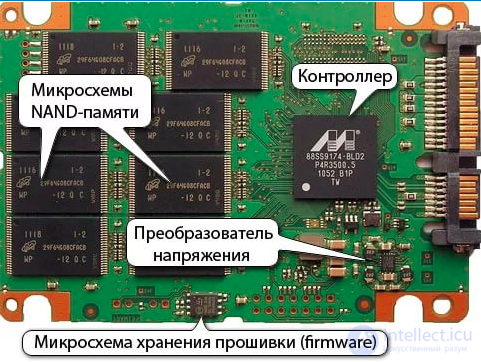
Logical and physical faults are common to all types of drives, and SSDs are no exception. Accidental formatting, the consequences of virus attacks, software glitches, boot sector errors, and other logical failures result in the data on the drive becoming unreadable, although physically it may still be stored on the disk space. Hardware failures characteristic of solid state drives are USB connector breakage, board defects, and burnout or other damage to the controller.
Logical faults manifest as data on the drive being inaccessible, but the drive itself may still be recognized by the computer.
Signs of hardware failures are complete inactivity of the drive, i.e. the computer or laptop does not see the drive at all. Here you should check that the USB port, connector, and cable itself are working properly. If everything is fine, then the problem is with the drive. In the case of a physical fault, DIY SSD repair is not possible.
Certain types of logical faults allow you to repair an SSD yourself and recover data using special programs. One such utility is the R-Studio program. It is not free, but it is available for download and easy to understand. Before starting to work with the program, you need to familiarize yourself with the instructions for its use. You need to assess your own abilities, take into account the value of the information, plan each stage of the recovery, take into account the specifics of writing and storing sectors on SSDs, and only then begin the work.
If you have no experience, and there is a suspicion of any kind of hardware fault – independent diagnostics of the drive is out of the question, since DIY SSD repair is not feasible. We recommend that you contact a specialized data recovery laboratory. In our laboratory, diagnostics is free. We have experienced specialists and all the necessary high-tech equipment.
HDD repair – a procedure that, in a number of cases, allows the drive's functionality to be restored. Due to the specifics of this device, serious damage usually cannot be repaired independently, but minor problems may be fixable without contacting a specialist.
An HDD can be returned to working order even in cases where it is not visible in BIOS. However, it is not often possible to repair the drive because of the complexity of its design. In some cases, repair may require paying a sum several times greater than the cost of the drive itself, and this only makes sense for recovering extremely important data stored on it.
A distinction should be made between HDD repair and HDD recovery. In the first case, we are talking about restoring the functionality of the device, and in the second – about getting back lost data. If you need to recover files that were deleted or lost as a result of formatting, check out our other article:
You can also replace the HDD yourself, and if possible copy the files from the old HDD to the new one. This will suit users who do not wish to contact specialists and prefer to simply get rid of a failed drive.
Bad sectors can be divided into logical and physical. The former are easily recovered by various utilities, and as a result the HDD works stably and without glitches.
Repairing physically damaged sectors does not involve the use of software. In this case, the drive itself may start making unusual sounds: clicking, creaking, rustling, etc. Other signs of trouble include the system freezing even when performing simple tasks, files or folders disappearing, or the appearance of empty unallocated space.
It is not possible to fix such a problem with a computer or laptop hard drive manually. Therefore, the user is left either to replace the HDD with a new one and, if possible, transfer important data to it, or to use the services of technicians who recover data from a physically damaged surface under special conditions.
You can find out whether there are problems with sectors using programs:
If the device is still working, but is already unstable, you should think about purchasing a new drive as soon as possible. In this case, using a PC with a damaged HDD is strongly recommended to be kept to a minimum.
After connecting a second HDD, you can clone the entire HDD or just the operating system.
A physically healthy drive may not be detected by the operating system even when connected to another computer, but may be visible in BIOS.
There are several situations in which Windows does not see the device:
After this, if you need to recover deleted data, use special programs.
More details: Programs for recovering deleted files
The drive got the RAW format. Formatting will help resolve this situation as well, however it is – not the only way to restore the NTFS or FAT file system. Read more about this in our other article:
Lesson: How to change the RAW format of HDD drives
Windows does not see the new HDD. A newly purchased HDD connected to the system unit may not be detected by the system, and this is completely normal. To start using the device, you need to initialize it.
In more serious cases, the HDD may not be visible not only in the operating system, but also in BIOS. Usually the BIOS displays all connected devices, even those that are not detected in Windows. In this way you can understand that they are physically working, but there are software conflicts.
A hard drive – a fragile device that is very easy to damage by any external physical impact, whether it be shaking or dropping. But in some cases it can break even with careful use and complete isolation from negative factors. The stated service life of an HDD is about 5-6 years, but in practice it often fails twice as fast. Therefore, you, as a user, need to take care in advance of the safety of important data, for example, by having an additional HDD, a flash drive, or using cloud storage. This will protect you from the loss of personal information and additional monetary costs aimed at its recovery.
Thank the author, share the article on social media.
This time we contacted the Flashback Data laboratory, whose employees work with all types of data storage devices, but have particular expertise with flash memory. Representatives of Flashback Data agreed to show us what efforts a top-class laboratory would undertake to save our precious flash memory.
At the very beginning of its journey, Flashback mainly performed replacement of faulty chips, but over time this became increasingly difficult to continue, since manufacturers started using various components at various stages of production within the same model. Some devices got encryption, which further complicates the data recovery process. In this case Flashback needed the ability to read the memory directly, which, in turn, meant having an incredible number of ways to read chips from such a wide variety of available flash memory.
Note that when Flashback refers to “encryption”, this state is, as a rule, unknown to the user. For example, starting around 2006 SanDisk began encrypting data on all its drives, as one of the founders and vice president of Flashback, Russell Chozick, told us. As with automatic hard drive encryption, the controller encrypts all the data stored in the flash memory. Since there is no password provided to lock the encryption, the data is decrypted and extracted from the media. So in the case of printed circuit board damage, Flashback employees try to move the controller and memory chips to a new device. “If the controller has burned out, then getting the data back is practically impossible, since it is the controller that holds the information about exactly how to decrypt the data. Without the ability to work with the controller, you face a major problem”.
These dark grey TSOP48 standard chips have for many years been typical components of USB drives, as well as SSD/SD/CF memory cards, but recently they have opened the way for other chips as well. In the bottom sample in the picture you can see the back of a TLGA chip, and you can notice that there are no contacts on the side, and the modules are located on the back side. Such chips are common to all types of flash memory and are used, for example, in the newest iPhone smartphones.
During the recovery process, Flashback employees insert TSOP48 chips into reading devices, but TLGA chips must also be soldered. Obviously, the analysis and recovery processes are much more complicated in this case. So after the introduction of more compact flash memory into smartphones, the old “monolithic” formats seem simpler by comparison.
SD memory cards and LaCie USB devices also have monolithic chips. While most memory cards have separate controller and memory chips, in a monolithic chip both components are combined in one tiny module. Obviously, malfunctions in such devices can occur for any of a number of reasons. If the controller stops working, specialists can still access the data using other means instead of using the contacts for connecting to a card reader, smartphone, or camera. In the photo you can see that the case has been partially removed from the device, since specialists need to remove some of the soldered black coating to find certain points for connecting to a logic analyzer. Once all the points have been identified, the card is connected as shown in the following pictures.
To remove part of the coating, Flashback technicians use surprisingly simple tools: grinding paste and a polishing wheel. Chemicals could also be used to achieve this goal, but we were told it is better to use a slow and careful polishing process. During grinding, it is easy to damage very thin contacts. At first we asked to connect a LaCie drive, but then abandoned the idea after learning that such work could take a specialist an entire day.
We have seen photos of damaged hard drives, most of which suffered from head collisions with tracks on the magnetic media. Almost all damage to SSDs and flash memory found by Flashback technicians is invisible. In rare cases you can see a burn mark on the PCB, but, in general, broken controllers and burnt fuses leave no visible signs. As a result, specialists have to work for a long time, testing each resistor. Compared to this, disconnecting a connector, as shown in the photo, is a trivial matter for repair specialists.
We previously wrote about the ongoing race between two processes – the improvement of reading algorithms as capacity increases, and the reduction of lithography, which resembles a tug of war. In particular, we are concerned that flash and SSD drives that have been in operation for several years may show signs of wear.
Fortunately, as we are told, most SSDs that arrive at the Flashback lab are not even a year old, so NAND memory wear is not observed. In fact, cases of actual wear are extremely rare. Although USB flash drives (especially older models with less advanced wear-leveling algorithms) show wear a bit more often. Reading from the chips works fine, but when verifying the information many ECC errors occur, and no data can be extracted. The presence of four red dots (further in the images) indicates ECC problems. In contrast, major wear problems will be marked with four green dots.
There were also cases where specialists performed an analysis, removed the chip, cleaned the lamella and put everything back in place, aggravating the data-reading problem, which now took even longer. So wear can indeed be regarded as a real danger, but this is not a crisis situation, although many might think otherwise.
Chips must be removed from the PCB using a special soldering tool, and one of the main tools at this stage is hot air. The picture shows specialists removing a TLGA chip from a USB device. They control the temperature and air pressure, heating the device just enough to melt the solder points. Such soldering stations also include soldering irons, soldering flux, ohmmeters, and other diagnostic tools. Some of these stations occupy the main Flashback laboratory, which covers an area of approximately 465 square meters.
Guys, I've run into a problem.
Acer v3-771g laptop, warranty has expired. The SSD (photo at the end) with the installed system periodically stopped being detected. This happened about two or three times in six months.
Sometimes a reboot helped, sometimes it went away on its own.
At one point the SSD died completely.
By the way, the time of death was inconvenient – I moved to the capital a month ago, so my funds are limited. And I've barely gotten familiar with my surroundings. And then such a loss. Consider it my main breadwinner (I do design and engineering work), my workhorse.
I took it to the nearest repair shop that raised the fewest suspicions. They promised diagnostics in one or two days. In the end, it dragged on for a week. In the end they said the controller had died, and something else too. In general they can do the repair, but the drive will now only work as an external drive powered via USB. I didn't go into details, I didn't like the price. 5000 wooden ones (rubles). I looked at the websites of other repair shops, and the prices really didn't appeal to me either. For repair/data recovery, from 8000 rubles and up. For that money it's easier to just buy a new one, which is what I did. Fortunately, apart from programs, there wasn't any particularly important data on it.
A question for the experts. So that the dead SSD horse doesn't just lie there like a brick, I ask kind necromancers (Moscow) to respond – those who can help bring this unit back to life. Either by preserving its functionality via the standard ports, or (as was suggested) via USB. Accordingly, I would like to see a more reasonable price than the one mentioned above.
Please don't throw stones of downvotes, as there is no self-serving intent here. I'm just asking for help.
In their internal structure, SSD solid-state drives almost completely mirror the structure of flash drives, so SSD repair is possible in the same cases as flash drive repair. Unlike other data recovery companies, we also repair SSDs, including with data preservation, if that is possible in a given case.
Unfortunately, just as with Flash drives, SSD/HDD repair is not always possible, but if data is needed, its recovery from an SSD is possible in almost 100% of cases. However, it should be remembered that in almost any controller failure, its physical breakdown, or when the SSD shows up as 0 GB, all data is completely destroyed after repair. This is because in such cases a complete recalculation of the translator and subsequent low-level formatting of the SSD is required.
SSD (Solid State Disk) – a solid-state drive. Its main difference from conventional hard drives is the absence of mechanical components. In production, two types of solid-state drives can be found: with non-volatile Flash SSD or NAND memory, or volatile RAM SSD.
The first to present this storage device was the company M-System. It was followed by Super Talent Technology and OCZ. The history of these drives began in 2009, when drives with a capacity of 512 GB were released, and a little later 1 TB. Today there is almost no manufacturer left that does not produce or develop SSD drives. The main market for this product is held by Samsung, OCZ, and SanDisk.
These drives appeared quite recently, and immediately found their buyer in the computer equipment and peripherals market. At first SSDs lagged behind standard hard drives in read and write speed, but now there are already models that have caught up, and even surpass them in performance.
The main advantages of SSD drives over hard drives are:
SSD solid-state drives are also subject to failures and data loss. The most common are:
If the system cannot detect the SSD, it is most likely a mechanical fault or a damaged controller. SSD recovery differs from the process of reviving hard drives. If a failure is detected, third-party programs and utilities will not help you. You should immediately turn to a qualified specialist so as not to aggravate the problem by interfering with the equipment yourself.
The main problem is the controller on the SSD and its firmware. There is a very high probability of it being damaged, since it is located between the interface and the memory chips.
The task of recovering an SSD itself is very far from simple and consists of several stages, which take quite a lot of time and effort, and require specialized knowledge.
First of all, you need to disassemble the drive's housing and remove all the memory chips. Then data is read from all the chips and saved to a computer. This cannot be done without a special reading device. In the process it is important to observe the correct reading sequence, in accordance with each model of solid-state drive. This will help the SSD recovery specialist find the right solution and save a lot of time. And only afterward, after processing the data with special software, can the recovered user information be obtained in the form of a disk image.
All of this work will be done in the shortest possible time by experienced specialists at service centers or company engineers.
Hard drive repair – a procedure that, in a number of cases, allows the drive's functionality to be restored. Due to the specifics of this device, serious damage usually cannot be fixed on your own, but minor problems can be resolved without contacting a specialist.
An HDD can be returned to working condition even in cases where it is not visible in the BIOS. However, it is not often possible to fix the drive due to the complexity of its construction. In some cases, the repair may require paying an amount several times higher than the cost of the drive itself, and this only makes sense for recovering extremely important data stored on it.
Hard drive repair should be distinguished from its recovery. In the first case, we are talking about restoring the device's functionality, and in the second – about returning lost data. If you need to recover deleted or lost files as a result of formatting, check out our other article on this topic:
You can also replace the hard drive yourself, and if possible copy the files from the old HDD to the new one. This is suitable for users who do not want to turn to specialists and prefer simply to get rid of a failed drive.
Bad sectors can be divided into logical and physical. The former are easily recovered with various utilities, and as a result the HDD works stably and without failures.
Treatment of physically damaged sectors does not involve the use of programs. In this case, the drive itself may start making unusual sounds: clicks, creaking, rustling, etc. Among other signs of problems – system freezes even when performing simple tasks, disappearance of files or folders, or the appearance of empty unallocated space.
Fixing such a problem with a computer or laptop's hard drive manually is impossible. Therefore, the user's only options are either to replace the drive with a new one and, if possible, transfer important data to it, or to use the services of specialists who recover data from a physically damaged surface under special conditions.
You can find out that there are problems with sectors using programs:
If the device is still working, but already unstable, you should think as soon as possible about acquiring a new drive. At the same time, using a PC with a damaged HDD is strongly recommended to be kept to a minimum.
After connecting a second hard drive, you can perform a clone of the entire HDD or just the operating system.
A physically healthy drive may not be detected by the operating system even when connected to another computer, but may still be visible in the BIOS.
There are several situations in which Windows does not see the device:
After this, if you need to recover deleted data, use specialized programs.
More details: Programs for recovering deleted files
The disk has taken on the RAW format. Formatting will help resolve this situation as well, although it is not the only way to restore the NTFS or FAT file system. Read more about this in another article of ours:
Lesson: How to change the RAW format of HDD disks
Windows does not see the new hard drive. An HDD that has just been purchased and connected to the system unit may not be detected by the system, and this is completely normal. To start using the device, it needs to be initialized.
In more serious cases, a hard drive may be invisible not only in the operating system, but also in the BIOS. Usually, the BIOS displays all connected devices, even those that are not detected in Windows. This way you can understand that they are physically working, but there are software conflicts.
When a device is not detected even in the BIOS, in most cases this is due to one of two reasons:
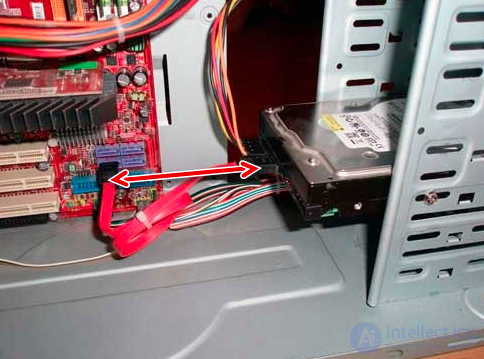
To perform a check, power off the computer, remove the cover of the system unit, and carefully check whether the cable running from the hard drive to the motherboard is properly connected. Inspect the cable itself for physical damage, debris, or dust. Check the socket on the motherboard, make sure the cable fits snugly against it.
If possible, use an alternative cable and/or try connecting another HDD to check whether the socket on the motherboard works and whether the hard drive is visible in the BIOS.
Even if the hard drive was installed a long time ago, the connection still needs to be checked. The cable may simply have come loose from the socket, as a result of which the BIOS will not be able to detect the device.
Mechanical failure
As a rule, in such a case the user may hear clicking sounds when starting the PC, which will mean that the HDD is trying to start its work. But due to physical damage, it fails to do so, so neither Windows nor the BIOS see the device.
Here, only professional repair or warranty replacement will help.
In both cases, the data on the disk will be lost.
If you heard a knocking sound inside the hard drive, then most likely the controller was damaged. Sometimes the hard drive may additionally not be detected in the BIOS.
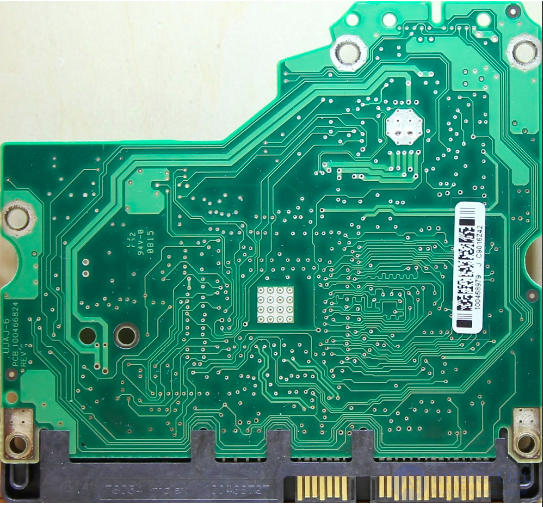
To fix this problem, the controller will need to be replaced entirely, but it is practically impossible to do this yourself. Specialized companies perform such repairs, however this will cost a significant amount. Therefore, it only makes sense to contact specialists when the information stored on the disk is very important.
In a normal state, the drive should not make any sounds except for noise during reading or writing. If you hear unusual squeaking, crackling, clicking, knocking, or even scratching, it is very important to stop using the damaged HDD as soon as possible.
Depending on the severity of the damage, the drive may not be detected in the BIOS, may stop abruptly, or, conversely, may unsuccessfully try to start spinning up.
Diagnosing the problem yourself in such a case is very difficult. A specialist will need to disassemble the device to determine the source of the fault. Later, based on the results of the inspection, the damaged component will need to be replaced. This could be the head, cylinder, platter, or other components.
Repairing the drive yourself is a very dangerous undertaking. First, you will not always be able to figure out on your own what exactly needs repair. Second, there is a huge chance of putting the drive out of commission entirely. But if you want to try your hand at it, you should start with the correct disassembly of the hard drive and get familiar with its main components.
Disassembly will only be worthwhile if you are prepared for the complete failure of the device, are not afraid of losing the stored data, or have already made a backup copy.
Reduced performance is another common reason why a user may think that there is something wrong with the hard drive. Fortunately, HDDs, unlike solid-state drives (SSD), do not tend to slow down over time.
Low operating speed usually appears as a result of software factors:
Read about how to eliminate each of these causes and increase the device's operating speed in a separate article of ours:
A hard drive is a fragile device that can easily be damaged by any external physical impact, be it shaking or dropping. But in some cases it can break even with careful use and complete isolation from negative factors. The stated service life of an HDD is about 5-6 years, but in practice it often fails twice as fast. Therefore, as a user, you need to take care in advance of the safety of important data, for example, by having an additional HDD, a flash drive, or using cloud storage. This will protect you from the loss of personal information and additional financial costs aimed at recovering it.
Thank the author, share the article on social media.
Owners of solid-state or SSD drives are not immune from data loss, just like owners of regular HDDs. However, recovering information from a solid-state drive, be it OCZ, Kingston, or any other, is significantly more difficult. Below we will look at how you can nevertheless try to recover data from an SSD using OCZ and Kingston as an example, as well as why this process differs so significantly for a solid-state drive versus, for example, a regular flash drive.
Flash drives, which also write to memory chips, differ fundamentally from OCZ and Kingston SSDs in that the latter have the TRIM interface command. It forces the solid-state drive to physically clear data blocks of any information after a file is deleted. Nevertheless, instant destruction of files on the OCZ does not occur — after the corresponding command is received, data blocks are cleared only after a certain period of time, although it is impossible to predict exactly how long.
The TRIM command is aimed at maintaining consistently high device performance, but if the drive has managed to execute it, then it can be stated with near-complete certainty that the deleted data has been completely destroyed and cannot be recovered. However, TRIM is not executed in all cases, and therefore data can be recovered from the drive in exactly the same way as on an HDD.
Data can be effectively extracted from OCZ and Kingston SSDs in the following cases:
And here is one more situation in which files on a solid-state drive are not deleted by the TRIM command — this is file system malfunctions and disk damage. In this case, it can be scanned, for example, with the Hetman Partition Recovery application, and all the necessary documents, images, etc. can be extracted from it without much trouble.
The application works with all media, including an OCZ or Kingston SSD.
Even beginners should not have any problems recovering deleted files with this application, thanks to the built-in wizard, which explains the sequence of actions to the user in a step-by-step mode.
When you open Hetman Partition Recovery, a list of all drives installed in the system and external drives will be displayed in the central window. Here each disk is listed, along with its size, file system, and used space. Even damaged devices that are not detected by the system in the "My Computer" section are displayed. They will be shown as unpartitioned areas with the full size indicated. This makes it possible to easily select, among others, a faulty Kingston SSD and start data recovery.
Let's use the capabilities of the recovery wizard:
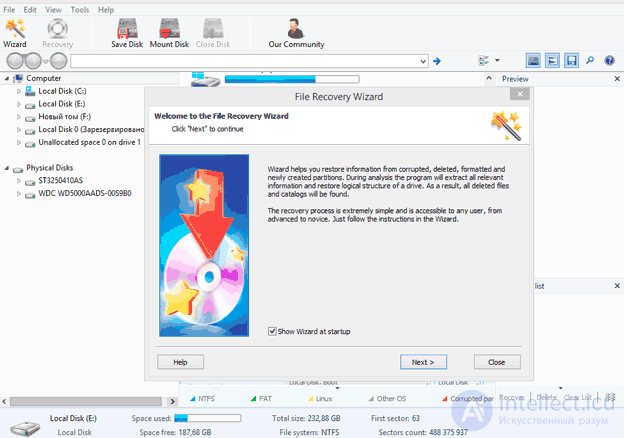
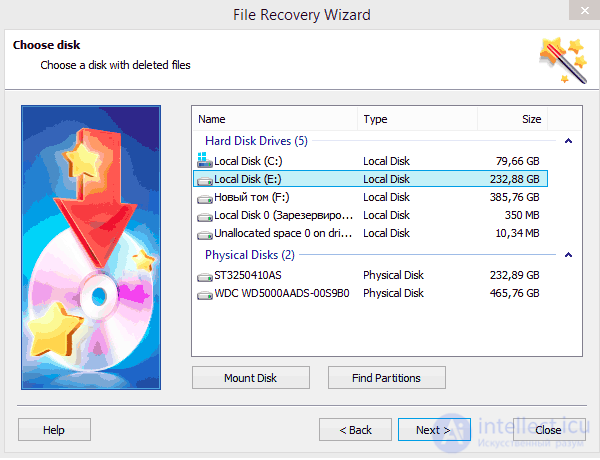
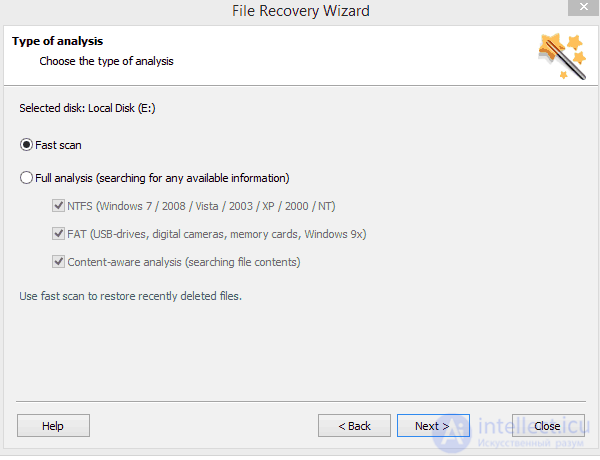
After the procedure is complete, the selected part of the information will need to be saved by clicking the "Recover" button, after which you specify the media — a hard disk or an optical disc. The extracted files can be handled differently, for example, by creating an ISO image or sending them to network storage. If you need to find individual files, the directory tree on the left side of the window will help you navigate the structure of the found data, allowing you to quickly move through nested directories.
The program offers a preview of all the information found in the right part of the window. This can be any text documents, MP3 audio files, photographs, and archives. The functionality of Hetman Partition Recovery also gives the user the ability to create a disk image for further work with it.
This program is also able, in certain cases, to save a lot of information from a solid-state drive. Unlike the application discussed above, DMDE also works without paying for a license, but with limitations — for example, files can only be recovered one at a time.
The procedure for working with DMDE is as follows:
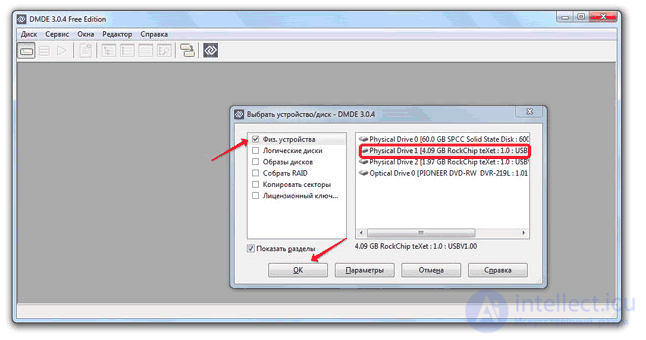
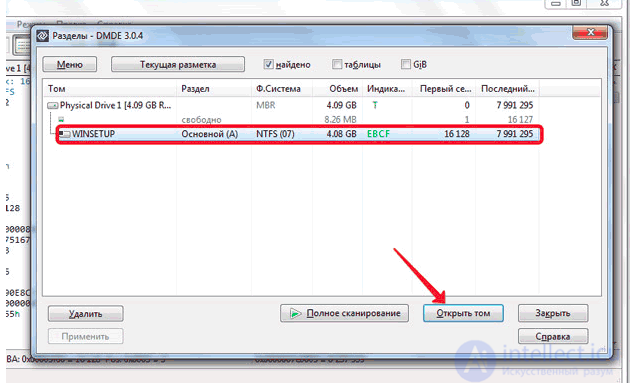
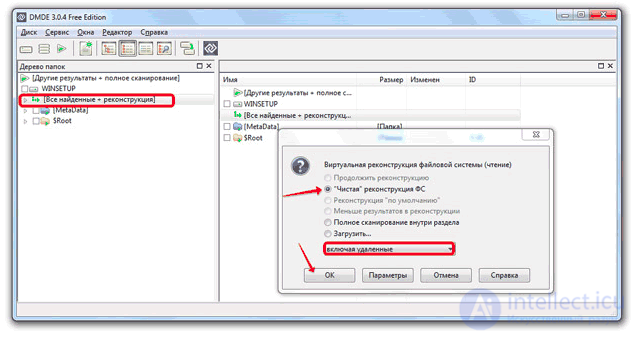
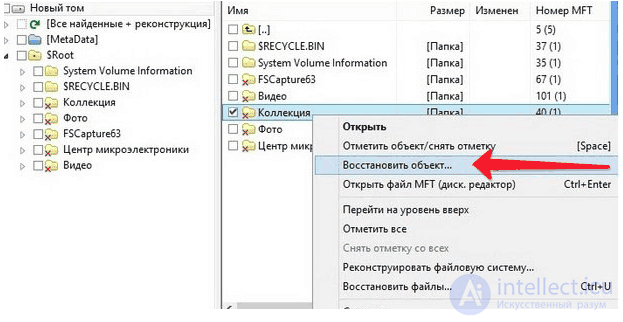
Next, all that remains is to specify the directory that DMDE will use to save the recovered information.
Usually, extracting information from an SSD requires the use of in-depth analysis. To do this:
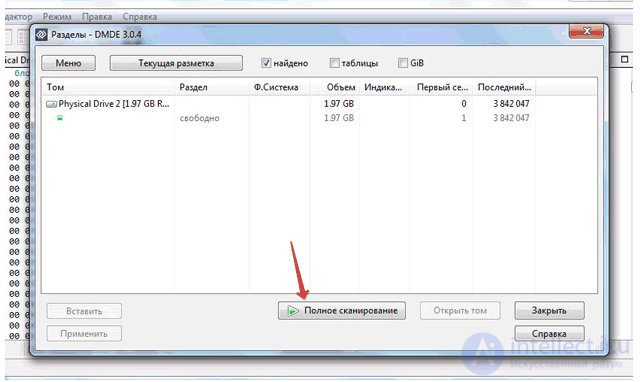
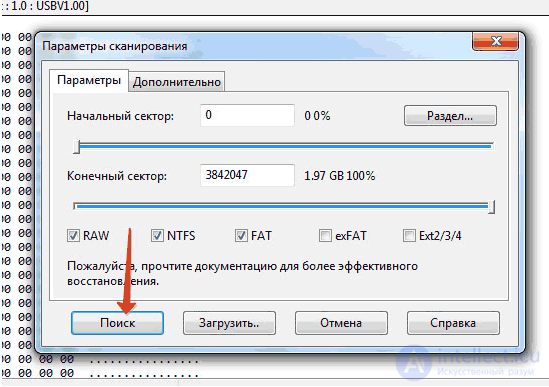
Once the deep scan is complete, the same window with the found data will appear, after which you should work with the application as described earlier.
In conclusion, let us note that complex, non-free applications for working with solid-state drives are not always needed. For example, if you are still using Windows, recovering data from an SSD will not be difficult at all. Even the free Recuva or similar applications will work for this purpose.

Comments