LINUX operating system faults
The Linux operating system is very different from WIndows, and this is also noticeable when problems arise in Linux. Let's say an error occurs in a Windows program - it closes completely or displays some incomprehensible number with an error code and that's it, you can only guess or use a Google search to figure out what happened. But in Linux everything is quite different. Here every program creates log files, in which we can, with sufficient knowledge of English or even without it, find out what happened. Moreover, if you run the program from the terminal, we will see all Linux errors and warnings right in the terminal window, and immediately understand what needs to be done.
Moreover, you can understand what happened even without knowing English. The main sign of an error is the word ERROR or the word WARNING. Let's look at the most common error messages:
- Permission Denied - no access, means the program does not have permissions to access a certain file or resource.
- File or Directory does not exist - the file or directory does not exist
- No such file or Directory - there is no such file or directory
- Not Found - the file or resource was not found
- Connection Refused - connection reset, meaning the service we need to connect to is not running
- is empty - means that the folder or required file is empty
- Syntax Error - syntax error, usually means there is an error in the configuration file or the entered command.
- Fail to load - loading error, means the system cannot load a certain resource, module or library (fail to load library); usually the system also reports why it cannot load it, permission denied or no such file, etc.
Besides the terminal, we can find error messages in various log files, all of which are located in the /var/log folder; we covered which programs are responsible for which files in the article on viewing Linux logs. Now let's take a closer look at where and what to look for when Linux reports an error.
PROBLEMS WITH TERMINAL COMMANDS
Usually problems with terminal commands don't arise because of a Linux error or because the developers didn't finish something, but because you entered something incorrectly or passed the wrong options.
If the wrong options were passed, the program will most likely show you a help message, after reading which you will very quickly understand what the problem is. Many commands also show help if you run them without parameters.
Also a fairly common mistake when running commands is not using the sudo command before the command itself to grant it superuser privileges. In such cases you usually get a Permission Denied error, or simply a notification that it failed to open a particular file or resource: can not open ..., can not read ... and so on.
If the file you passed in the parameters does not exist, you will be told so by the corresponding message. Messages can be more specific, depending on the error, but in the end you can use Google Translate to understand what the system wants.
A very common error among beginners is "no such file or directory" when trying to run a file downloaded from the internet. At first it seems absurd, since the file exists, but in fact the shell only looks for files with the executable flag, and until you set this flag on the file, it won't exist as far as the shell is concerned.
PROBLEMS IN PROGRAMS
If some graphical program closes for no apparent reason or doesn't work as it should, solving Linux problems starts with running it through the terminal. To do this, simply type the program's executable file name and press Enter. Usually it's enough to start typing the program name with a lowercase letter and use autocompletion to finish entering the name.
In the terminal, the program will most likely show why it isn't working. Also, many programs support the -v or --verbose option. You can try using this option if the first run in the terminal didn't produce anything. Then, once you have the error message, you can try to fix it yourself if you understand what's wrong, or try to find a solution on a forum - most likely, other users have already solved your problem. But if not, you can create a new topic and describe your error there. But without the program's terminal output, you're unlikely to get help.
Many Linux system errors related to the graphical shell can be found in the file ~/.xsession-errors in your home directory. If the shell is working slowly, freezing, or other programs aren't working, but there is no cause for this in the other logs, the answer might be found precisely in this file.
Also, Linux errors can occur not only in regular programs but also in services running in the background. But these can also be solved; to see the messages generated by a service launched with systemd, simply enter the command to check the service status:
$ sudo systemctl status service_name
Next you know what to do with this error, the main thing is that you have a clue, and then everything can be solved, well, or almost everything.
Here, as always, most errors are related to something not being installed, some file being missing, or something being inaccessible; in that case, solving Linux problems won't cause much trouble.
PROBLEMS WITH DRIVERS AND THE KERNEL
Problems with drivers, kernel modules, or firmware can cause a lot of trouble during system boot. This can simply be a slow system boot, malfunction of certain devices, incorrect video operation, or a complete inability to start the graphical subsystem. Fixing Linux errors starts with viewing the logs.
You can view all kernel messages from the moment the boot started by running the command to find out what Linux error is occurring:
sudo dmesg
To be able to conveniently scroll through the output, you can run:
sudo dmesg | less
Or select all the errors at once:
sudo dmesg | grep error
After that it will be very easy to understand which driver is missing, what the system cannot load, or what needs to be installed. If a Linux input/output error occurs, most likely the driver is incompatible with your device, in which case updating the kernel to get the newest version of the driver may help. In some cases the kernel itself may suggest a solution to the problem right in the error message, down to which command to run or which file to download. If not, you can still use a search engine to solve your Linux problem.
PROBLEMS WITH THE GRAPHICAL SHELL
When Linux problems concern the graphical shell, they are not so easy for beginners to solve. Mostly because only the terminal is available. The graphical shell may simply freeze or not start at all, for example, after an update.
When there are problems with the graphical shell, you can always switch to terminal mode using the Ctrl+Alt+F1 key combination. Next, you need to enter your login and password, then you can enter terminal commands.
You can view the graphical shell logs in the same file ~/.xsession-erros.
If the problem is observed after updating to a new version, you can clear the cache and delete the settings folder, this usually helps.
PROBLEMS WITH THE DISK AND FILE SYSTEM
The most common disk problem for beginners is disk overflow. If very little space is allocated for the disk, it will fill up and the system won't be able to create even temporary files, which will result in everything, if not freezing entirely, at least not being able to work properly.
If this happens, you will most likely have to switch to terminal mode and delete a few files. You can delete log files or the package manager's cache. There's no need to delete many files, it's enough to free up a few megabytes so that the Linux system errors stop and the graphical shell works normally, and then you can solve all the Linux problems from within it.
Linux boot problems
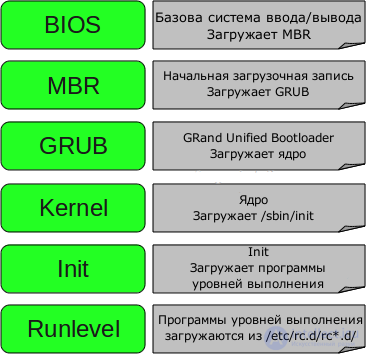
The algorithm and sequence of Linux booting consists of the following stages, and at each of them there can be corresponding problems:
1. BIOS
- BIOS is responsible for basic input/output of data from/to devices.
- Performs some device integrity checks. In addition, POST (Power-on self-test, also known as the «sanity test on itself», performed as a pre-boot stage) is responsible for testing the functionality of the electronics, and it is controlled by the BIOS
- Searches for, loads, and runs the OS boot loader program
- Takes the boot loader from a floppy disk, CD, or hard drive. During BIOS boot you can press a button (usually F12 or F2 or Del, depending on the platform) if you need to make some changes regarding hardware settings.
- As soon as the boot loader has been found and loaded into memory, the BIOS passes control to it.
- In short, the BIOS loads and executes the master boot record (MBR).
2. MBR
- MBR — is the master boot record, stored on the hard drive
- It is located in the 1st sector of the boot disk, for example /dev/hda or /dev/sda
- MBR takes up less than 512 bytes. It consists of three components: 1) the master boot information, «living» in the first 446 bytes; 2) partition table information — in the next 64 bytes; 3) and the last 2 bytes are needed to verify the correctness of the mbr.
- It contains information about GRUB (or LILO).
- In simple words — MBR loads and runs the GRUB boot loader.
3. GRUB
- GRUB — Grand Unified Bootloader.
- If your system has more than one kernel installed, you have the ability to choose which of them should run
- GRUB displays a nice plymouth animation splash screen, and, after waiting a few seconds for interactive user input, if he hasn't pressed any key, it loads the kernel set as default in the grub configuration file.
- GRUB understands what a file system is (ancient Linux boot loaders, such as LILO, do not understand this).
- The Grub configuration file is usually located at /boot/grub/grub.conf (also /etc/grub.conf may be a symbolic link to it). Here is an example configuration file for CentOS:
#boot=/dev/sda<br>default=0<br>timeout=5<br>splashimage=(hd0,0)/boot/grub/splash.xpm.gz<br>hiddenmenu<br>title CentOS (2.6.18-194.el5PAE)<br> root (hd0,0)<br> kernel /boot/vmlinuz-2.6.18-194.el5PAE ro root=LABEL=/<br> initrd /boot/initrd-2.6.18-194.el5PAE.img
- As a note to the information above, the configuration file contains the path to the kernel and the initrd image
- To be brief, GRUB simply loads and runs the kernel and initrd images.
4. Kernel or Kernel
- The kernel mounts the file system according to the «root=» setting in the grub.conf file
- Runs the /sbin/init program
- Since init — is the first process launched by the Linux kernel, it has process identifier (PID) №1. You can run «ps -ef | grep init» and verify this.
- initrd — is the Initial RAM Disk, i.e. a temporary disk in RAM
- initrd is used by the kernel itself as a temporary root file system, until the kernel boots into the real mounted file system. This temporary disk also contains the drivers needed for booting, allowing access to disk partitions and other hardware
5. Init
- Looks into the /etc/inittab file in order to determine the run level.
- There are the following run levels:
- 0 – halt
- 1 – Single user mode, also called «Single user mode», or in other words, recovery console
- 2 – Multiuser mode without NFS support
- 3 – Full multiuser mode
- 4 – not used
- 5 – X11
- 6 – reboot
- Init determines the default runlevel based on /etc/inittab and uses it to load all necessary programs.
- Run «grep initdefault /etc/inittab» on your system, and you will find out what default runlevel is used on your system
- If you can't live in peace, you can set the standard runlevel to 0 or 6. :)
- In most cases, runlevel 3 or 5 will be enough for you.
6. Runlevel
- When Linux performs its boot, you can observe the loading of various services. For example, these could be messages like «starting Postfix … OK» (Postfix is starting). These services — are called runlevel programs, executed from the directory that corresponds to the required runlevel.
- Based on the default settings, the system will execute files according to the directories listed below.
- Runlevel 0 execution – /etc/rc.d/rc0.d/
- Runlevel 1 execution – /etc/rc.d/rc1.d/
- Runlevel 2 execution – /etc/rc.d/rc2.d/
- Runlevel 3 execution – /etc/rc.d/rc3.d/
- Runlevel 4 execution – /etc/rc.d/rc4.d/
- Runlevel 5 execution – /etc/rc.d/rc5.d/
- Runlevel 6 execution – /etc/rc.d/rc6.d/
- But keep in mind that there may also be symbolic links in the /etc directory. For example, /etc/rc0.d is linked to /etc/rc.d/rc0.d.
- In the /etc/rc.d/rc*.d/ directories you can see a list of programs whose names start with the letters S and K.
- Programs starting with S are used for startup. S, because of startup.
- Programs that start with the letter K are used — correctly — for shutdown. K, because of kill.
- There are also numbers next to the letters S and K in the program names. These numbers are used to determine the order in which these programs are started.
- For example, S12syslog is intended to start the syslog daemon, its sequence number is 12. S80sendmail — to start the sendmail daemon, which has sequence number 80. Thus, the syslog program will be started before sendmail.
-
CONCLUSIONS
Now fixing Linux errors will be a little easier for you. Linux system errors are a fairly complex topic and this information is clearly not enough, if you have any remaining questions or suggestions for improving the article, write in the comments!
See also
- Operating systems
- Linux operating system
- Windows operating system
- [[b3277]]
See also


Comments