
Practice
Let's look at using the lshw utility. So, we have a task - to analyze the hardware of a computer running Debian (or ubuntu) or CentOS (or Red Hat). There is no GUI, in this case we assume the analysis is needed for a computer that is a server.
How can we find out the CPU model, the motherboard model, which memory modules are installed, how many there are, and which controllers are connected? And all this in Linux Debian or CentOS?
The lshw utility will help us with this.
Installing
Debian (or ubuntu)
CentOS (or RedHat)
Using it
It's quite simple just to run the utility. It is located at the path "/usr/sbin/lshw" in CentOS - which is important if you are working under an RHEL-compatible OS, since there, "out of the box", it will not even run under a plain sudo.
In Debian it is installed at "/usr/bin/lshw", which allows you to run the utility simply with sudo.
CentOS:
Debian:
Such a command will output all the possible information, so I recommend doing it like this:
or
in order to see the output page by page.
Less detailed output
For this, we use the -short parameter:
Debian:
CentOS:
Well, that's all. From here you can use it yourself. More info, as always, via man lshw.
PS. Under Debian, running in paravirtualized mode under Xen, the utility simply hangs, whereas in CentOS it shows that this is a Xen machine.
1) Displaying full information
Simply by typing the lshw command, you will get all the detected hardware details.
centos
description: Computer
*-core
*-firmware
*-cpu
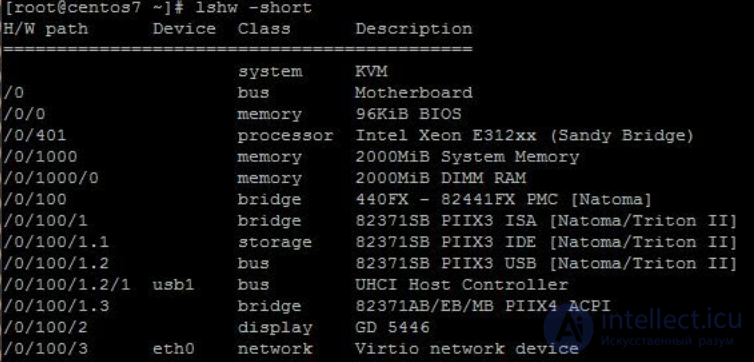
2) Displaying information briefly
As you can see, this amount of information is difficult to read on one screen. This short command can be used to get summary information about the system's hardware.
$ lshw -short
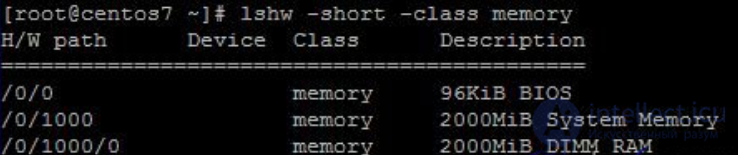
3) Displaying memory information only
We can list information about the memory and memory class.
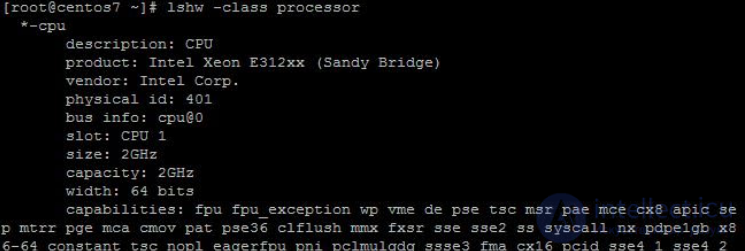
4) Displaying CPU information
CPU information can be displayed using the cpu class. Note, don't use the short option in order to get complete information.
5) Disk drives
We can also get information about storage and the volume class along with the disk class. This will give a clearer picture of the storage in the system.

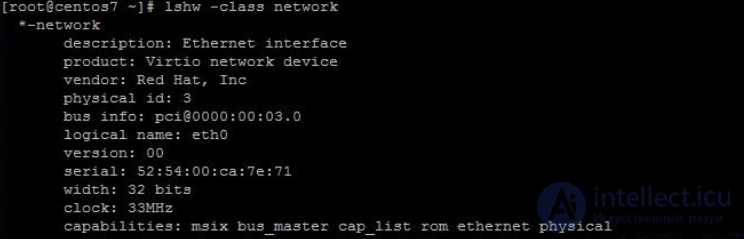
6) Network adapter information
The network class provides information about the network adapter / interface. It's better not to use the short option to get complete information.
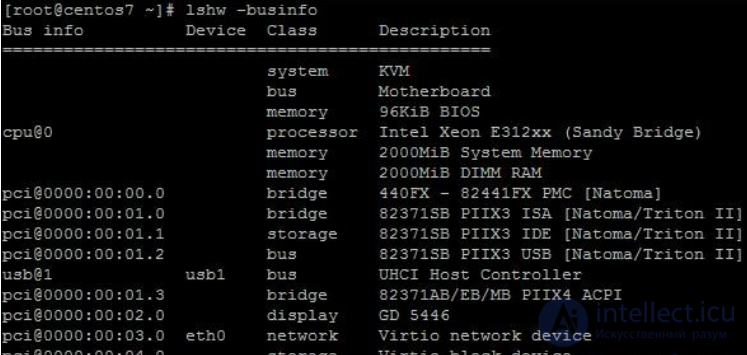
7) Displaying address details using businfo
To get detailed information about pci, usb, scsi and ide devices, you can specify them using the businfo parameter.

Comments