
Lecture
This manual provides a complete overview of the functional capabilities of the Matrix 3000 3G, its technical specifications, and the operating rules of the device, which is designed to run on the Windows platform. It includes recommendations on managing the interface with touch gestures, using the keyboard, connecting to the internet, installing the SIM card, and caring for the device. Special attention is given to built-in Windows applications such as Calendar, Mail, Photos, Music, Maps, News, and others, which provide convenience, productivity, and multimedia capabilities. Warranty terms and information about the manufacturer and importer are also provided, and the document concludes with a detailed table of technical specifications, including processor, memory, display, camera, wireless module, and supported network parameters. This document is intended for users who wish to set up and use their device as effectively as possible while observing safety and compatibility recommendations.
Warranty card
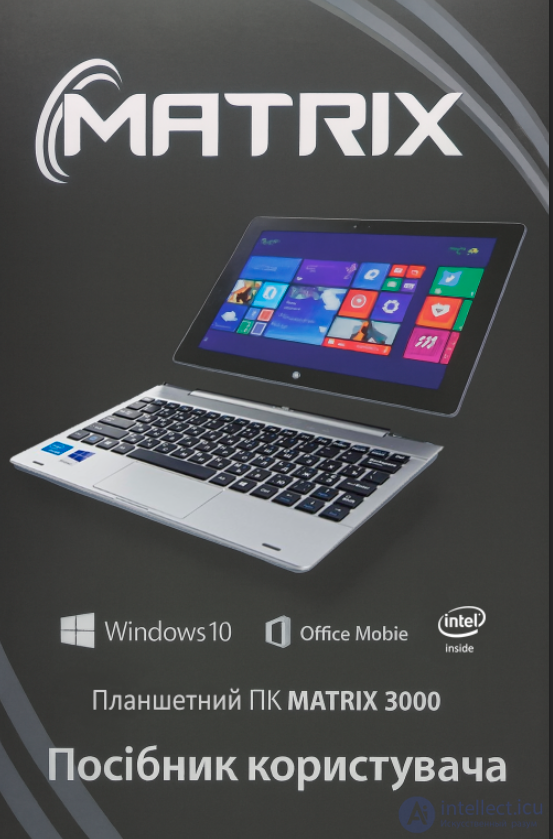
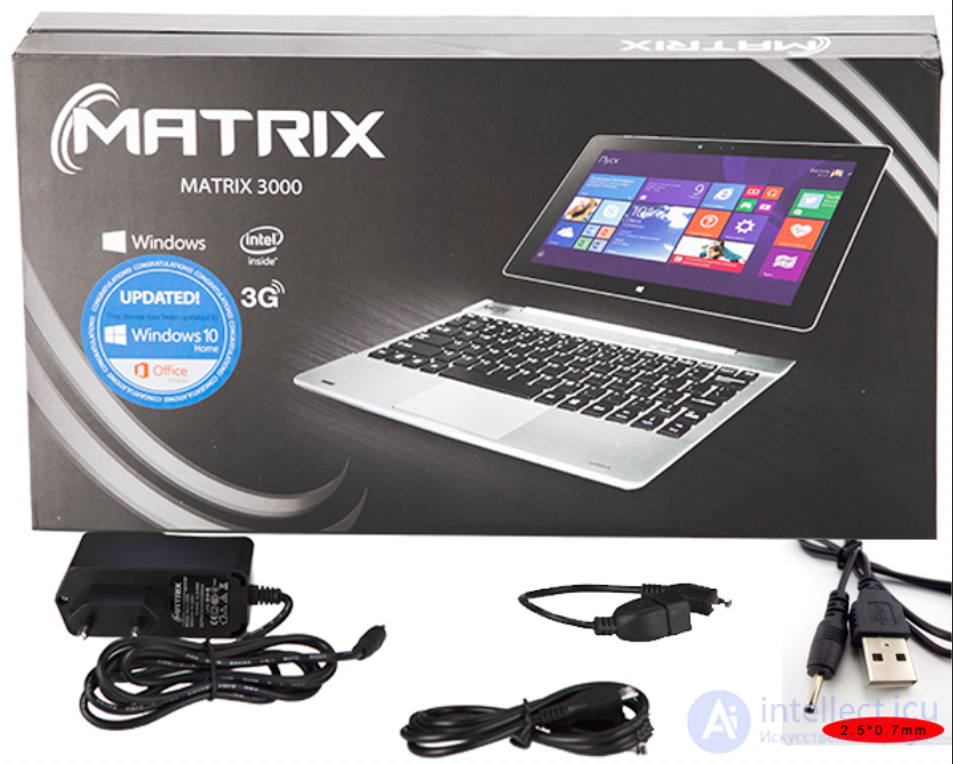
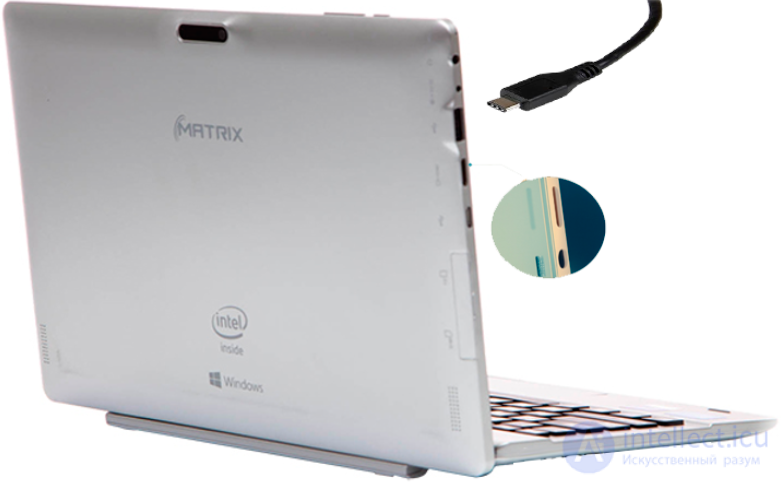
Device overview
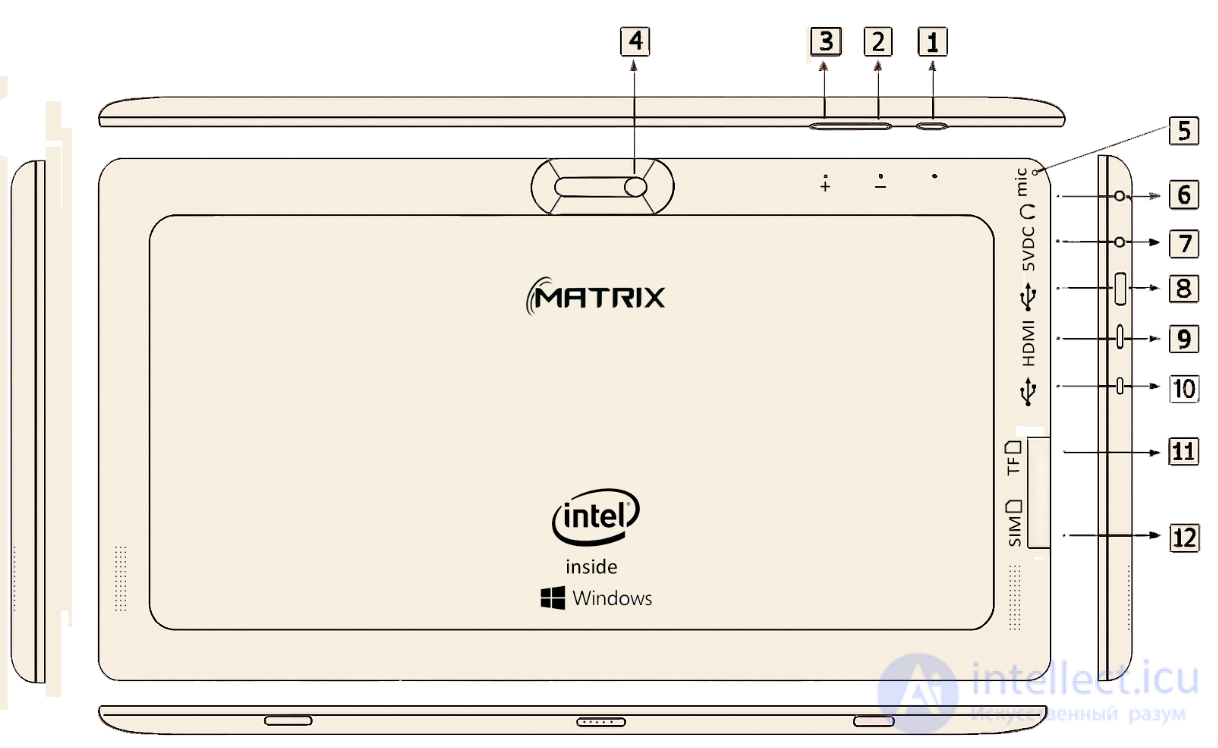
1. Power button
Press briefly to enter standby/wake mode, press and hold to turn on/off.
2. Volume +
3. Volume –
4. Front camera
5. Microphone
6. 3.5 mm headphone jack
7. Power connector 2.5x0.7 mm 5 Volts, center positive
8. USB connection 1
9. Mini HDMI interface
10. Micro USB (with charging function)
11. TF (MicroSD) card slot
12. Micro SIM card slot
| Turn off in prohibited areas | |
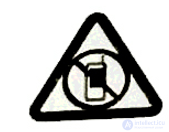 |
Turn off the device in places where its use is prohibited, for example:
|
| Road safety – the most important thing | |
 |
While driving: Focus your attention on the road Use hands-free devices Do not let the device distract you |
| Interference | |
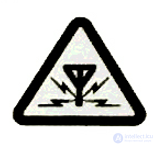 |
Mobile phones can: Create obstacles for medical equipment Affect the operation of other electronic devices |
| Qualified service | |
 |
Do not attempt to repair the device yourself Contact only qualified specialists |
| Batteries, chargers, and other accessories | |
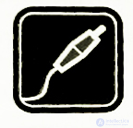 |
Use only approved batteries, chargers, and accessories that comply with the S805G standard They must meet the requirements of IEC/EN 62684 Incompatible micro-USB chargers may damage the device or create a hazard. |
| Keep the device dry | |
 |
Do not allow water to get in Avoid using the device in conditions of high humidity |
| Glass parts | |
 |
The screen is made of glass It may crack or shatter if dropped or struck Do not use the device with damaged glass Contact an authorized service center for replacement |
| Category | Parameter | Value |
|---|---|---|
| CPU | Type | Intel BayTrail-T CR Atom Z3735F |
| Graphics (GPU) | Type | SGX544MP2 |
|
Liquid crystal display |
Size / Resolution | 800×1280, IPS |
| TP | Structural material | G+G |
| Battery | Capacity | 6600 mAh |
| Memory | RAM | 2 GB |
| Memory | ROM | 32 GB |
| Camera | Front | 2 MP |
| Camera | Rear | 5 MP |
| FM radio | Support | not supported |
| GPS | Support | Supported, built-in |
| G-sensor | Type | Supported |
| Microphone | Type | Built-in |
| Speakers | Type, quantity | 2×AAC sound resonators |
| Wi-Fi | Supported frequencies and protocol |
802.11 b/g/n wireless protocol |
| OTG | Type, if included | Supported |
| Ethernet | Connection | Via external OTG adapter |
| HDMI | Type | Supported |
| Bluetooth | Type | Built-in, supported |
| 3G | Type | External 3G network via built-in function |
| Speed | 5.76 Mbit/s (upload), 21 Mbit/s (download) | |
| Bands |
GSM: 900+1800 H350-A50 additionally GSM: 850+1900 H350-B50 WCDMA: 900+2100 H350-A50 additionally GSM: 850+1900 H350-B50 |
Processor specifications
General tips
Before you begin, familiarize yourself with the basic concepts.
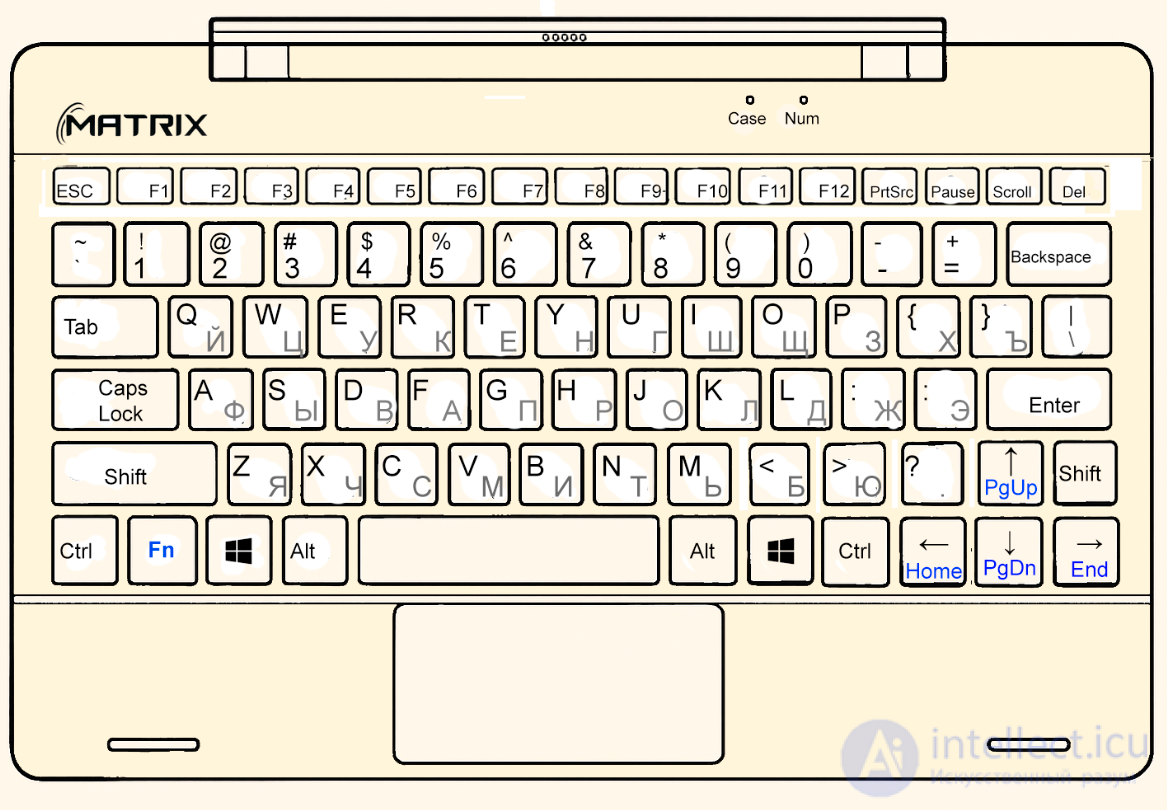
Explore the buttons and elements of your new PC.
Inserting the SIM card
Tip: Use a paperclip to remove the SIM card. If you don't have one, a thin paper clip will work.
Instructions:
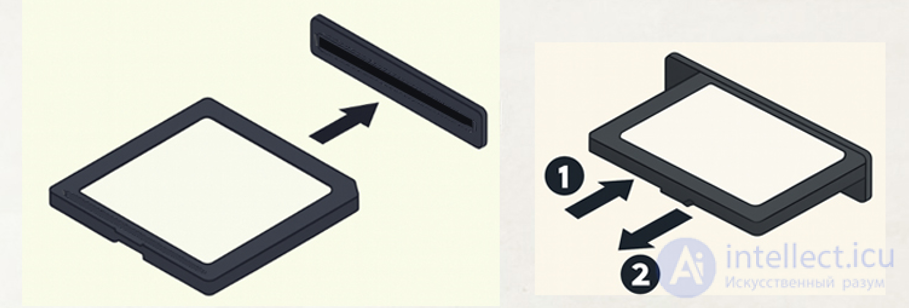
Installing the memory card
Hint: The procedure is similar to inserting the SIM card – use the same paperclip.
Instructions:
Before first use
Charging procedure
After charging
Charging time depends on:
Recommendations
Use the charger included in the package or one recommended by the manufacturer.
Charging is possible both when the device is on and off
Charging takes longer if the computer is on
Charging indicator
Red - charging in progress
Turning on the PC
Press and hold the power button until the device turns on.
Turning off the PC
Press and hold the power button until the device turns off.
Interacting with elements
Tap icons, buttons, menus, and panels to activate functions.
Use gestures to navigate and control the system.
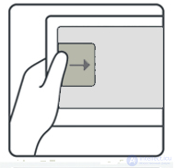
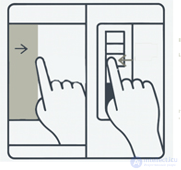
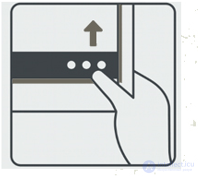
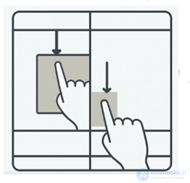
| No. | Gesture / Action | Result |
|---|---|---|
| 1 |
Swipe from the right edge of the screen inward
|
Brings up the system control panel From this panel you can:
|
| 2 |
Swipe from the left edge of the screen to the right
|
Opens the list of active applications. An icon appears for quick switching. |
| 3 |
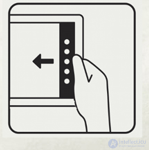
Swipe from the right edge of the screen to the left
|
Opens the list of recently closed applications. An icon appears for quick switching. |
| 4 |
Swipe up or down the screen
|
Opens the list of favorite applications. An icon appears at the top or bottom of the screen. |
| 5 |
Drag an application down
|
Closes the application. To close all — drag each one down. |
| 6 |
Hold your finger on an application
|
Shows detailed information about the application. |
| 7 |
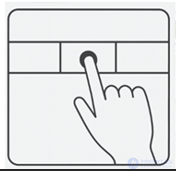
Press the touchpad
|
Performs an action, such as opening an application or link |
| 8 |
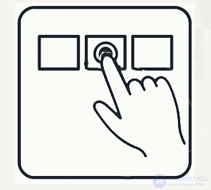
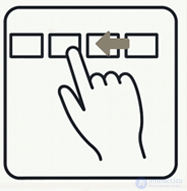
Swipe two fingers up or down
|
Scrolls content, such as a web page or a list |
| 9 |
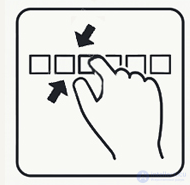
Spread or pinch two fingers
|
Zooms an image or document (zoom in/zoom out) |
| 10 |
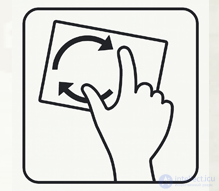
Rotate with two fingers
|
Changes the orientation of an object, for example rotating an image or map by 90° |
A Microsoft account lets you access Microsoft services on your computer or tablet. You can also use the same account to sign in to Xbox.
Make your life richer and get more out of your PC — create a Microsoft account.
Creating a Microsoft account requires an internet connection. If you are using a tablet or PC with a wired connection, it may already be online.
If you are using a mobile device or Wi-Fi, you may first need to connect to an available local network.
Find the network icon on the screen.
To set up your PC, follow the on-screen instructions. If prompted for an account — sign in using your Microsoft account.
If you do not have an account — follow the on-screen instructions. Online registration may require an internet connection.
Using a Microsoft account improves the convenience of working with the device. You will be able to access many Microsoft services, such as OneDrive, Outlook and PC.
You can also go to the initial setup screen and navigate to Settings > Other accounts > Add an account online, or reset your password via accounts.live.com.
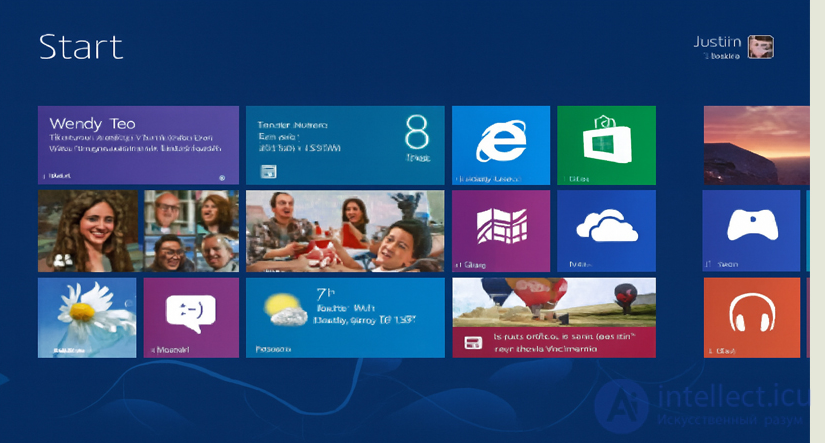
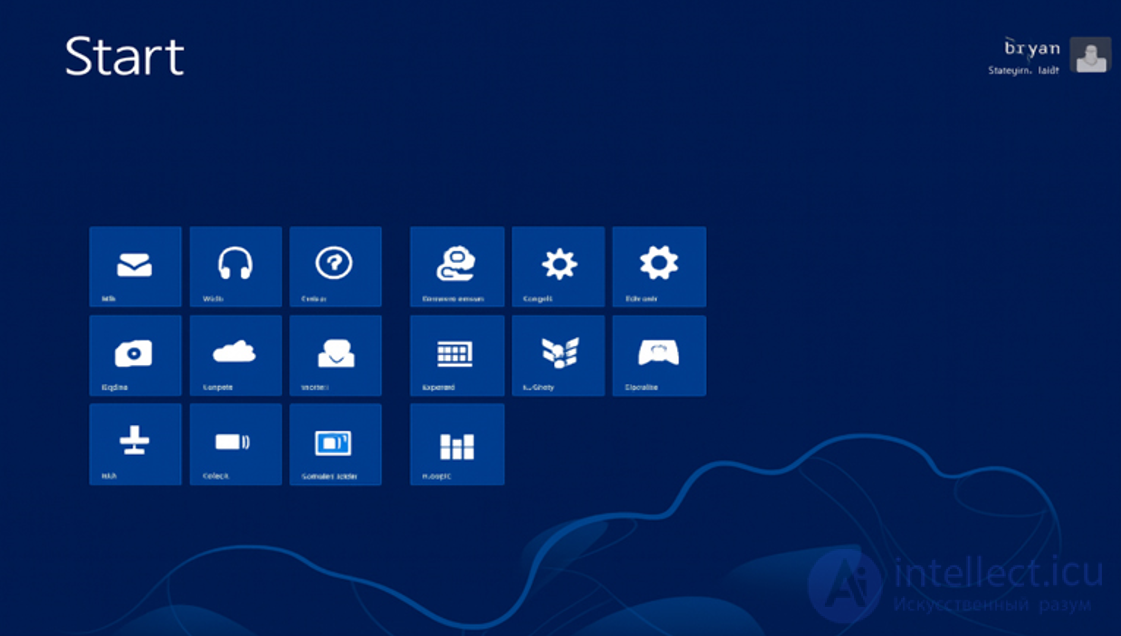
Windows 10 comes with many basic apps and other apps, for example, contacts, messages, photos and messages, which allows you to efficiently perform tasks, collaborate, and makes everything easier.
| App | Icon | Feature description |
|---|---|---|
| People |
|
View up-to-date information about people you communicate with through your email, Facebook, LinkedIn, Messenger, Twitter and other contact accounts |
| Photos |  |
View all your photos and videos in one place — even if they are on Facebook, Flickr, SkyDrive, or another PC. |
| Messaging |
Smiley face in a speech bubble
|
Send messages to a combined list of friends from Facebook and Messenger. Choose from hundreds of emoji. |
| Music |
Headphones
|
Browse your music collection, create and edit playlists, find popular new releases. Get information about songs, artist photos, biographies and much more. With an Xbox Music subscription — access to unlimited listening. |
| Maps |
Map with pins
|
Use Bing Maps to view interactive maps and get directions. Satellite imagery, terrain maps, floor plans and 3D views are available. |
| SkyDrive |
White cloud on a blue background
|
Get free access to your files from other devices through the Windows SkyDrive app. |
|
White envelope on a blue background
|
Receive emails from Outlook.com, Gmail, Yahoo and other accounts — all in one place. |
|
| Video |
White play button on a red background
|
Watch movies and TV shows on your PC or stream video to your TV. |
| Calendar |
Blue tile with a calendar icon
|
View your schedule by day, week, and month. Get reminders about appointments so you don't run late. |
| Games |
Purple tile with a gamepad
|
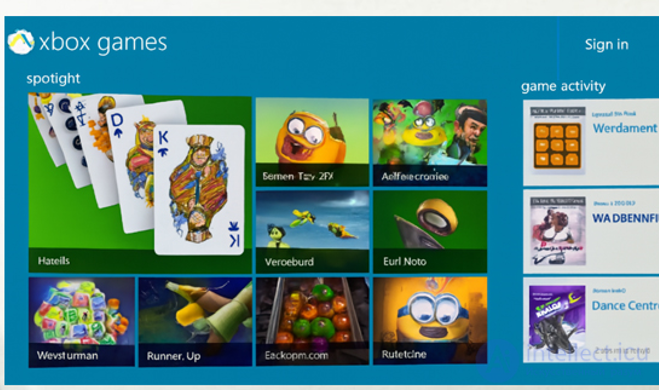
Explore popular new games to download on your PC, compete with friends and track achievements |
| News |
Red tile with a news icon
|
Access a wealth of images and news stories from Bing, to stay up to date on world events. |
| Weather |
Orange tile with a sun
|
Shows current weather conditions with beautiful images. Lets you track the weather in different locations. |
| Finance |
Green tile with a chart
|
Provides market data and real-time financial information in a convenient format. |
| Travel |
Blue tile with a suitcase
|
Offers beautiful images, mysterious places, and more than 800 attractions. Helps plan trips and explore new destinations with realistic visualizations. |
Zoom — use two-finger gestures to zoom an image in or out.
Global search on screen — performed with finger movements across the entire screen surface.
Switch to the last used app — swipe left to quickly return to the previous app.

Features such as Search, Share, the «Start» menu, Devices and Settings are always located on the right side of the screen.
Swipe from the right edge of the screen to the left,
Then tap the desired item to access the corresponding function.
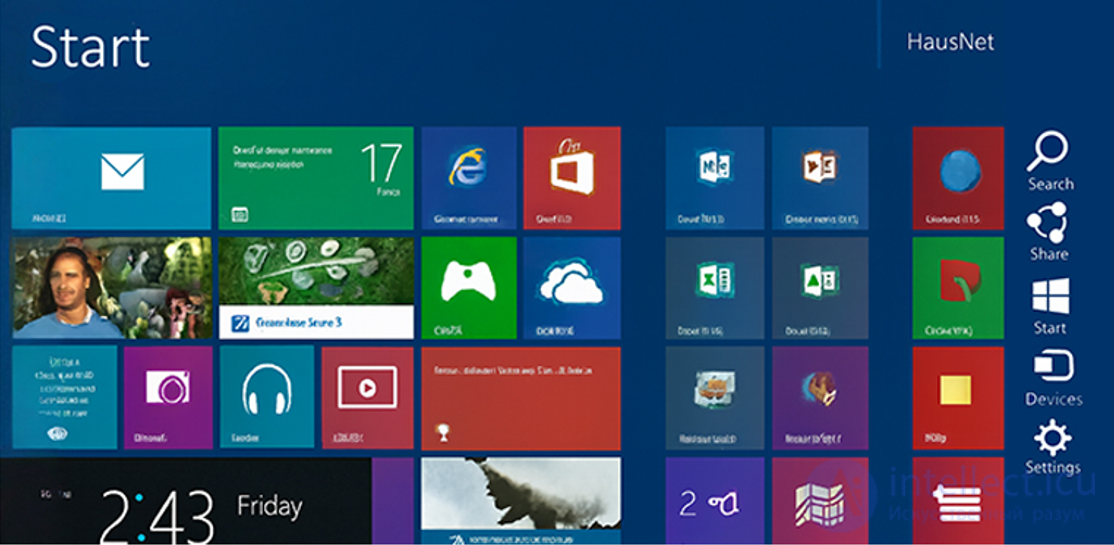
| No. | Function | Description |
|---|---|---|
| 1 |
Search
|
Search for anything at any time. You can search inside apps, in the store, in settings, or in PC files. |
| 2 |
Share
|
Without leaving the current app, share files and information with other apps or by email. |
| 3 |
Start
|
Launch the start screen or return to the last used app. |
| 4 |
Devices
|
Connect portable and wireless devices. You can print from apps or stream video to a TV. |
| 5 |
Settings
|
Change the settings of the current app or the entire PC: brightness, volume, notifications, keyboard, etc. |
Windows automatically uses the keyboard language you selected.
The touch keyboard layout automatically adapts to your system language.
You can type text by touching the screen with your fingers.
To activate the keyboard, tap the keyboard icon in the system menu.
To select the keyboard type, tap the keyboard icon inside the keyboard app
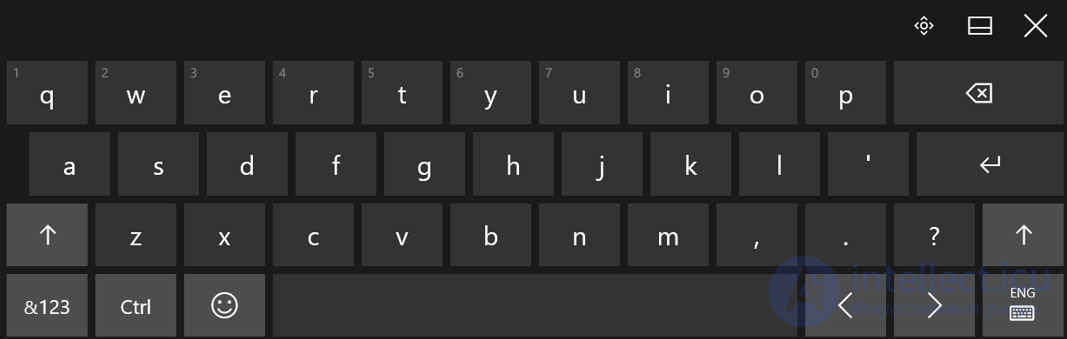
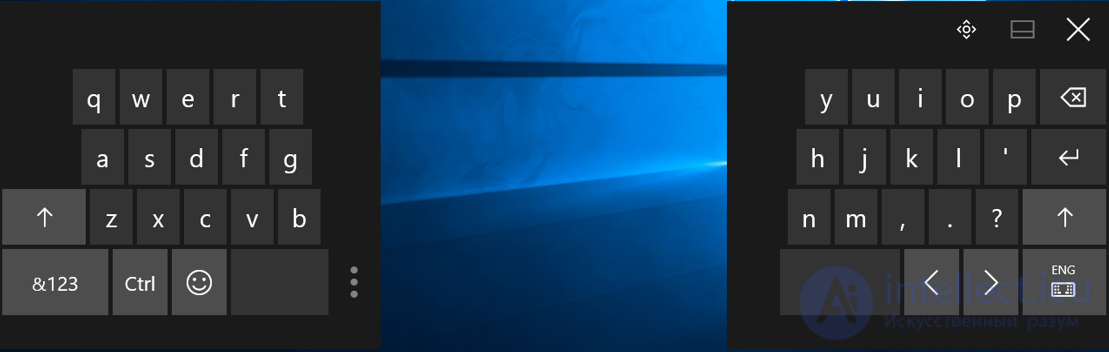
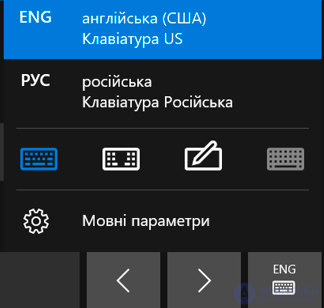

Regular keyboard — with large keys, convenient for typing with both hands.
Split keyboard — keys are located on the sides of the screen, convenient for typing with your thumbs.
This choice makes typing more convenient, comfortable, and less strenuous.
3. Handwriting keyboard with character recognition
| No. | Section | Feature description (translated from Ukrainian) |
|---|---|---|
| 1 | App overview |
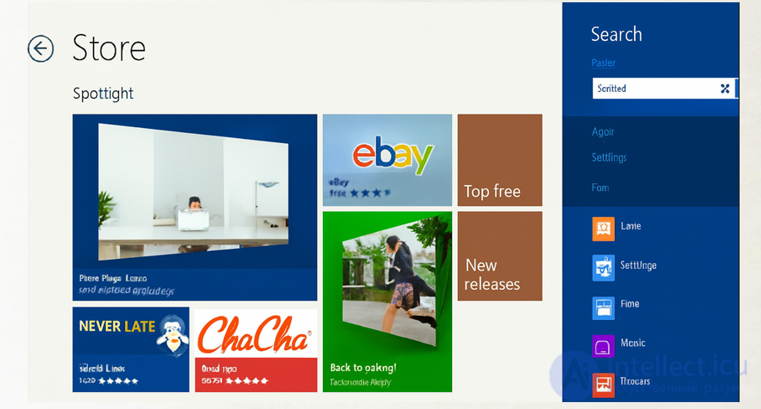
The Windows Store has great apps for your device: games, social networks, education, entertainment, sports, music, video and much more. |
| 2 | Categories and lifestyle |
Apps help you stay connected, communicate, lead a stylish life, shop, travel — all groups and categories are available. |
| 3 | Popularity and Xbox |
You will be impressed by the number of apps that Windows users have already downloaded. You can find apps for Xbox: play, watch movies, listen to music, and communicate via Xbox LIVE (with Windows 8 or Windows RT). |
Does your internet service provider charge a flat fee for data transfer, or based on usage?
Change your Wi-Fi and mobile data settings to reduce data transfer costs while roaming and at home.
Important note. Users of tablets that do not have built-in Wi-Fi or a SIM card may experience limited risk of data access by other people.
Using Wi-Fi is usually cheaper, faster, and cheaper than using mobile data.
If Wi-Fi access is available, the device automatically switches to that connection.
Your PC will use Wi-Fi.
1. On the start screen, swipe left and tap  Settings > Wi-Fi
2. Wi-Fi connection must be turned on 
3. Select the available Wi-Fi network you want to use.
4. Enter the correct password.
If Wi-Fi is not available, the computer will automatically use mobile data.
To use mobile data:
on the start screen, swipe left and tap Settings > Mobile Networks. (Mobile connection settings) and turn on mobile data.
Mobile data transfer can be costly, especially while roaming.
Data roaming means using your PC to receive data over a network that is not owned or used by your network service provider.
To enable or disable data roaming:
To enable or disable mobile data roaming:
 Settings > Mobile networks > Data enabled
Insert the SIM card into the tray so that the contacts are facing up. This logo image will appear on your PC.

You can connect to the network.
Handle this device, the battery, the charger, and the accessories with care. Below are recommendations that will help you keep the device operational:
Keep the device dry. Precipitation, moisture, and any liquids may contain minerals that cause corrosion of electronic circuits. If the device gets wet, do not use it.
The manufacturer guarantees that the product meets the requirements of the technical specifications.
The warranty period of use is 12 months from the date of sale through the retail trade network.
Warranty repair is not performed if:
Attention! In these cases repair is performed at the consumer's expense.
| Country of manufacture | Made in China |
| Manufacturer | Shenzhen Yingtai Electric Co., RM, Rongcheng Plaza 3104, 2001, Dong Road, Shenzhen, China |
| Importer | LLC «TEHNOPOLIS+15», 08130, Kyiv region, Kyiv-Svyatoshyn district, s. Petropavlivska Borshchahivka, ul. Velyka Kiltseva, 4 |
| Date of manufacture | November 2015 |
| Shelf life | Not limited before use begins |
| Country of Origin | Made in China |
| Manufacturer | Shenzhen Yingtai Imp. and Exp. Co. Ltd., RM 3104 Hongchang Plaza, 2001, Shennan Dong Road, Shenzhen, China |
| Importer | Limited Liability Company "Technopolis 15", 4 Bokshaya Okruzhnaya Street, Petropavlovskaya Borshagovka village, Kiev - Svyatoshinsky district, Kiev region 08130, Ukraine |
| Production Date | November 2015 |
| Period of Use | Not restricted before using |
| Color | Silver |
When applying for warranty repair directly at a service center, you must present the faulty product in complete set, as well as a sales receipt indicating the date of sale and the name of the product. When applying at the point of sale, you must also present the product in complete set and a sales receipt indicating the date and place of sale.
The request (of the buyer) or the organization performing warranty repair of the faulty product does not assume warranty obligations and is not liable for possible damage to the product arising from violation of operating, storage, or transportation conditions, mechanical damage, exposure to chemicals, liquids, ingress of foreign objects or insects into the housing, as well as for damage caused by natural disasters, fires, accidents, unstable mains voltage, etc.

| Coupon number | |
| Model | Matrix 3000 3G |
| Serial number | |
| Date of sale | 30 December 2015 |
| 20__ year | |
| Buyer's full name |
| Date of sale | ____________ 20__ y. |
| Model | ___________________________ |
| Serial number | ___________________________ |
| Date received | ____________ 20__ y. |
| Date issued | ____________ 20__ y. |
| Defect | ___________________________ |
| Ability to record up to three warranty claims |
| Date of sale | ____________ 20__ y. |
| Model | ___________________________ |
| Serial number | ___________________________ |
| Date received | ____________ 20__ y. |
| Date issued | ____________ 20__ y. |
| Defect | ___________________________ |
| Ability to record up to three warranty claims |
| Date of sale | ____________ 20__ y. |
| Model | ___________________________ |
| Serial number | ___________________________ |
| Date received | ____________ 20__ y. |
| Date issued | ____________ 20__ y. |
| Defect | ___________________________ |
| Field | Description |
|---|---|
| Center address | Kyiv, ___________________________ Avenue |













Comments