
Lecture
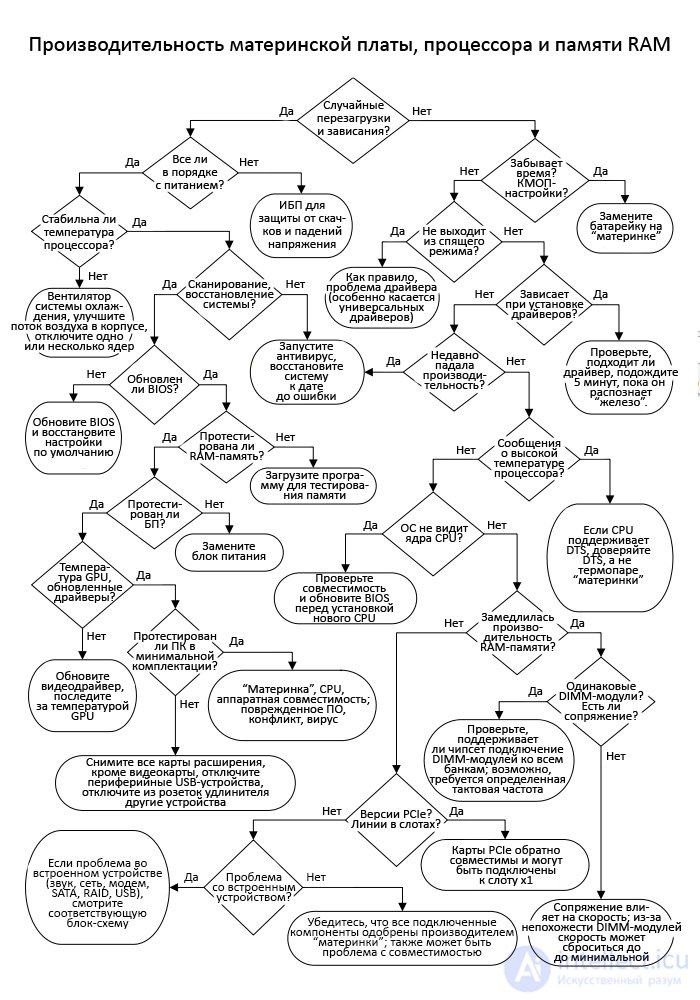

Does the system reboot on its own (either during boot-up or during normal PC operation) with no apparent cause? Random reboots and freezes often point to mechanical or thermal problems. Also keep in mind that an accidental change to your power management settings can cause your system to switch to standby mode after just a minute of inactivity. Constant reboots and freezes can also be caused by a corrupted OS or a virus, as well as by poor power supply and faulty RAM. Next we'll try to determine the cause of the problem by process of elimination.

I've come across PSUs so bad that the PC would reboot even if someone was just walking around the room or setting a cup of coffee on the desk. But people also tend to blame the PSU frequently for problems that are actually caused by the power supply system that the PSU draws current from. If you live in a place where voltage drops occur often (you can tell by a noticeable dimming of incandescent lamps) or where there are voltage fluctuations in the power grid caused by power consumption from large industrial facilities, or if your electricity comes from various renewable energy sources, then you can fix this problem by buying a quality UPS (uninterruptible power supply). This device will protect you from sudden voltage spikes and drops. You can also use a simple outlet tester to check whether the electrical circuits in your home are properly grounded.

Is the CPU temperature stable? If the temperature keeps rising and approaches the maximum values allowed by the manufacturer, this usually leads to a reboot or freeze, since the CPU simply shuts itself down to protect against overheating. The problem could also be a non-working fan on the CPU cooling system – in this case, replace it (replacing the whole cooling system is not necessary). Also remember that a fan's ability to cool the CPU depends on the air temperature inside the case. So if the case fans aren't working or are blocked, or if the intake and exhaust fans are pushing air in opposite directions (i.e. if they are all either blowing air out of the case or blowing it in), then the air temperature inside the case may be too high for normal CPU operation. The same applies to running a PC in hot weather if the room's air conditioner isn't working. If you need to replace the fan or cooling system, read about it in the text for the decision point "Is the fan on the cooling system working?" in the section "Motherboard, CPU, and RAM Fault".
If you have a multi-core processor, another way to solve an overheating problem is to disable one or more cores. This is an important step, since it directly addresses the CPU overheating problem, because who wants a PC with a processor running below its potential? If the CPU and GPU are combined in a single chip, you can try disabling the GPU and connecting an external graphics card to the PC as a test.

Have you done a full system scan for viruses and other malware (your antivirus program should have the latest updates installed)? Have you tried rolling Windows back to a point before the problem appeared? The author could write a whole thick book just about glitches caused by software problems, but this book is about hardware problems, so software issues here will only be addressed with, figuratively speaking, a "sledgehammer".
First, update your protection software or prepare a bootable DVD/flash drive with the latest version of a reliable antivirus, and then run a full system scan. If your hard drive holds a lot of data, this may take several hours. If the scan doesn't show any problems, that doesn't necessarily mean your system is perfectly clean. It just means your PC isn't suffering from any obvious problems.
Next, on any version of Windows (starting with XP) you can run System Restore. To open this feature's menu, click "Start" > "All Programs" > "Accessories" > "System Tools" > "System Restore". However, System Restore is not a cure-all, and it often happens that after attempting a restore, the system reboots and suddenly reports that nothing worked. Still, in my experience, this attempt has never made things worse. Sometimes the problem is solved by choosing a different restore date, but sometimes "System Restore" simply doesn't complete due to a conflict between installed software. If your OS version is still supported, contacting Microsoft's online support service usually helps in such cases.
If you don't have automatic Windows updates enabled, go to the Microsoft website and install the utility that checks the status of your OS, then downloads and installs all the necessary updates. This process can take a long time, especially if you've just reinstalled an old OS that needs several "service packs" installed for the full set. If Microsoft has ended support for your OS (as once happened with the original XP, and a few years later with the final version of XP), then before using the Microsoft "updater" you will first need to find the "service pack" and use it to update the distribution from the installation disc.
Another option is to boot into Safe Mode. Did the problem disappear? If so, you can be 100% sure the problem is software-related. Try updating all your drivers, and if the problem occurred after installing some new program or connecting a new PC component, by all means remove/disable that program/component. Did the problem disappear? You can also reinstall Windows, and this usually doesn't affect data such as pictures and documents, though you may run into problems with some installed programs. However, if something goes wrong as a result of these attempts (restore, reinstall, etc.), Windows will be sure to warn you about it.

If you haven't updated the BIOS in a long time (or ever), search online to see whether the motherboard or chipset manufacturer has released a new version that has already been tested for compatibility with your motherboard. Keep in mind that your OS has most likely been updated several times since the original BIOS version was developed, not to mention that plenty of new hardware has appeared on the market since then (even if your motherboard does support this new hardware). Reflashing the BIOS can solve all your problems, but pay close attention to all warnings during the flashing process and make sure the BIOS upgrade is compatible with your motherboard, since the wrong BIOS can turn your motherboard into a "brick".

Have you tested the RAM with a testing program? Download one (they are usually free) from a trusted site and run it for as long as needed to thoroughly test the RAM installed in your computer. Unlike a hard drive, which can tolerate and hide certain hardware errors through dynamic remapping, RAM modules should have absolutely no errors at all.

Have you done all the necessary power tests? Start with the simplest ones. For example, press on the PSU to check whether that causes the system to reboot, or plug the PC into a different outlet. If you've noticed that the PC reboots or freezes when your old laser printer starts a new cycle, or when a space heater turns on due to cold weather, then it's likely that the circuit the PSU is connected to is experiencing its own mini voltage drop.
As a rule, few people own a PSU tester, and computer repair shops often get by without one, since most of these devices can only check whether the correct voltage is present at each PSU pin, and can't change the load or detect ripple. If you're comfortable working "live" with a digital voltmeter in an open case, you can measure the voltage at the top of the ATX connector (if there's enough room). Properly displaying AC ripple in the DC voltage requires an oscilloscope, but some multimeters can handle this task well too, if used skillfully. Read more about this in the last text fragment in the section "Power Supply (PSU) Fault".
Have you updated your graphics card drivers to the latest version? Is the graphics card cooled sufficiently? Sometimes a graphics card vitally needs new drivers in order to work with software released after the first version of those drivers came out. For regular (OEM) graphics cards, new drivers can usually be found on the manufacturer's website (NVIDIA, AMD Radeon) or Intel's (drivers for the chipset or combined CPU and GPU). Updating the VBIOS is rarely required, and I don't do it unless the manufacturer explicitly recommends it. Most information about updating the VBIOS found online is generally created by "overclockers" for other "overclockers".
High-performance GPUs monitor their own temperature and then report it to the control software developed by the graphics card manufacturer. GPU temperature varies greatly depending on the amount of work being performed and rises significantly when, for example, a resource-intensive video game or an engineering simulation program is running on the PC. Of course, if the fan on the GPU's cooling system fails, the temperature will spike very high, causing the GPU to start «throttling» to protect itself, and if throttling doesn't help, it overheats and sustains serious damage.
If two graphics cards are installed in your PC, one of them will be located farther from the case's auxiliary fan than the other, and consequently will receive significantly less «airflow». Motherboard manufacturers generally have enough sense to place PCI Express slots compatible with SLI or CrossFire as far apart from each other as possible, but if the cooling fan of the first graphics card is located a few millimeters from the second, such a system is practically begging to overheat. Some graphics cards use two slots at the back of the case, one of which serves as an exhaust vent for the dual-fan cooling system.

Have you tested your PC in a minimal configuration (both in terms of «hardware» and software)? By «minimal configuration» I mean the minimal configuration for testing a specific problem. For example, testing a video problem doesn't require a hard drive, but testing a boot problem does. The test is simple to do, so leave only the components on the PC that are necessary for booting, boot Windows, and check whether the reboot or freeze has disappeared. If it has, start reconnecting the disconnected components one by one to find the culprit.
If the problem isn't with «hardware» like RAM, the PSU, or the graphics card (which you could determine using the «minimal configuration» test or by connecting known-good components), then there are still two options left – a defective CPU or a defective «motherboard». If the CPU isn't overheating, the problem is probably in the «motherboard». However, it could also be a software issue.
There are two main ways to test a minimal software configuration. The first is to boot into safe mode and do something for long enough (draw in Windows Paint or fiddle around in some other harmless program) to check whether this causes the freeze or reboot again. If everything is fine, then the problem is either corrupted software, a conflict, malware infection, some game, or some website.
The second and more thorough way is to connect a new hard drive to the PC and install a «clean» OS on it. Don't connect to the internet and occupy the system with just one task (for example, play a DVD). Has the problem disappeared? If so, connect to the internet, install all the Windows updates, and then use the PC for one day to check its stability. Then you can start reinstalling all the necessary software again, and try not to immediately load the PC with programs you don't use every day. In the end, the PC will either run without any problems (which will mean the problem was corrupted software or a virus), or the problem will return (which will mean the culprit is the last program installed).

Does the date and time on the system clock keep resetting? Or does the system not let you into the BIOS settings? Some old desktop PCs could even display a «Low Battery» warning at boot. Some «motherboards» have a removable battery (usually in the form of a large «coin cell»), and batteries of any voltage rating can usually be bought in stores. Generally, such a battery shouldn't fail over the entire service life of the PC, but if it does, the problem may be that some PC component is drawing power from it too intensively. If the BIOS settings are stored in EEPROM, a new battery won't help here – the EEPROM will need to be replaced.

Does your PC properly go into sleep mode (either via the PC shutdown menu, or using a special key on an advanced keyboard, or automatically via the parameters set in the power-saving settings), but then refuses to «wake up» when you move the mouse, press keys, or press the power button? There's also another variant of this problem – a screensaver that doesn't allow access to the desktop despite clicking on the keyboard. The problem, as a rule, lies in a conflict between software drivers or the need to update a driver. Start with the keyboard, mouse, and «motherboard» drivers, and if you've recently installed new «hardware» or a new program, try, as a test, reverting everything back to how it was before.

Did the PC freeze right during the installation of a new driver? This is not the same as a «real» freeze, since in this case you can, as a rule, simply open «Task Manager» ( Ctrl + Alt + Del ) and close the driver installation window in it. But the problem will remain if this is a necessary driver (which, unfortunately, cannot be installed), especially if it's not an update but the original driver for the «motherboard» or graphics card. The first step here is simply to wait. Sometimes it can take a driver 5 or even more minutes to detect and evaluate the «hardware».
Next, make sure that the driver you downloaded or took from a DVD matches the installed «hardware». Manufacturer websites, as a rule, do a poor job of quickly directing the searcher to the correct driver or update for the installed «hardware», especially if it's a generic component and you're relying on a driver from the chipset manufacturer rather than the component manufacturer. If you're unable to install the driver from the manufacturer's DVD, check it for scratches and, if possible, try to find the same driver on the manufacturer's website. If the driver is only available on the DVD, try to find the cause of the problem in the «DVD Performance» flowchart.
If the driver was downloaded from the internet, try downloading it again. A corrupted download is a much more common problem than many people think: error checking during downloads depends on the type of download and doesn't always work perfectly. There's also a chance that the manufacturer has posted a driver that hasn't yet been properly tested for compatibility, so check whether they have a previous version of this driver on their website.

Was there a case recently (a few days or weeks ago) when the PC's performance dropped significantly for a short time? The cause of this problem could be malware, but it could also simply be the hard drive filling up, causing the OS to run out of space for paging RAM memory to disk. Right-click on the «C» drive icon in Windows (it can be found in the «My Computer», «This PC» menu, etc.), then click «Properties» and make sure that at least 10% of the space on that drive is free. If it isn't, then instead of compression, I would recommend simply freeing up the necessary space. Delete files you no longer use, or archive them to a DVD. Also take the same actions as for the «No» answer at the «Scan, repair the system?» decision point above.

Does the BIOS or a monitoring utility show that the processor gets very hot after booting, even though the PC doesn't reboot or freeze? CPUs aren't always equipped with DTS (from the English «digital thermal sensors» or «digital temperature signaling», depending on the manufacturer), and motherboards are equipped with a thermocouple that reads the CPU temperature by contact. Before you start worrying about the processor overheating, make sure the high temperature is being generated by the DTS itself, and not by the thermocouple, which isn't capable of measuring the temperature inside the processor chip.
Multi-core CPUs and chips that combine a CPU and GPU can only report a single temperature reading. In this case, you may see a wide spread of temperatures, depending on the load on the cores and the GPU, and this overheating can be prevented by switching to a discrete graphics card or disabling one or more CPU cores via the OS.

Is your operating system unable to detect all the cores of your multi-core CPU? The cause of this problem is rarely faulty «hardware», so first make sure that operation of several cores isn't disabled. Instructions for disabling/enabling cores for your OS can easily be found on the internet. If all the cores are enabled, you may need to update the BIOS and motherboard drivers. If you upgraded your PC by installing a multi-core processor in place of a single-core one, you'll need to do a bit of dancing with a tambourine to get it working. For advice and instructions, consult the Microsoft forums, but keep in mind that some people just give up at this stage and reinstall Windows from scratch.

Does the memory testing program or the data during system boot show that the speed of the installed RAM is lower than it should be? There can be several reasons why RAM performs worse than its rated specifications – from being installed in an incorrect combination, causing the «motherboard» to be unable to recognize it, to incorrect BIOS settings. For example, some motherboards have more DIMM sockets installed than the chipset supports at high speed, meaning that if there isn't a single free socket on the «motherboard», all memory operations are processed at a lower speed. For more details, refer to your motherboard's manual.

Are your DIMM modules identical? Are the DIMM modules located in the same bank paired? Although it is generally believed that different DIMM modules can be connected to motherboards, as long as they have chips of the same speed and identical technology (single-sided, double-sided), it is much safer to use DIMM modules that exactly match each other – in speed, brand, and PCB generation. Ideally, all DIMM modules connected to the motherboard should be identical, and this especially applies to memory connected to the same bank. And in most cases, the motherboard identifies the DIMM module with the smallest speed and then forces all RAM operations to work at that speed.
Whether or not DIMM modules in banks are paired can also affect the increase in memory performance, but this also depends on the CPU's memory bus, since not all processors can take advantage of 128-bit or even 192-bit (these are triple-channel DIMM modules) memory. Channel pairing replaced interleaved memory technology (memory banks have always been with us), however modern multi-core processors may work better in unganged mode, when DIMM modules are distributed among cores.

Do the PCI Express versions of your expansion cards match the versions of the PCI Express slots on the motherboard? Do these cards use the appropriate number of lanes? Currently, 5 different versions of PCI Express are used in PCs (1.0a, 1.1, 2.0, 2.1, and 3.0), and you may still come across a card or motherboard slots that only support earlier versions of PCI Express. At the time this book was written, the release of PCI Express 4.0 was planned. With each new version, the PCIe standard doubled or nearly doubled the data transfer speed through each lane of the serial bus, and each slot, depending on the design, used from 1 to 16 lanes.
Cards, as a rule, are backward compatible with slots in terms of the number of lanes (x1, x4, x8, x16), but do not always have backward compatibility in terms of power. Motherboards with PCIe 1.1 slots may have a BIOS update allowing them to meet the requirements for PCIe 2.1 and higher cards, but their performance will be limited to PCIe 1.0. Users, as a rule, do not see a performance increase when switching from PCIe 2.0/2.1 to PCIe 3.0, since when the PCIe 3.0 standard appeared, PCIe 2.0 cards had no bandwidth problems.
The more lanes a PCIe slot requires, the more expensive it is to add that slot to the motherboard. In order to be able to physically support several powerful graphics cards, motherboard manufacturers may save money by equipping them with full-featured slots, but not providing the motherboard with the necessary components to work with all these lanes. As a result, you can see slots labeled "x4 (x1)" or "x16 (x8)", which means that they are compatible with an x4 or x16 card, but the slot only supports x1 or x8 number of lanes. Note also that some older motherboards supporting AMD CrossFire or NVIDIA SLI require a so-called "PCIe switch", which is placed in an empty x16 slot if only one of the two x16 slots is occupied by a graphics card.
Some motherboard manufacturers use a less elegant approach, removing the low-performance parts (x1, x4, x8) from the slot, resulting in part of the connector hanging in the air when a powerful card is connected to such a slot. Some expansion cards correctly read the number of available lanes and adjust accordingly, but their performance, of course, will be limited by the number of available lanes. And make sure that the exposed contacts on the free edge of the card do not touch other motherboard components.

Have you had any problems with any integrated motherboard component (sound card, network card, mouse/keyboard ports, modem, USB) or PATA or SATA disk controllers? For all these devices, this book has a separate flowchart (but problems with the mouse, keyboard, and USB are combined into one flowchart about peripheral devices). Each of these motherboard functions can be upgraded or replaced with an inexpensive expansion card, but only if there are free slots on the motherboard, and you have the ability to disable the device built into the motherboard.
If you have reached this decision point but the cause of the problem has still not been found, try going through other performance flowcharts related to your problem. Also, make sure that all your components are approved by the motherboard manufacturer, and also update the BIOS if the manufacturer still releases updates for it. If you are dealing with an old motherboard that has no name at all, then things are more complicated here, since manufacturers eventually abandon support for their PC components. So you may find yourself in a situation where you have a properly working component on hand, but you simply won't be able to get it to work with the latest version of Windows. Microsoft also eventually stops supporting old versions of Windows, so no PC can work forever, unless it was never connected to the internet and its hardware was never upgraded.
In addition, there is always a chance that the components you have installed are too new, as a result of which the BIOS simply does not know what to do with them, or the motherboard does not know how to take advantage of their capabilities. Sometimes the BIOS identifies the component correctly (such as the CPU or hard drive), but its functionality (operating speed or capacity) is limited by the capabilities of the motherboard. No one is to blame for this problem – motherboard manufacturers simply cannot be prepared for everything that may become popular in the coming years. Not to mention testing compatibility with PC components, which doesn't exist at all yet.
When it comes to the question of powerful computers, most users understand that a faster processor, with speed expressed in megahertz or gigahertz, is more desirable. Similarly, it's pretty obvious that having more gigabytes of memory (RAM) is a good thing. But your random access memory device has another important characteristic: speed.
Too little RAM is a common cause of a computer "freezing" with a large number of tasks
The speed of your RAM module is an expression of the data transfer rate. The faster the number, the faster your computer can store and retrieve data stored in RAM.
The formula for accurately estimating memory speed changes slightly depending on the version of DDR memory used by the computer. It is no longer simply an expression of clock frequency, as with a processor, but a combination of hardware factors.

Although the RAM speed rating is usually expressed in terms of "DDR", we also have the old PC2/PC3/PC4 standard, which is still in effect. These numbers usually correspond to the speed rating that matches the generation standard: "DDR3 1600 RAM" is also designated as "PC3 12800", "DDR4 2400 RAM" also as "PC4 19200" and so on.
This technicality is based on the old bit and byte expression of data – one byte equals eight bits. So if the first number – DDR 1600, is expressed in millions of bytes per second, the second number – PC3 12800, is expressed in millions of bits per second. 12800 divided by eight equals 1600, so these two markings express the same thing.
As a rule, RAM markings will be less confusing if you focus on "DDR2/3/4".
In addition to the standard speed ratings, each RAM module also has a rating called timing. It is written as a series of four numbers, for example 5-5-5-15 or 8-8-8-24. These figures express the specific time it takes for the module to access individual bits of data by columns and rows of the memory array.
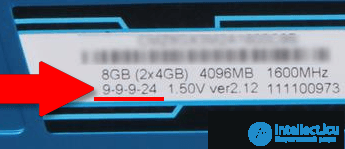
Latency is related to how quickly the RAM module can access its own memory cells; the smaller the number, the better. Lower timing means faster data access, thereby speeding up data transfer to the central processor and speeding up your computer's operation. Higher quality, more expensive RAM has lower latency, and this rating and the RAM clock speed can be overclocked by enthusiasts.
That said, the differences in latency are so insignificant that, unless you are running industrial-level server operations or several virtual machines, you are unlikely to see a real difference between RAM with higher or lower latency.
Honestly, they matter very little. Of course, a lower timing will increase your computer's technical specifications, but this will happen at such a level that most users will not notice any difference.
Faster RAM will give your PC higher performance in certain specific tests, but in terms of actual benefit for most users, having more RAM is almost always better than speeding up RAM. Therefore, if you are thinking about buying 8 GB of DDR4 RAM at a speed of 3200 or 16 GB of DDR4 RAM with a rating of 2400, – take the second option.
This also means that overclocking RAM in the system BIOS is rarely worth the effort.
This is especially true for games. If your computer has a discrete graphics card, then games will rely primarily on the graphics card's own memory (designated as "GDDR", specifically designed for visual applications).
Note. Since your graphics card's memory is mounted directly on the graphics card's PCB, its final capacity cannot be upgraded. Again, choosing a card with more memory is usually better than one with faster memory.
Faster RAM can help improve visual performance on computers using an integrated graphics processor, such as Intel's non-discrete designs or AMD's accelerated processor series. This is because this setup depends on system memory. It can also make a more noticeable difference for machines that are constantly accessed from multiple points, such as high-traffic web servers or a virtual machine host. But for most users, this simply doesn't matter.
RAM is brought to market in different generations, with updated standards providing fast access to data stored in memory. The original DDR-short standard for "Double Data Rate" reached Single Data Rate RAM in 2000, and currently DDR version 4 is the main one. DDR3 RAM, which appeared in 2007, is still used on older or cheaper PCs.
Each subsequent version of DDR increased the bandwidth and speed of RAM, resulting in improved performance. But it's important to remember that these standards are not backward compatible. If your laptop or motherboard is designed for DDR3 memory modules, you won't be able to install DDR2 or DDR4. The physical slots for different standards don't even match, so installing an incompatible DDR standard is impossible in any case.
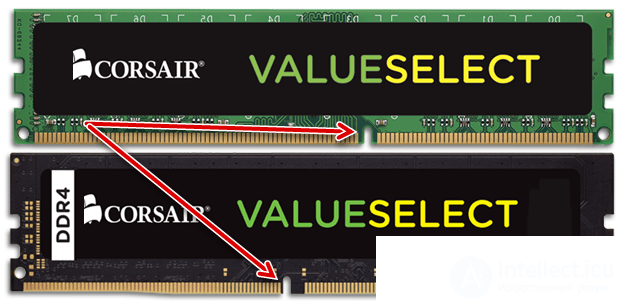
However, this does not apply to speed ratings. The motherboard's RAM slots can operate at speeds lower than their maximum value without any problems. So if your motherboard accepts DDR4 RAM at up to 3600 MHz, but you found a good price on 2400 MHz modules, feel free to install them.
Also note that your motherboard may not support the stated RAM speed. If you buy DDR4-3600 RAM, but your motherboard supports modules up to DDR4-3400, it will be able to sync at its lowest default setting, say, DDR4-3000. You can go into your computer's BIOS and set the correct speed, either by enabling Intel Extreme Memory Profile (XMP), or by configuring the speed manually.

Comments