
Lecture 10 min.
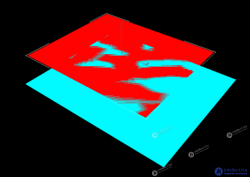
Z-fighting (Z-conflict) , also called stitching or planar conflict , is a phenomenon in 3D rendering that occurs when two or more primitives are at very similar distances from the camera. As a result, their values in the z-buffer , which tracks depth, end up nearly or exactly identical. This means that when a particular pixel is rendered, it is ambiguous which of the two primitives is displayed in that pixel, because the z-buffer cannot determine precisely which one is farther away than the other. If one pixel is unambiguously closer, the less close one can be discarded. This is especially typical of coplanar polygons, where two faces occupy practically the same space and neither is in front of the other. As a result, the affected pixels are rendered with fragments of one polygon or the other arbitrarily, in a way determined by the precision of the z-buffer. This can also change as the scene or camera changes, so that one polygon "wins" the z-test, then the other, and so on. The result is flickering and noisy rasterization of two polygons that "fight" for the color of screen pixels. The problem is usually caused by limited sub-pixel precision and by rounding errors in floating-point and fixed-point arithmetic.
The higher the precision of the z-buffer, the less likely z-fighting is to occur. But for coplanar polygons the problem is unavoidable unless measures are taken to eliminate it.
As the distance between the near and far clipping planes increases, and especially when the near plane is chosen close to the eye, the likelihood of z-fighting between primitives grows. In large virtual environments there is an inevitable conflict between the need for visibility in the distance and in the foreground. For example, in a space flight simulator, if a distant galaxy is drawn to scale, the viewer will not have enough precision to render any foreground cockpit geometry correctly (although even the numerical representation would cause problems before z-buffer rendering). To mitigate these problems, z-buffer precision is skewed toward the near clipping plane, but this is not always the case, and it is not enough to eliminate all problems related to z-fighting.
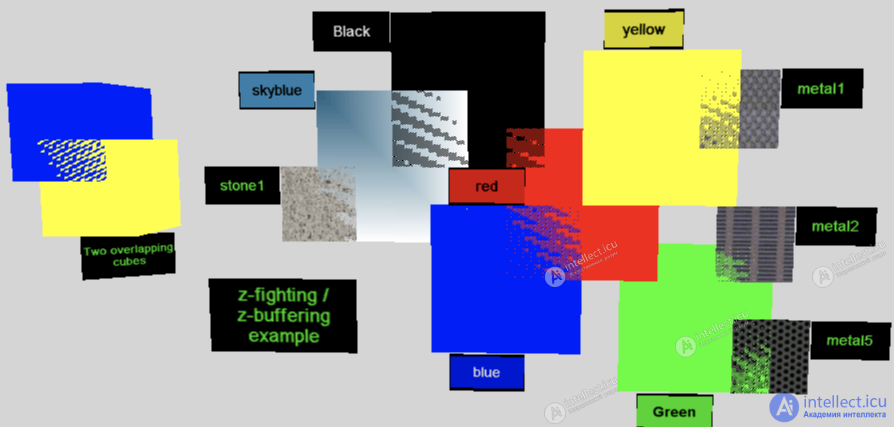
A demonstration of z-fighting using several colors and textures on a gray background.
Z-fighting problems caused by insufficient depth buffer precision can be solved simply by reducing the view distance in the world. This reduces the distance between the near and far planes and solves the precision problem. However, in some virtual environments where long-distance visibility is essential or where reduced visibility would be unrealistic, such as a space or flight simulator, this is not possible. In such cases there are alternative methods. One is to "fake" the distance of objects that are far from the user without actually changing their positions. For example, if the maximum safe view distance (beyond which Z-fighting occurs) is 10,000 units, and the object to be displayed is 15,000 units away, that object can be drawn at a distance of 10,000 units but scaled proportionally to the movement. Thus, an object scaled by half will look as if it is twice as far away as it actually is. If this is done only for objects that are already close to or at the maximum view distance, and objects close to the user are rendered normally, this method should not be noticeable. Another method used to reduce or completely eliminate Z-fighting is switching to a logarithmic Z-buffer, that is, reversing Z. This method is used in Grand Theft Auto V. Because of the way floating-point numbers are encoded, they have much greater precision when they are closer to 0. Here, reversing Z gives greater precision when storing the depth of very distant objects, thereby significantly reducing Z-fighting.
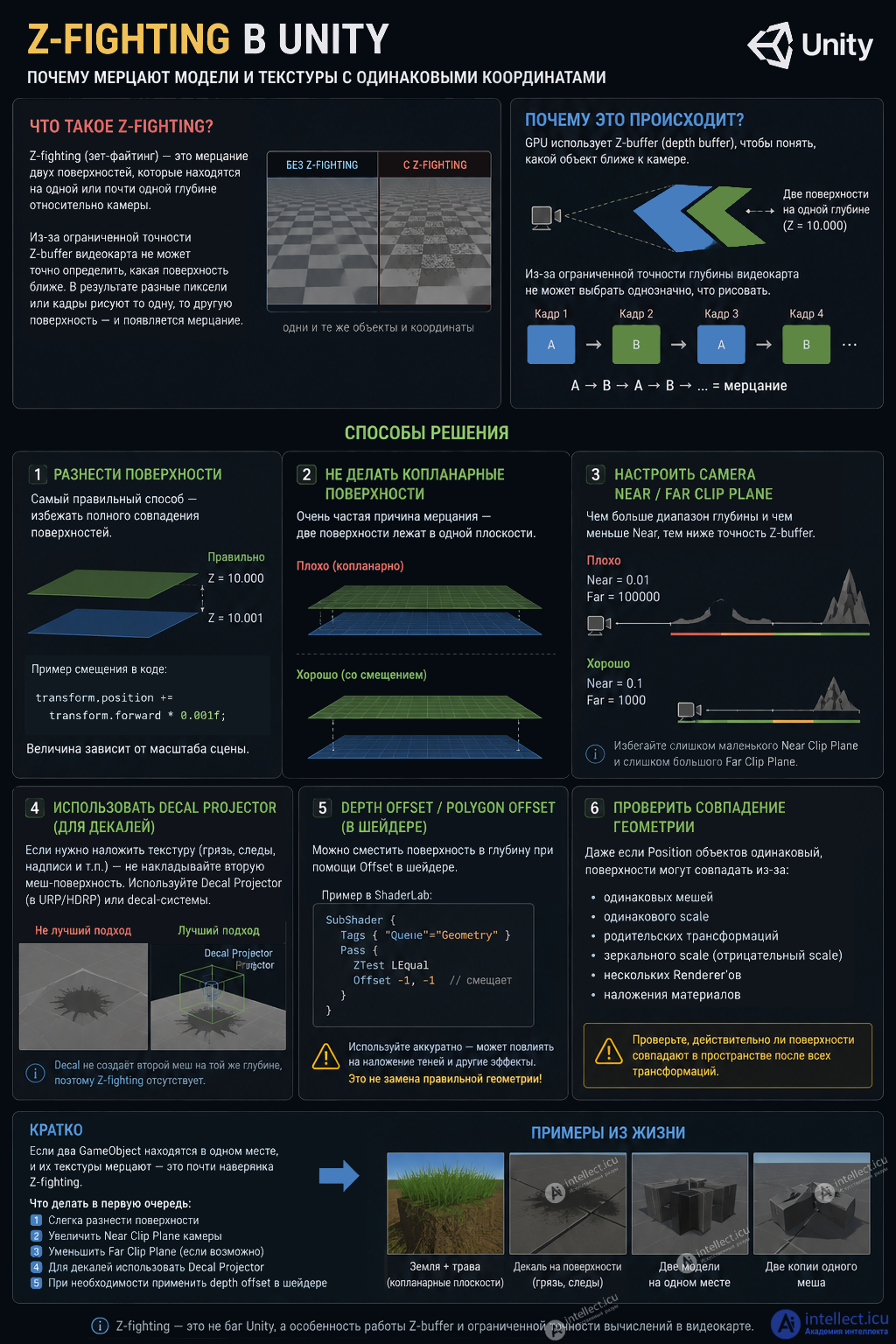
If objects really must sit on top of each other, move them slightly apart:
Model A: Z = 10.000
Model B: Z = 10.001
For UI/decals, a very small offset is sometimes enough, for example:
transform.position += transform.forward * 0.001f;
But the amount depends on the scale of the scene.
A very common cause:
████████████  ← Mesh A
████████████  ← Mesh B
If this is, for example, ground + a grass plane, it is better to do it like this:
      ████████████ ← grass
------------------ ← ground
That is, give the grass a small height offset.
Camera Near/Far Clip Plane rangeThis is a very important point.
If the camera has:
Near = 0.01
Far  = 100000
the depth buffer precision is distributed unevenly, and Z-fighting becomes much more likely.
You can try, for example:
Near = 0.1
Far  = 1000
or even:
Near = 0.5
Far  = 500
if the game allows it.
It is especially important not to set an excessively small Near Clip Plane.
If you are trying to create, for example:
it is not always a good idea to place a second mesh directly on top of the first.
In Unity you can use a Decal Projector / the decal system of the corresponding render pipeline.
If you control the shader, you can use a depth offset, for example, conceptually:
Offset -1, -1
This makes the surface be perceived as slightly closer/farther during depth comparison.
But this is more of a specialized solution than a replacement for fixing the geometry.
Sometimes it seems that:
Position A = (0, 0, 0)
Position B = (0, 0, 0)
but the problem may not lie only in Transform.position.
What may coincide is the mesh surfaces after transformations, for example because of:
if flickering occurs within a single Unity Terrain specifically at the transition from one painted texture to another, it is not necessarily Z-fighting. Moreover, in a typical situation with two Terrain layers it is most likely not Z-fighting, because the Terrain still has a single geometric surface, and the textures are blended by the shader.
Suppose a single Terrain is painted with:
Unity does not stack three surfaces on top of each other. It works roughly like this:
              ONE Terrain surface
        ───────────────────────────────
           ↑       ↑       ↑
         grass    dirt    rock
        Texture 1 ─┐
        Texture 2 ─┼─→ blending → final color
        Texture 3 ─┘
So if flickering, ripples, white/dark pixels appear at the grass ↔ dirt boundary, or the surface seems to "jump", you should look for the cause elsewhere.
If a texture has fine details:
▒▒▒▒▒░░▒▒░░▒▒▒▒░░
░▒▒▒░░▒▒▒▒░░▒▒▒░░
and the player looks at the Terrain at a steep angle or from a distance, individual texture pixels start switching rapidly between mip levels.
The result is:
Frame 1 → ░▒░▒░▒
Frame 2 → ▒░▒░▒░
Frame 3 → ░▒░▒░▒
And the eye perceives this as flickering.
This is especially noticeable with:
A very common source of flickering.
If a texture has incorrect or missing mipmaps, it may look unstable as the camera moves away.
Check the texture settings in the Inspector:
Texture Import Settings → Generate Mip Maps
For ordinary Terrain textures, mipmaps should usually be enabled.
Several textures are used at once at the boundary.
If the textures themselves differ greatly in detail/contrast, the boundary can look visually "noisy".
Increasing Brush Opacity is not necessary; it is more important to make the transition wider and smoother.
This is a very common cause, especially if the color texture looks fine but the surface still "glitters" or ripples.
For example:
Albedo → fine
Normal Map → X too much detail
                     ↓
               lighting flicker
Try temporarily removing the Normal Map from the problematic Terrain Layer.
If the flickering disappears, you have practically found the problem.
For example:
Bad:
white rock █████
black spots █████
When the image is scaled down, the GPU constantly recomputes which pixels should contribute to the final color.
Better:
a texture with a more uniform frequency of detail and less extreme contrast.
If you have two Terrains, or two Terrain surfaces, lying one above the other, then yes:
Terrain A
────────────────────
Terrain B
────────────────────
And this is where you get real Z-fighting.
For example, it is especially worth checking for:
Run the following tests:
Temporarily remove the Normal Map from the problematic texture.
Flickering gone → the problem is the Normal Map/lighting.
Replace the problematic texture with a simple solid-color one.
Gone → the problem is in the texture itself, mipmaps, or aliasing.
Move the camera closer.
If:
far away → flickers
close up → fine
then mipmapping / texture aliasing / filtering are very likely.
Disable the second Terrain Layer.
If the flickering disappears specifically when it is disabled, investigate the texture, normal map, and Terrain Layer parameters, not the Z-buffer.
Turn on Scene View and look at the geometry.
If you find:
Terrain
   +
another surface
then check for Z-fighting.
check in this order:
1. The Normal Map of the problematic Terrain Layer
↓
2. The texture's Mip Maps
↓
3. Texture Filtering / Anisotropic Filtering
↓
4. A texture pattern that is too fine/contrasty
↓
5. Terrain Layer / shader
↓
6. And only then Z-fighting
That is, do not rush to fix this with Near/Far Clip Plane. If you really do have a single Terrain surface, changing Near/Far may do nothing at all.

Comments