
Lecture
A gizmo is a tool or visual interface element used in 3D programs for manipulating objects in a scene. A gizmo helps you interact with objects by providing convenient ways to transform, adjust, or visualize their properties. In other words, it is any graphical representation of a control for a modifier in a computer application.
Related concepts
Wireframe
A display mode for objects in which a gizmo can be useful for working with hidden faces.
Viewport
The area of the screen where scene objects and gizmos for manipulating them are displayed.
Helpers
Elements such as lines, spheres, or cubes that visualize an object's parameters (for example, a light's radius).
Manipulator
An alternative name for a gizmo, often used to describe transformation tools.
Bounding Box
A visual box bounding an object, which can be used together with a gizmo for transformation.
Soft Selection
A mode in which gizmo transformations are smoothly propagated to neighboring vertices or areas.
Control Handles
Gizmo elements for controlling the parameters of procedural effects (for example, the direction of a force).
Keyframes
A gizmo can help visualize object positions on the animation timeline.
Spline Control
A gizmo is used for manipulating spline control points.
Custom Gizmo
Custom gizmos created to visualize or control unique parameters (for example, a spell's area of effect in a game).
Handles
An alternative term for gizmo control elements.
Gizmo Tool
A general term for transformation tools in editors.
Below we will look at what a gizmo is in the context of various 3D programs:
Unity is a program for creating games, applications, and VR/AR projects. It is easy to use, has a powerful game engine, and is cross-platform.
In Unity, a gizmo is a tool for visualizing and interacting with objects in a scene. They are used for:
Types of gizmos in Unity:
Example:
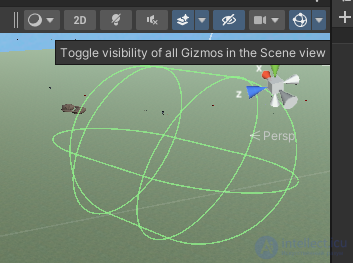
Many gizmos are displayed as a built-in tool, but you can also extend the functionality and display a given gizmo with the customization and placement you need through code.
To display a gizmo sphere of a given radius around a GameObject in Unity using C#, you need to use the OnDrawGizmos or OnDrawGizmosSelected method. This method is called by Unity in the editor to draw gizmo objects.
Here is an example of how to do this:
using UnityEngine;

public class GizmoSphere : MonoBehaviour
{
    public float sphereRadius = 1.0f; // Sphere radius
    public Color gizmoColor = Color.green; // Gizmo color

    // Always display the gizmo
    private void OnDrawGizmos()
    {
        Gizmos.color = gizmoColor; // Set the gizmo color
        Gizmos.DrawWireSphere(transform.position, sphereRadius); // Draw the sphere
    }

    // Display the gizmo only when the object is selected
    private void OnDrawGizmosSelected()
    {
        Gizmos.color = gizmoColor; // Set the gizmo color
        Gizmos.DrawWireSphere(transform.position, sphereRadius); // Draw the sphere
    }
}
Blender is a program for modeling, texturing, rendering, animating, and creating VFX. Features: free, open source, an all-purpose tool.
In Blender, a gizmo is an interface element for working with objects in a 3D scene. Gizmos in Blender include:
Example:
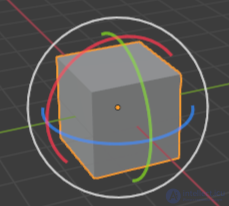
Maya is a program in which you can create professional 3D animation, modeling, characters, and special effects.
In Autodesk Maya, gizmos are also transformation tools:
Usage example:
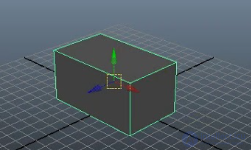
3ds Max is a program designed for visual modeling, rendering, and visualization of architecture, games, and animation.
In 3ds Max, a gizmo plays a similar role:
Example:
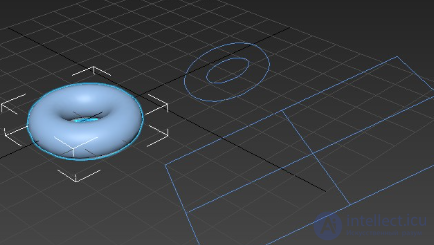
Unreal Engine is a program for developing games, VR/AR, visualization, and interactive projects. Features: photorealistic graphics, a powerful engine, used in film and architecture.
In Unreal Engine, a gizmo is used to control objects and display information in the level editor:
Example:
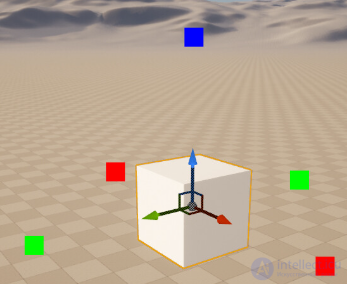
Houdini is a program for creating procedural graphics, special effects (VFX), and simulations. Features: used in film, for procedural modeling and complex effects.
In Houdini, gizmos are used for:
Example:
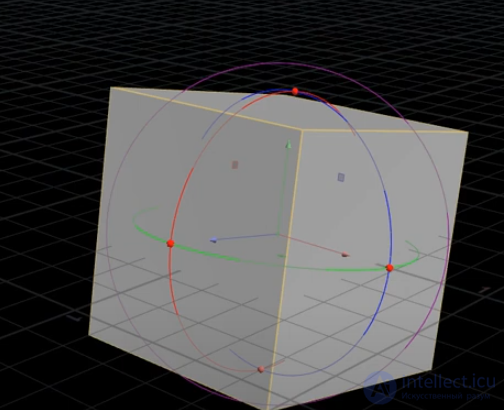
Using gizmos significantly speeds up the workflow, making object control intuitive.
Unity is a program for creating games, applications, and VR/AR projects. It is easy to use, has a powerful game engine, and is cross-platform.

Comments