You get a bonus - 1 coin for daily activity. Now you have 1 coin

Post-rendering Post-processing — The Final Stage of Visual Image Processing

Lecture


Post-rendering (from the English "post-processing rendering") is the final stage of visual image processing, applied after the scene has been rendered.

Post-processing is a stage of image or scene processing applied after rendering in order to improve visual quality and add effects such as blur, lighting, color correction, and so on. This process is important for creating a professional and atmospheric visual style in 3D games and applications.

This technology makes it possible to enhance the visual output in games, animation, and video, allowing various filters, effects, and detail corrections to be added.

Main functions of post-rendering

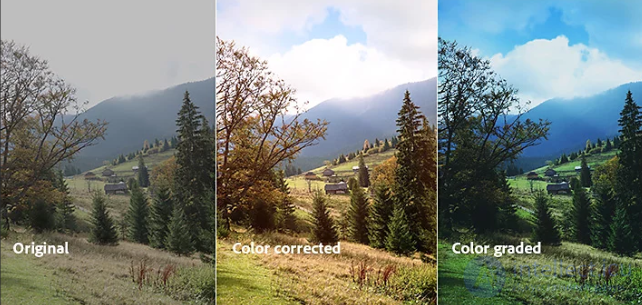
  1. Color correction One of the main goals of post-rendering is to ensure a correct and attractive color palette. This can be achieved through:

    • Contrast and brightness.

    • White balance correction.

    • Gradient effects.

  2. Adding effects

    • Blur effect (bokeh) to give the scene a more cinematic look.

    • Adding a glow effect.

    • Screen effects such as noise, pixelation, or optical distortion.

  3. Simulating physical effects

    • Rain, snow, or dust effects.

    • Distortion from heat or water.

  4. Elimination of visual artifacts Post-rendering can be used to reduce jagged edges (anti-aliasing), remove noise, and eliminate other unwanted visual effects.

Areas of application

  1. The gaming industry

    • Emphasizing the dramatic quality of a scene.

    • Increasing realism in open-world games.

  2. Film and animation

    • Simulating a film camera.

    • Creating special effects.

  3. Visualization for science and technology

    • Modeling realistic scenes in training simulators.

    • Post-processing of prototype renders.

Steps of post-rendering

  1. Rendering the raw scene.

  2. Applying a chain of filters and effects.

  3. Evaluating the quality of the final image

Post-processing in Unity

In Unity, post-processing is implemented through the Post-Processing Stack (PPS), which provides a set of effects for improving visualization.

How to use post-processing in Unity:

  1. Installing the package:

    • Make sure the Post-Processing package is installed. For Unity 2022, it can be found in the Package Manager.
  2. Adding a Volume:

    • In the scene, create an object of type Post-Process Volume.
    • Add a Post-process Layer component to your camera (usually the Main Camera).
    • Configure the Layer that will be processed by post-processing.
  3. Configuring effects:

    • Various effects can be added in the Post-Process Volume:
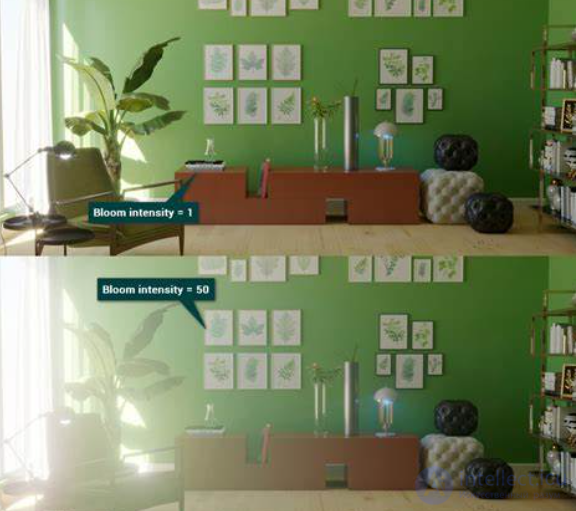
      • Bloom (glow of bright objects).
      • Color Grading (color correction).
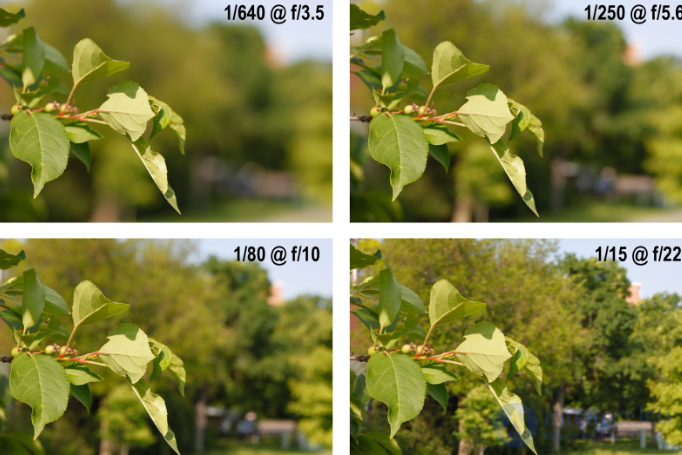
      • Depth of Field.
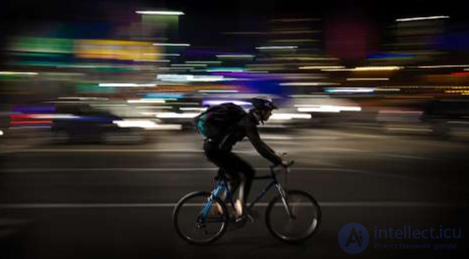
      • Motion Blur.
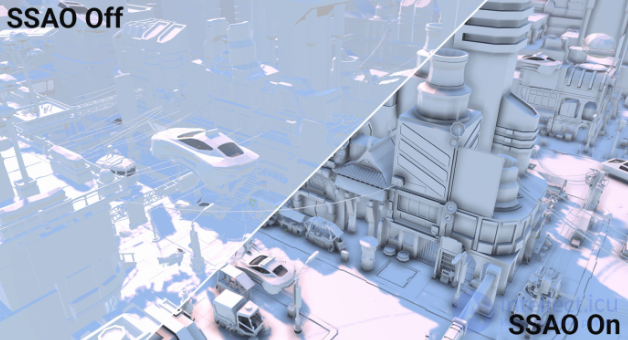
      • Ambient Occlusion.
      • Vignette.
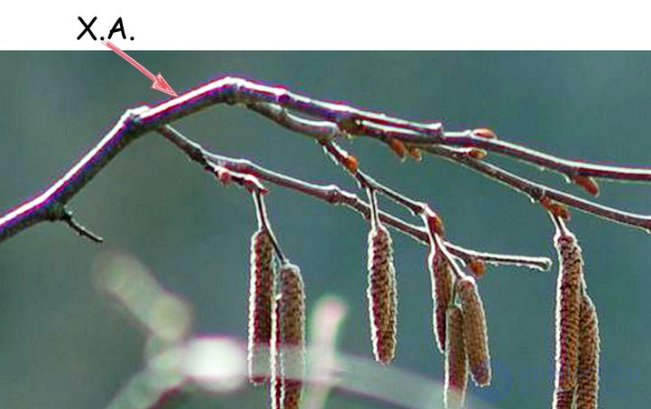
      • Chromatic aberration is a distortion that occurs when light passes through a lens. It usually appears as colored halos or fringes that were not present in the photographed scene. Chromatic aberration is most often visible at the boundaries of high-contrast edges.
      • Anti-Aliasing
      • Fog effect
      • Grain
      • Auto Exposure
  4. Quality and performance:

    • Post-processing effects can be resource-intensive. For example, Screen Space Reflection (SSR) and Depth of Field require significant computation.
    • Configure quality through Quality Settings profiles or use adaptive methods.

Tips:

  • If your game targets mobile devices, use the minimum number of effects.
  • Use a LUT (Lookup Table) for color correction, as this saves on performance.
  • Experiment with parameters to achieve a unique visual style.

Post-rendering Post-processing — The Final Stage of Visual Image Processing

Bloom (glow of bright objects).

Post-rendering Post-processing — The Final Stage of Visual Image Processing

Color Grading (color correction)

Post-rendering Post-processing — The Final Stage of Visual Image Processing

  • Depth of Field.

Post-rendering Post-processing — The Final Stage of Visual Image Processing

  • Motion Blur.

Post-rendering Post-processing — The Final Stage of Visual Image Processing

  • Ambient Occlusion.

Post-rendering Post-processing — The Final Stage of Visual Image Processing

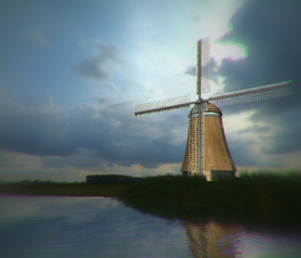
  • Vignette.

Post-rendering Post-processing — The Final Stage of Visual Image Processing

Chromatic aberration

Post-processing in other engines

Unreal Engine

In Unreal Engine, post-processing is integrated through the Post-Process Volume:

  • A Post-Process Volume object is added to the scene.
  • You can enable effects for the entire scene or restrict the area of effect using the Unbound parameter.
  • Unreal offers a more realistic lighting system and built-in effects such as Lens Flare, Chromatic Aberration, and Global Illumination.

Godot

In Godot, post-processing is implemented through the Environment:

  • Add a WorldEnvironment and configure the Post-Processing tab.
  • Effects include Screen Space Ambient Occlusion (SSAO), Glow, Tonemapping, and others.
  • In the new Godot 4.0, the Bloom and Depth of Field effects have been improved.

CryEngine

CryEngine offers a powerful set of post-processing tools:

  • Integrated effects such as Volumetric Fog, Color Grading, SSAO, and Screen Space Reflections (SSR).
  • Post-processing in CryEngine is focused on realism, which is why it is used in games with a high degree of detail.

Comparison

Effect Unity Unreal Engine Godot CryEngine
Bloom + + + +
Color Grading + + + +
Motion Blur + + + +
Depth of Field + + + +
Screen Space Reflections + (limited) + + +
Performance Easier to optimize Requires powerful hardware Lightweight Requires powerful hardware

See also

  • [[b12815]]
  • [[b12813]]
  • [[b12814]]
created: 2025-01-16
updated: 2026-03-09
128


Was this answer useful?
Choose a quick rating so we can improve the next answer for you.
How satisfied are you?


Comments

To leave a comment

If you have any suggestion, idea, thanks or comment, feel free to write. We really value feedback and are glad to hear your opinion.
To reply

Lectures and tutorial on "computer graphics"

Terms: computer graphics