
Practice
Every administrator of Unix systems, be it Linux or BSD, is familiar with such a useful utility as TCPDUMP. This utility allows you to track (monitor) network traffic on the computer it is running on, and if the computer is a router, you can clearly see who is going where and through which ports through this router.
Through it you can set rules - what to catch - from which IPs, from which ports - to which IPs, which ports. It can also be used to record captured packets - for example, for later analysis. You can "catch" only through certain interfaces, and so on.
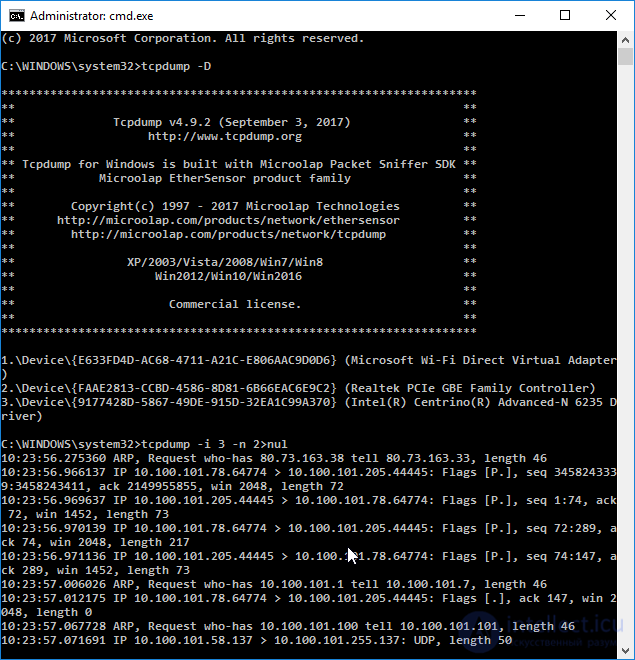
But what do you do if you have to administer Windows and the same task arises? On Unix, tcpdump is available out of the box, but Windows does not provide any tools of a similar level.
Meet: Windump. This is not an advertisement, it is really a useful utility and looks like a full replacement for TCPDUMP, only for Windows!
So, what do we need to do:
1) Download the WinPCAP driver (also familiar from Unix?). Despite the developer's warning that the driver has not been "fully" tested under Vista (and, accordingly, Windows 7) - it works, which is great!
Developer's website with the download page: https://www.winpcap.org/install/default.htm
2) Install WinPcap - you won't even need to reboot for this.
3) Download WinDump. Developer's website with the download page: http://www.winpcap.org/windump/install/default.htm
4) Place WinDump.exe in a convenient location that you can easily reach through the Windows console. It is not an installer - it is a utility that is already ready to use.
5) Open CMD (Start -> Run -> "cmd" -> Enter). Go to the directory where you placed WinDump.exe and run it:
Lines of captured packets will start running in front of you, and among them you can see - which packet is going from where and to where, from which port and to which, what its length is and which TCP flags are set.
Press Ctrl+C to stop.
But we may not be interested in just staring blankly at all the packets. In that case we'll have to use switches and "expressions".
How to view specific traffic
If you type
you will get a small set of hints - just to help you remember the options themselves. But unfortunately there is no detailed information here.
The most information (in English) can be found at https://www.winpcap.org/windump/docs/manual.htm , i.e. on the WinDump developer's documentation page. For Unix folks I can share good news - the options are kept the same as in the original TCPDUMP for Linux/BSD.
tcpdump - dump traffic on a network
tcpdump [ -AdDeflLnNOpqRStuUvxX ] [ -c count ]
[ -C file_size ] [ -F file ]
[ -i interface ] [ -m module ] [ -M secret ]
[ -r file ] [ -s snaplen ] [ -T type ] [ -w file ]
[ -W filecount ]
[ -E spi@ipaddr algo:secret,... ]
[ -y datalinktype ] [ -Z user ]
[ expression ]
And now in plain terms I'll explain the very basics (the minimum) - so you can get started right away with tracking traffic.
So, if you run WinDump without parameters - it will show all passing packets, regardless of where they came from and where they went, on the default interface. In doing so, for all sender and receiver IP addresses an attempt will be made to resolve the DNS name via PTR records, and for ports - an attempt will be made to show the service name instead of the port number.
Capturing without resolution
To prevent the scanner from resolving DNS names and port numbers - you should run it with the "-n" switch:
This is most often useful, since it is hard (especially at a glance) to tell from a DNS name what computer is going where, through which ports (service names instead of port numbers can really play a nasty trick on you); and it also naturally saves network traffic on DNS resolution.
Looking at the contents of packets
The "A" switch lets us, in addition to printing "from - to", also print the content of the packets themselves (i.e. their insides in ASCII):
Other switches
You can find all the switches (there are many of them) in the manual mentioned above.
Filtering rules
Most often you don't just need to look at everything going from anywhere to anywhere. For example, we might need to look only at the traffic that concerns the computer with IP 192.168.0.70, for example, to see which IPs the accountant or the security guard is connecting to; or which port some program is connecting to. Expressions are used for this.
Expressions are written after all the parameters as combining statements with AND or OR.
HOST
To view traffic relating to a specific computer, the word "host" is used:
The variations "dst host" and "src host" allow, respectively, catching traffic that was sent from an address (src host) or is heading to an address (dst host).
PORT
To track traffic relating to a specific port - the word "port":
By analogy with HOST: there are "src port" and "dst port" - respectively, the port a packet is going from, and the port a packet is going to.
PORTRANGE
The same as "port", but allows you to specify a range of ports (there are also "src portrange" and "dst portrange"), the range is specified with a dash:
GATEWAY
The "gateway" condition allows you to view packets passing through the specified gateway (route):
NET
The "net" condition allows you to catch only those packets that belong to the specified subnet:
Accordingly, the words "net src" and "net dst" catch packets that came from or are going to the specified network.
LESS and GREATER
These conditions allow catching packets that are only smaller (LESS) or larger (GREATER) than the specified size in bytes:
IP PROTO
Allows catching packets of only a specific protocol: icmp, icmp6, igmp, igrp, pim, ah, esp, vrrp, udp, or tcp.
VLAN
The condition allows catching only packets belonging to a specific VLAN (i.e. tagged):
AND or OR
Rules, as I already said, can be glued together, several into one, using AND or OR. For example, if we need to look at traffic entering or leaving the computer 192.168.0.70 on remote or local port 80 - the expression would look like this:
For those who have already used TCPDUMP on *nix - this shouldn't cause any difficulty.
You can learn much more from the attached instructions (above in the note), though, in English.


Comments