
Practice
The standard method of authenticating a user on a Unix server (be it Linux or FreeBSD) when accessing via SSH is to use the login and password of a local user on the remote machine. However, there is at least one more method - using a public/private key pair plus a passphrase.
In this note we'll look at using this method together with the most widely used SSH utility: PuTTY.
This method is somewhat less convenient - since access will require a key file on the computer from which the connection is made. However, it's also more secure - now it's not enough to know the user's login, you also need to have the key file and know that key file's passphrase.
Downloading
To generate keys we'll need the PuTTYgen utility. It can be downloaded from the PuTTY website:
1) After downloading, run it.
2) Make sure the key type selection is set to "SSH-2 RSA"
3) Click "Generate"
4) Move the mouse around until the progress bar fills up.
5) In the "Key comment" field, write a description of the key that will be shown during authentication (for example, "Myuser Key").
6) In the "Key passphrase" field, enter a passphrase (you'll be asked for it when connecting), and in the "Confirm passphrase" field enter confirmation of that phrase (the same one again).
7) Now click "Save public key" and "Save private key" - to save the public and private keys, respectively.
For example, let's say we named the public (open) key "public.key", and the private one "private.ppk".
8) Now copy the "public.key" file (the public key) to the server you'll be connecting to. You can use the WinSCP utility for this.
9) Now open a terminal on the server (still using the regular method for now) and run the following command:
Where instead of "/path/to/public.key" you specify the full path to the uploaded public.key file, and instead of "/home/myuser/" you specify the path to the home directory of the user for whom the key is being set up.
Connecting
Open PuTTY, and on the left side navigate to:
Connections -> SSH -> Auth
Find the line "Private key file for authentication" and click "Browse". Find our "private.ppk" file and select it.
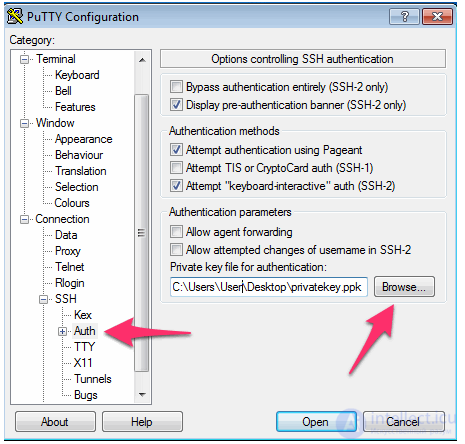
Now, in the main tab, as usual, enter the IP address of our server and connect. We'll be asked for a login (as usual) and, since we've attached a key file, a passphrase for that key.
Once you correctly enter this passphrase, the SSH daemon will let you onto the server.
Saving the settings
But it's inconvenient to go into the Auth settings and specify the key file every single time. You can get around this by saving the settings on the main tab.
For example, enter the server's IP address, specify the key file on the Auth tab, and, going back to the main tab, enter a name for the configuration (for example, "MyServer1") and click "Save".

Comments