
Practice
Scanning a network isn't just the domain of malicious hackers and script kiddies - it's also something perfectly reasonable system administrators do. There are plenty of reasons to scan a network.
A network scanner is a utility or software that can be needed for various purposes and tasks in the field of network administration, security, and diagnostics. Here are some of the main cases where a network scanner can come in handy:
Device and service discovery: Network scanners help discover active devices on a network and determine which network services (ports) are open on those devices. This is useful for network inventory and configuration analysis.
Finding vulnerabilities: Network administrators and information security specialists use network scanners to find vulnerabilities in systems and services. This helps prevent attacks and ensure network security.
Monitoring network activity: Network scanners can be used to monitor network activity, analyze traffic, and detect unusual events such as attacks or unwanted activity.
Testing network performance: Using network scanners, you can measure network performance, identify bottlenecks, and tune network equipment to improve speed and stability.
Resolving network issues: When network problems arise, such as unavailable services or slow performance, scanners can help identify and resolve the causes of these issues.
Checking for open ports: Network administrators can use scanners to check which ports are open on servers and devices. This helps in configuring firewalls and security rules.
Auditing network resources: For the purposes of auditing and managing network resources, network scanners can be used to check compliance of network configuration with standards and security rules.
Checking resource availability: Network scanners can periodically scan the network to check the availability of resources, such as servers or network printers, and notify administrators if they become unavailable.
Network topology analysis: Scanners can be used to build network topology maps, which is useful when designing or modifying networks.
Application development and testing: Developers can use network scanners to test the network functionality of applications, including checking the interaction between clients and servers.
Note that use of a network scanner must comply with the laws and policies of the organization or your country in which you're pressing the keyboard buttons, and must only be carried out with the permission of the network or system owners. Unauthorized network scanning can be illegal and punishable.
But we won't dwell on that, and instead we'll tell you which tools you can use to do this on the two most popular Unix systems: Linux Debian and Linux CentOS.
So, meet nmap. The utility is available right from the repositories.
Installing
Debian (Ubuntu):
$ sudo aptitude install nmap
CentOS (RHEL):
$ sudo yum install nmap
Using it
Usage on Debian and CentOS is the same - it's essentially the same utility.
General usage:
$ sudo nmap 192.168.1.0/24
where instead of 192.168.1.0/24 you specify the subnet you need.
Scanning in this mode won't be fast - let's just say you'll definitely have time to nibble on a Roshen cookie. That's because it will scan EVERYTHING.
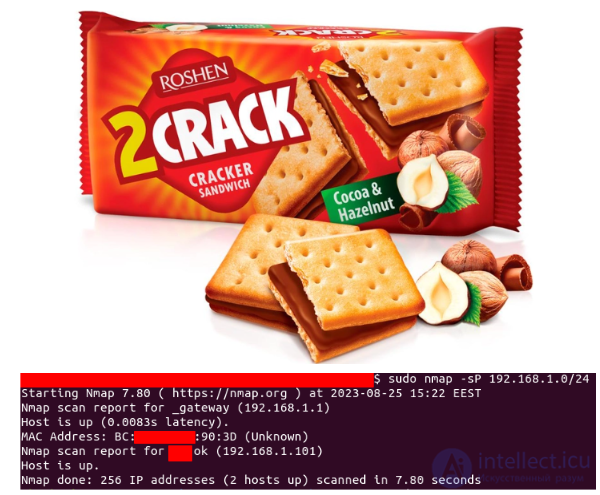
As a result, the utility will output a set of reports like these:
Interesting ports on mycomputer.mydomain (192.168.1.10):
Not shown: 1674 closed ports
PORT     STATE SERVICE
80/tcp   open  http
135/tcp  open  msrpc
139/tcp  open  netbios-ssn
445/tcp  open  microsoft-ds
3306/tcp open  mysql
MAC Address: FE:11:3E:61:FC:67 (Unknown)
Excluding certain segments
For example, we need to test 192.168.1.0/24 except for hosts 192.168.1.10 and 192.168.1.22 and a small subnet 192.168.1.200/31:
$ sudo nmap --exclude 192.168.1.10,192.168.1.22,192.168.1.200/31 192.168.1.0/24
List of hosts/networks from a file
$ sudo nmap -iL my-file-log-intellect.icu.txt
Ping-only scanning (fast)
$ sudo nmap -sP 192.168.1.0/24
Which will show you a result like this:
Host server-intellect.icu.mydomain (192.168.1.10) appears to be up.
Host server2-intellect.icu.mydomain (192.168.10.11) appears to be up.
Host 192.168.1.13 appears to be up.
Host 192.168.1.23 appears to be up.
Host 192.168.1.111 appears to be up.
Host 192.168.01.250 appears to be up.
Nmap finished: 256 IP addresses (6 hosts up) scanned in 13.123 seconds
also, if the scan covers a subnet within direct visibility of the network adapter, the output will also include MAC addresses:
...
Host 192.168.1.61 appears to be up.
MAC Address: 00:15:94:11:00:51 (Intellect.icu Co.)
Host comp68.hotels (192.168.1.68) appears to be up.
MAC Address: 00:2F:C6:B4:CB:1F (Unknown)
Host 192.168.1.110 appears to be up.
MAC Address: 00:25:65:12:41:BC (Unknown)
...
Disabling DNS resolution
$ sudo nmap -n 192.168.1.0/24
or like this (for ping-only):
$ sudo nmap -n -sP 192.168.0.0/24
Scanning only specific ports
$ sudo nmap -p 3306,21,22,23,1024-2048 192.168.1.0/24
or, splitting into TCP and UDP:
$ sudo nmap -p U:53,3306,1024,T:21,22,80 192.168.1.0/24
Trying to determine the operating system type
$ sudo nmap -O 192.168.1.0/24
detection is largely useful only when you need to distinguish Windows from Unix.
Showing all hosts/IPs in the range, even if nothing was found there
$ sudo nmap -v 192.168.1.0/24
Showing free IP addresses in a given range
This is the reverse job - we want to see not the occupied IPs, but the opposite: addresses that are not currently occupied by any computer.
Keep in mind that if some piece of hardware is turned off during the scan, or is behind a firewall and doesn't respond, but still has an IP - you'll get a far from accurate picture!
$ sudo nmap -v -sP 192.168.1.0/24 | grep down
and so on...
There are of course many more options - see man nmap.
Here we've covered only the most important and most frequently used ones - if you have more tips on this topic, write them in the comments.
On Linux systems such as Debian, CentOS, Ubuntu, and RedHat, you can use various tools to scan a network. Below are some of the most popular utilities for this purpose:
Nmap (Network Mapper): Nmap is one of the most popular tools for network scanning on Linux. It lets you scan devices and ports on remote systems. To install on Debian/Ubuntu use:
sudo apt-get install nmap
sudo yum install nmap
nmap
Netcat (nc): Netcat is a versatile utility for working with networks. It can be used to scan ports on a remote host. Install it like this:
sudo apt-get install netcat # For Debian/Ubuntu sudo yum install nc # For CentOS/RedHat
Example of using Netcat to scan a port:
nc -zv <порт>
Zenmap: Zenmap is a graphical interface for Nmap that makes network scanning more intuitive. Installing Zenmap will depend on your distribution. Usually you can install it via a package manager such as apt or yum.
Angry IP Scanner: Angry IP Scanner is another graphical network scanning tool with a simple interface. You can download it from the official website and run it on your Debian/Ubuntu/CentOS/RedHat system.
Wireshark: Wireshark is a powerful network packet analyzer. It not only lets you scan the network, but also analyze network traffic. Install it via a package manager such as apt or yum.
Scapy: Scapy is a Python library for creating and analyzing network packets. It can be used for scanning and many other network tasks. Install it using pip:
pip install scapy
Make sure you use these tools carefully and only for legal purposes, since unauthorized network scanning can be illegal and punishable. The use of network scanners must be clearly limited and controlled to avoid unlawful actions and possible negative consequences. Network scanners are powerful tools widely used by network administrators, information security specialists, and developers for a number of important tasks related to managing and securing a network.

Comments