
Lecture
A package manager — is a program that automatically installs, updates and removes libraries or applications together with their dependencies.
A package manager, or package management system, is software that provides a consistent way to install, update, configure and remove software on a host system.
A package manager works with packages — software distributions and data bundled in archive files. Packages contain metadata such as the software name, a description of its purpose, the version number, the vendor, a checksum (usually a cryptographic hash) and a list of dependencies required for the software to work correctly. Once installed, the metadata is stored in a local package database. Package managers typically maintain a database of software dependencies and version information in order to prevent software mismatches and missing prerequisites. They work closely with software repositories, binary repository managers and app stores.
Package managers are designed to eliminate the need for manual installation and updating. This can be especially valuable for large enterprises, whose operating systems (OS) typically consist of hundreds or even tens of thousands of distinct packages.
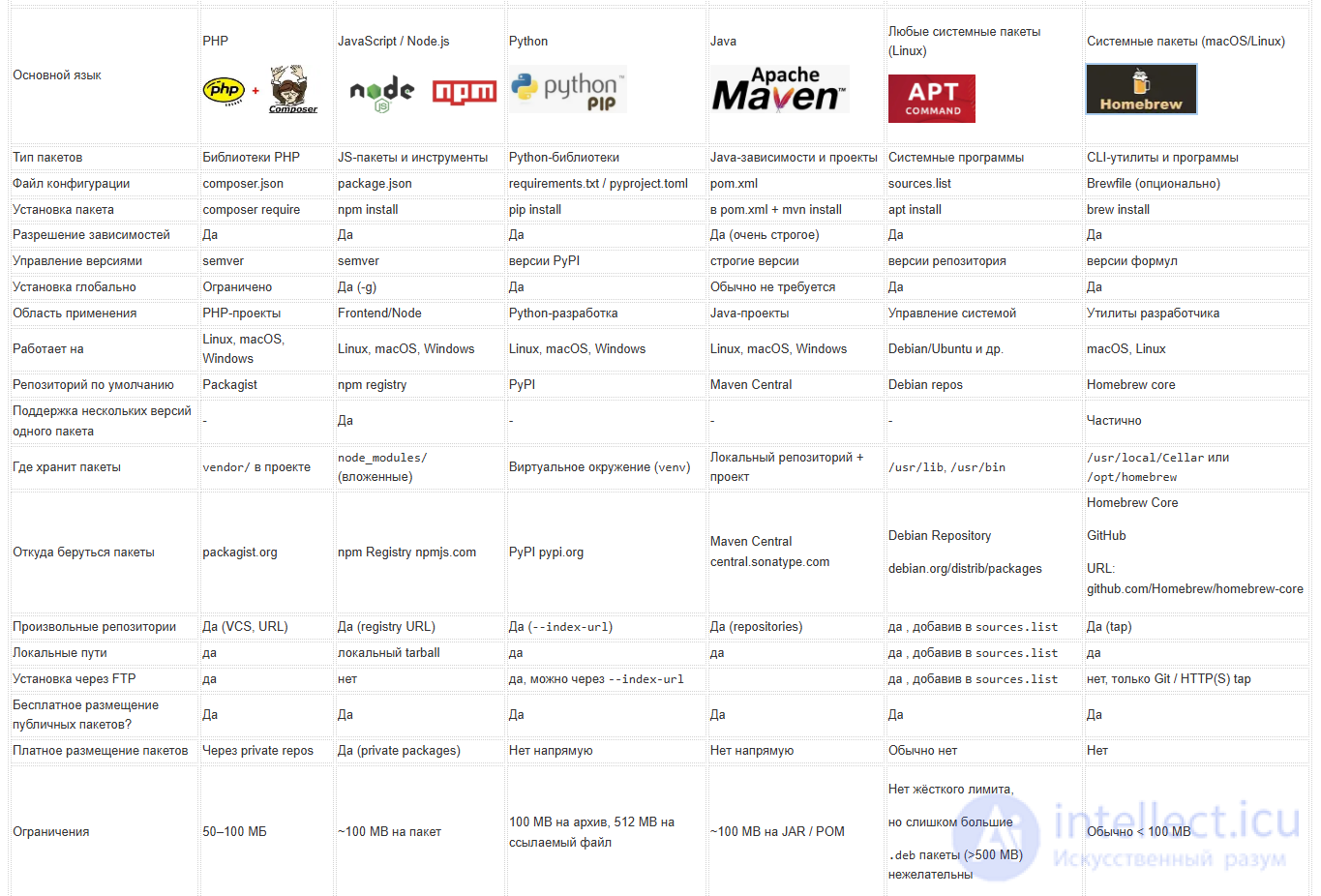
A comparison table of popular package managers: Composer, npm, pip, Apache Maven, APT and Homebrew
| Characteristic | Composer | npm | pip | Maven | apt | Homebrew |
|---|---|---|---|---|---|---|
| Primary language |
PHP
|
JavaScript / Node.js
|
Python
|
Java
|
Any system packages (Linux)
|
System packages (macOS/Linux)
|
| Package type | PHP libraries | JS packages and tools | Python libraries | Java dependencies and projects | System programs | CLI utilities and applications |
| Configuration file | composer.json | package.json | requirements.txt / pyproject.toml | pom.xml | sources.list | Brewfile (optional) |
| Installing a package | composer require | npm install | pip install | entry in pom.xml + mvn install | apt install | brew install |
| Dependency resolution | Yes | Yes | Yes | Yes (very strict) | Yes | Yes |
| Version management | semver | semver | PyPI versions | strict versions | repository versions | formula versions |
| Global installation | Limited | Yes (-g) | Yes | Usually not needed | Yes | Yes |
| Area of use | PHP projects | Frontend/Node | Python development | Java projects | System management | Developer utilities |
| Runs on | Linux, macOS, Windows | Linux, macOS, Windows | Linux, macOS, Windows | Linux, macOS, Windows | Debian/Ubuntu and others | macOS, Linux |
| Default repository | Packagist | npm registry | PyPI | Maven Central | Debian repos | Homebrew core |
| Support for multiple versions of the same package | - | Yes | - | - | - | Partially |
| Where packages are stored | vendor/ inside the project |
node_modules/ (nested) |
Virtual environment (venv) |
Local repository + project | /usr/lib, /usr/bin |
/usr/local/Cellar or /opt/homebrew |
| Where packages come from | packagist.org | npm Registry npmjs.com | PyPI pypi.org | Maven Central central.sonatype.com |
Debian Repository debian.org/distrib/packages |
Homebrew Core
GitHub URL: github.com/Homebrew/homebrew-core |
| Custom repositories | Yes (VCS, URL) | Yes (registry URL) | Yes (--index-url) |
Yes (repositories) | yes, by adding an entry to sources.list |
Yes (tap) |
| Local paths | yes | local tarball | yes | yes | yes, by adding an entry to sources.list |
yes |
| Installation over FTP | yes | no | yes, possible via --index-url |
yes, by adding an entry to sources.list |
no, only Git / HTTP(S) tap | |
| Free hosting for public packages? | Yes | Yes | Yes | Yes | Yes | Yes |
| Paid package hosting | Via private repos | Yes (private packages) | Not directly | Not directly | Usually no | No |
| Limits | 50–100 MB | ~100 MB per package | 100 MB per archive, 512 MB per linked file | ~100 MB per JAR / POM |
No hard limit, but overly large
|
Usually < 100 MB |
| Alternative managers | satis, private-packagist | yarn, pnpm | pipenv, poetry | Gradle, Ivy | aptitude, nala, Snap, Flatpak and AppImage | MacPorts, Nix |
Imagine you are writing a program and you need a library.
Without a package manager you would have to:
With a package manager it takes a single command:
npm install react
or
pip install requests
And that is all
What a package manager can do
Core features:
An example
You install a single library:
composer require monolog/monolog
But the package manager will:
A package manager is an automatic installer for libraries and applications along with their dependencies.
One of the earliest package managers was SMIT (and its installation backend) from IBM AIX. SMIT was introduced together with AIX 3.0 in 1989. Package managers such as dpkg have existed since as early as 1994. The early package managers that appeared around 1994 had no automatic dependency resolution, but they already simplified the process of adding and removing software on a running system.
From roughly 1995 onwards, starting with CPAN, package managers began handling downloads from package repositories as well as dependency resolution and installation as needed, which made installing, removing and updating software much easier.
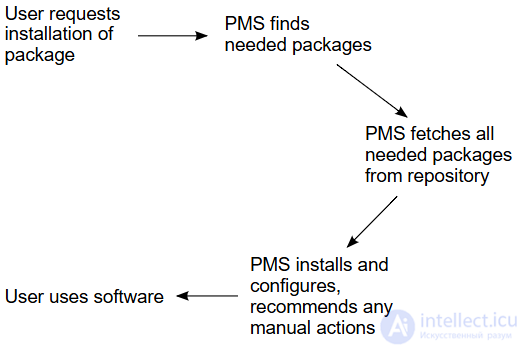
A software package is an archive file containing a computer program along with the metadata required to deploy it. The program may be in source code form, which first has to be compiled and built. Package metadata includes a description of the software, the version number and the dependencies.
Package managers are responsible for finding, installing, maintaining or removing packages on the user's command. Typical features of a package management system include:
Computer systems that use dynamic linking instead of static linking share executable libraries of machine instructions across different packages and applications. In such systems, conflicting relationships between different packages requiring different library versions lead to a situation known as «dependency hell». On Microsoft Windows systems this is also called «DLL hell» when dealing with dynamically linked libraries.
Modern package managers have largely solved these problems by allowing several library versions to be installed side by side (for example, the OPENSTEP framework system), dependencies of any kind (for example, slots in Gentoo Portage), and even packages compiled with different compiler versions (for example, dynamic libraries produced by the Glasgow Haskell Compiler, for which no stable ABI exists), so that other packages can specify which version they are linked against or installed with.
System administrators may install and maintain software using tools other than package managers. For example, a local administrator can download unpackaged source code, compile it and install it. This can leave the local system out of sync with the package manager database. The local administrator would then have to take extra steps, such as managing some dependencies manually or integrating the changes into the package manager.
Tools exist that integrate locally compiled packages with the package management system. For operating systems based on .deb and .rpm files, as well as for Slackware Linux, there is CheckInstall; and for recipe-based systems such as Gentoo Linux and hybrid systems such as Arch Linux, you can first write a recipe, which then ensures that the package fits into the local package database.
Updating configuration files can be particularly problematic. Because package managers, at least on Unix systems, originated as extensions of file archivers, they can usually only overwrite or preserve configuration files rather than apply rules to them. There are exceptions, which usually concern kernel configuration (which, if corrupted, would leave the computer unusable after a reboot). Problems can arise if the configuration file format changes — for example, if the old file does not explicitly disable new options that should be disabled. Some package managers, such as dpkg on Debian, allow options to be configured during installation. In other situations packages are installed with a default configuration that is then overwritten, for example during a headless installation across a large number of machines. This kind of pre-configured installation is also supported by dpkg.
To give users greater control over the software they allow to be installed on their systems — and sometimes for legal reasons or for the distributors' convenience — packages are often downloaded from software repositories.
When a user updates a package using package management software, they are usually shown the actions to be performed (typically a list of packages to be updated, and possibly the old and new version numbers) and are given the option either to accept the update for all packages at once or to select individual packages to update. Many package managers can be configured never to update certain packages, or to update them only when critical vulnerabilities or instability are found in the previous version, as determined by the software developer. This process is called upgrade suppression or version pinning. For example, to prevent updates to the OpenOffice program:
Some of the more advanced package management features offer cascading package removal, in which all packages that depend on the target package are removed, along with all packages that only it depends on.
Composer is a dependency manager for the PHP programming language. It helps you pull third-party libraries (packages) into a project, manage their versions and load classes automatically.
Put simply: instead of manually downloading library files and including them via require, Composer does it for you and keeps your dependencies in order.
Composer solves several important problems:
Once a project is initialized, two main files appear:
This is the main configuration file. It lists the project's dependencies.
Example:
{
"require": {
"monolog/monolog": "^3.0"
}
}
Locks the exact package versions so the project behaves identically on every machine.
Download the installer from the official website and run the .exe.
php -r "copy('https://getcomposer.org/installer', 'composer-setup.php');"
php composer-setup.php
php -r "unlink('composer-setup.php');"
Verification:
composer --version
Create a new project:
composer init
Composer will ask a few questions and create a composer.json file.
Adding a library:
composer require monolog/monolog
Composer will:
After installing packages you need to include the autoloader:
require 'vendor/autoload.php';
Now you can use the library classes:
use Monolog\Logger;
use Monolog\Handler\StreamHandler;

$log = new Logger('name');
$log->pushHandler(new StreamHandler('app.log'));
$log->info('Hello Composer');
| Command | Description |
|---|---|
| composer install | Install dependencies from composer.lock |
| composer update | Update dependencies |
| composer require | Add a package |
| composer remove | Remove a package |
| composer dump-autoload | Regenerate the autoloader |
| composer show | Show installed packages |
Composer uses special symbols to control versions:
"^1.2" → >=1.2 <2.0
"~1.2" → >=1.2 <1.3
"1.2.*" → all 1.2 versions
Example:
{
"require": {
"guzzlehttp/guzzle": "^7.0"
}
}
You can set up autoloading for your own classes:
{
"autoload": {
"psr-4": {
"App\\": "src/"
}
}
}
Then run:
composer dump-autoload
Now classes from src/ will be loaded automatically.
project/
│
├── composer.json
├── composer.lock
├── vendor/
│ └── ...
├── src/
│ └── ...
└── index.php
composer install
composer update
Let's create a project and add a library:
composer init
composer require symfony/var-dumper
Usage:
require 'vendor/autoload.php';
dump("Hello Composer");
Composer is an essential tool for modern PHP development. It automates including libraries, simplifies project structure and makes code more maintainable.
npm is the package manager for the Node.js runtime. It lets you install, update and manage the libraries (packages) used in JavaScript and TypeScript projects.
Put simply, npm is:
Without npm a developer would have to:
npm automates these tasks:
npm is installed automatically together with Node.js.
Check the installation:
node -v
npm -v
Before using npm you create a configuration file:
npm init
Or automatically:
npm init -y
This creates package.json — the project's main file.
Example:
{
"name": "my-project",
"version": "1.0.0",
"description": "Training project",
"main": "index.js",
"scripts": {
"start": "node index.js"
}
}
Install a package:
npm install lodash
Install as a development dependency:
npm install eslint --save-dev
After installation you get:
package.json contains:
"dependencies": {
"lodash": "^4.17.21"
},
"devDependencies": {
"eslint": "^8.0.0"
}
Install the project's dependencies:
npm install
Remove a package:
npm uninstall lodash
Update a package:
npm update
List installed packages:
npm list
You can define commands in package.json:
"scripts": {
"start": "node index.js",
"dev": "nodemon index.js",
"build": "webpack"
}
Running them:
npm run dev
Sometimes packages are installed globally:
npm install -g nodemon
Global packages are used as CLI utilities.
my-project/
│
├── node_modules/
├── package.json
├── package-lock.json
└── index.js
npm is the primary tool for JavaScript development. It:
Without npm, modern Node.js development is virtually impossible.
pip is the standard package manager for the Python programming language.
It lets you install, update and remove third-party libraries from the official Python Package Index (PyPI) repository.
Put simply, pip is a tool that helps you quickly add ready-made modules to your project instead of writing everything from scratch.
With pip you can:
For example, if you need a library for making HTTP requests, a single command is enough.
pip is usually installed together with Python. You can check with:
pip --version
If it is installed, you will see the version number.
pip install requests
This installs the requests library from PyPI.
pip install requests==2.31.0
Useful when a project requires a particular version.
pip install --upgrade requests
Updates the package to the latest version.
pip uninstall requests
Removes the library from the system.
pip list
Shows all installed libraries
Projects usually keep a dependency file:
Creating it:
pip freeze > requirements.txt
Installing from the file:
pip install -r requirements.txt
This matters when working in a team — everyone uses the same library versions.
pip is often used together with virtual environments so that dependencies of different projects do not conflict.
Creating an environment:
python -m venv venv
Activating it (Windows):
venv\Scripts\activate
Once activated, pip installs packages only for this project.
By default pip uses the repository:
It hosts tens of thousands of libraries, from web frameworks to machine learning.
Other tools are sometimes used:
But pip remains the most basic and universal option.
python -m venv venv
venv\Scripts\activate
pip install flask
pip freeze > requirements.txt
pip is:
Without pip, modern Python development is virtually impossible.
Apache Maven is a dependency management and project build tool most often used in Java projects. It automates downloading libraries, compiling code, running tests and producing finished applications.
Maven is not merely a package manager but a full-fledged project build system.
Without Maven a developer has to:
Maven does this automatically:
A typical project structure:
project
├── src
│ ├── main
│ │ ├── java
│ │ └── resources
│ └── test
│ └── java
└── pom.xml
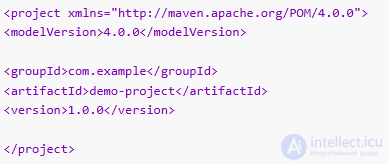
The main file is pom.xml
This is Maven's configuration file. It describes:
An example of a minimal pom.xml:
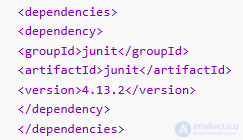
For example, let's add the JUnit library:
After that Maven will download the library itself.
| Command | What it does |
|---|---|
mvn compile |
compiles the project |
mvn test |
runs the tests |
mvn package |
builds a JAR/WAR |
mvn install |
installs into the local repository |
mvn clean |
cleans the build |
Example:
mvn clean package
Maven uses a lifecycle (build lifecycle):
Each phase runs automatically when a later one is invoked.
Maven downloads dependencies from:
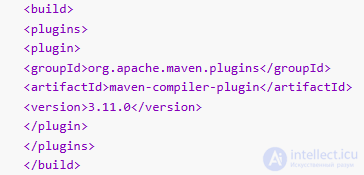
~/.m2)Plugins extend Maven's functionality:
Example:
Maven is a good fit if:
Summary
Maven is a powerful dependency manager and build system that:
APT (Advanced Package Tool) is the package management system used in Debian-based Linux operating systems, such as Ubuntu, Linux Mint and others. It lets you install, update and remove programs from repositories automatically.
APT is a layer on top of the low-level package manager dpkg.
APT makes the work easier by automatically:
APT lets you:
sudo apt update
This command refreshes the list of available packages from the repositories.
sudo apt upgrade
Updates all installed packages to newer versions.
A full system upgrade:
sudo apt full-upgrade
sudo apt install package_name
Example:
sudo apt install git
Remove a program:
sudo apt remove package_name
Remove it along with its configuration:
sudo apt purge package_name
apt search name
Example:
apt search nginx
apt show package_name
APT keeps the packages it downloads. To clear the cache:
sudo apt clean
Remove unneeded dependencies:
sudo apt autoremove
APT downloads packages from repositories — dedicated servers hosting software.
The file listing the repositories:
/etc/apt/sources.list
After changing the repositories you need to run:
sudo apt update
The commands used previously were:
The modern apt command combines their functions and is more user-friendly.
Example:
apt-get install → apt install
apt-get update → apt update
sudo apt update
sudo apt upgrade
sudo apt install curl
sudo apt autoremove
automatic dependency installation
huge official repositories
simple commands
safe updates
convenient for administration
works only on Debian-based systems
requires administrator privileges
APT is one of the most convenient package managers in Linux. It lets you install programs quickly, keep the system up to date and automate administration.
Homebrew is a popular package manager for the macOS and Linux operating systems. It makes it easy to install, update and remove programs from the command line.
Homebrew is a tool that automates installing software from source code or from prebuilt packages. Instead of downloading applications manually, you type a single command and everything is installed automatically.
Key capabilities:
Run this command in the terminal:
/bin/bash -c "$(curl -fsSL https://raw.githubusercontent.com/Homebrew/install/HEAD/install.sh)"
After installation, verify it:
brew --version
If the version is displayed, the installation succeeded
brew search wget
brew install wget
brew update
brew upgrade
brew uninstall wget
brew list
Homebrew has two kinds of packages:
Used for CLI utilities:
brew install git
Used for GUI programs:
brew install --cask google-chrome
Homebrew installs dependencies automatically.
For example:
brew install node
It will automatically install everything needed for it to work.
Update Homebrew:
brew update
Remove old versions:
brew cleanup
Check the system:
brew doctor
Easy to use
Fast software installation
Automatic dependencies
A large number of packages
Open source
brew update
brew install git
brew install node
brew install --cask visual-studio-code
brew upgrade
brew cleanup
Homebrew is commonly used by:
Homebrew is a powerful and convenient package manager that greatly simplifies working with software on macOS and Linux. It lets you manage software with a few simple commands and saves a great deal of time.
A package manager is often called an installation manager, which can lead to confusion between package managers and installers. The differences are as follows:
| Criterion | Package manager | Installer |
|---|---|---|
| Shipped with | Usually the operating system | Each individual computer program |
| Location of installation information | A single central installation database | Entirely up to the installer. It may be a file in the application folder or among the operating system's files and folders. At best it may register itself in the list of uninstallers without exposing the installation information. |
| Scope of maintenance | Potentially every package on the system. | Only the product it was bundled with. |
| Developed by | A single package manager vendor | Multiple installer vendors |
| Packaging format | Several well-known formats | There can be as many formats as there are applications. |
| packaging format compatibility | It can be used as long as the package manager supports it. Either new versions of the package manager keep supporting it, or the user does not upgrade the package manager. | An installer is always compatible with its own archive format, if it uses one. However, installers, like all computer programs, can be subject to software obsolescence. |
|
This box:
|
||
Most software configuration management systems treat building and deploying software as separate, independent stages. A build automation utility typically takes human-readable source files already present on the machine and automates the process of turning them into an executable package on the same or a remote machine. A package manager, usually running on a different machine, then downloads the prebuilt executable and installs it.
Both kinds of tools, however, have much in common:
Some tools, such as Maak and AAP, are designed to handle both building and deployment and can be used as build automation utilities, package managers, or both.
App stores can also be viewed as application-level package managers (without the ability to install software at every level). Unlike traditional package managers, app stores are designed around paying for the software itself (rather than around software development) and may offer only monolithic packages with no dependencies or dependency resolution. They are usually limited in management functionality because they favour ease of use over power or evolution, and they are common on commercial operating systems and smart devices.
Package managers also often carry only human-reviewed code. Many app stores, such as Google Play and Apple's App Store, vet applications mainly with automated tools; malware can pass these tests by detecting when an app is being tested and delaying its malicious activity. There are exceptions: the npm package database, for instance, relies entirely on post-publication code review, whereas the Debian package database has an extensive human review process before any package reaches the main database. The XZ Utils backdoor used years of trust-building to plant a backdoor that was nevertheless discovered in the testing database.
Also known as a binary repository manager, this is a software tool designed to optimize the downloading and storage of binaries, artifacts and packages used and produced during software development. These package managers aim to standardize an enterprise's approach to all types of packages. They give users the ability to apply security and compliance metrics to every type of artifact. Universal package managers have been called the central element of the DevOps toolchain.
Every package manager relies on the format and metadata of the packages in its repository. That is, package managers need groups of files to build together with the corresponding metadata, such as dependencies. Often a base set of utilities handles the core installation from these packages, and several package managers use those utilities to provide additional functionality.
For example, yum uses rpm as its backend. Yum extends rpm's functionality by adding capabilities such as easy configuration for maintaining a network of systems. As another example, Synaptic Package Manager provides a graphical user interface using the Advanced Packaging Tool (apt) library, which in turn uses dpkg to provide the core functionality.
Alien is a program that converts between various Linux package formats, supporting conversion between .rpm, .deb, Stampede (.slp), Solaris (.pkg) and Slackware (.tgz, .txz, .tbz, .tlz) packages that comply with the Linux Standard Base (LSB) standard.
For mobile operating systems, Google Play uses the Android application package (APK) format, while the Microsoft Store uses the APPX and XAP formats. Both Google Play and the Microsoft Store have their own package managers.
Because of the nature of free and open source software (FOSS), packages under similar and compatible licenses are available for a range of operating systems. These packages can be combined and distributed using configurable package management systems, which makes it possible to handle many software variants and to manage version-specific dependencies and conflicts. Some FOSS package managers are themselves released as FOSS. One typical difference between package management systems on proprietary operating systems such as Mac OS X and Windows and those in free and open source software such as Linux is that FOSS systems allow third-party packages to be installed and updated through the same mechanism, whereas the Mac OS X and Windows package managers only update software supplied by Apple and Microsoft respectively (with the exception of some third-party drivers on Windows). The ability to continuously update third-party software is usually added by adding the URL of the corresponding repository to the package management system's configuration file.
In addition to system-level application managers, there are additional package managers for operating systems with limited capabilities, as well as for programming languages whose developers need the very latest libraries.
Unlike system package managers, application-level package managers focus on a small part of the software system. They typically live in a directory tree that is not maintained by the system manager, for example c:\cygwin or /opt/sw. This may not hold for managers dealing with programming libraries, which can lead to conflicts, since both managers may claim ownership of a file and may break updates.
Ian Murdock remarked that package management is «the single biggest advancement Linux has brought to the industry», that it blurs the boundaries between operating systems and applications, and that it makes it easier to «push new innovations [...] into the marketplace and [...] evolve the OS».
There is also a conference for package manager developers known as PackagingCon. It was founded in 2021 with the goal of exploring different approaches to package management







Comments