So, we have a task: synchronize a certain set of folders along with the files they contain. Moreover, the task is specifically set up like this:
- The synchronization must support transferring files over a network - i.e., for example, from one computer to another;
- The synchronization must be able to copy only new files, without re-transferring files that already exist;
From my own experience I can suggest 2 approaches: ROBOCOPY and XCOPY.
Approach one - ROBOCOPY
This utility comes out of the box in Windows 7 and Server 2008. On older OSes it might not be present (for example, on XP and Server 2003 it's definitely not there out of the box). In that case you can download and install the Windows Server 2003 Resource Kit Tools: right here
http://www.microsoft.com/download/en/details.aspx?id=17657
. Among other things, this toolkit includes our tool.
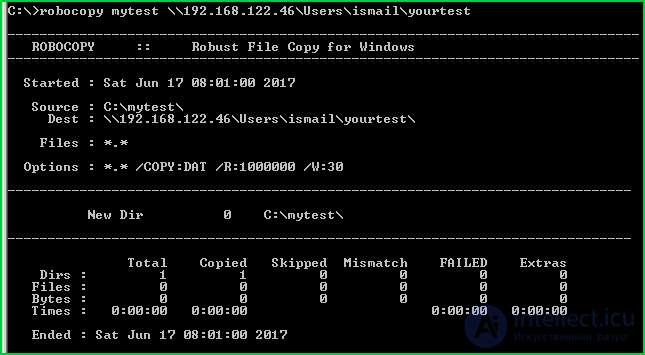
So, here's an example of using this utility:
robocopy D:\source_folder \\192.168.0.1\target_folder /E /Z /COPY:TDASO /DCOPY:T /M /R:2 /W:5
In this example:
We copy the folder "source folder" located on local drive D:
We copy this folder to the computer \\192.168.0.1 into the folder "target folder"
/E : We copy all subfolders and files
/Z : We enable resume support (in case of a connection drop)
/COPY:TDASO : We copy all attributes and NTFS ACL access permissions (but do not copy audit attributes)
/DCOPY:T : We copy the creation time of folders
/M : We copy only files with the "A - Archive" attribute set and clear this attribute, which lets us copy only changed files.
/R : The number of retry attempts to copy a file if the copy fails. Note that "failed" also triggers when access to the file is denied. The default is 1 million, i.e. essentially infinite, so the copy will happily hang on the very first file it can't access.
/W : Delay in seconds between copy attempts. The default is 30 seconds.
Note. I strongly recommend setting the /R and /W parameters manually, otherwise during automated synchronization it will simply hang the moment it hits an access error.
You can find a lot more options in the help:
robocopy /?
Why this utility is better compared to XCOPY:
- It can work with files whose name length is longer than 256 characters
- It can do mirroring, i.e. a clean synchronization in which files deleted in the source folder are also deleted in the destination folder.
To mirror folders (i.e. delete in the destination folder all files that no longer exist in the source folder) - you need to add the "/PURGE" switch:
robocopy D:\source_folder \\192.168.0.1\target_folder /E /Z /COPY:TDASO /DCOPY:T /M /PURGE
And here are a few examples of running this utility
Copy files modified over the last 5 days (excluding today):
robocopy D:\source_folder \\192.168.0.1\target_folder /maxage:5 /minage:1
Move all files (don't copy):
robocopy D:\source_folder \\192.168.0.1\target_folder /move /e
Copy only specific files matching a pattern
robocopy D:\source_folder \\192.168.0.1\target_folder *.xls *.doc *.txt /e
Approach two - XCOPY
This utility is older than ROBOCOPY and has fewer capabilities. For instance, it doesn't support paths with a name longer than 256 characters (something FAT couldn't handle either) and it can't do mirroring. What's more, it has known issues with copying NTFS ACL access permissions, at least when copying files to a Samba server.
Here's an example of running it:
xcopy "d:\source_folder" \\192.168.0.1\target_folder /D /E /C /I /H /R /K /Y /F /O
Here we:
- Copy all files from the directory "source folder" located on drive "D:"
- Copy all the files to the computer \\192.168.0.1 into the folder "target folder"
- /D : Copy only modified files (by modification date)
- /E : Copy subdirectories, including empty ones
- /C : Ignore errors if they occur during copying, and continue copying
- /I : The target object is a folder
- /H : Copy hidden and system files
- /R : Overwrite read-only files
- /K : Copy attributes such as "read-only", "archive", "system", "hidden"
- /Y : Don't ask for confirmation to overwrite files
- /F : Display full source and destination file names (otherwise - only file names, without folders)
- /O : If set - also copy NTFS ACL access attributes
In my own experience ROBOCOPY handles this job better, especially if you're copying files from a file-share dumping ground that several hundred people rummage through - there's usually enough mess there that the file name plus path length often exceeds 256 characters.
Rsync for Linux
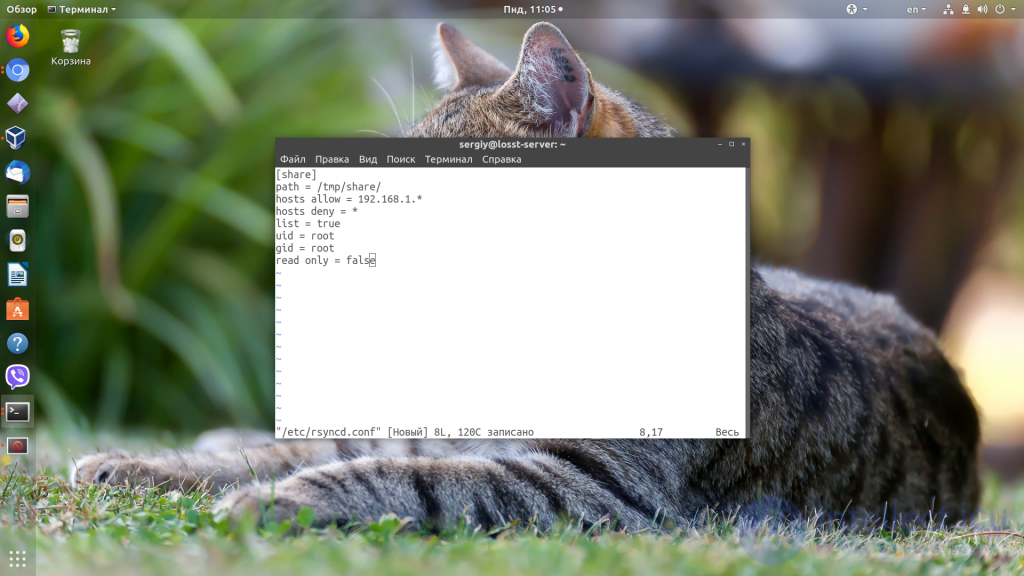
For Linux there is an application called Rsync, which can be used to synchronize files and folders from a local computer to a remote one and back. A notable feature of Rsync is the ability to transfer encrypted files using SSH and SSL. In addition, here the file transfer is carried out in a single stream, unlike other similar programs that create a separate stream for transferring each file. This increases speed and removes the extra delays that become a problem when transferring a large number of small files.
See also
- [[b6777]]
- [[b6067]]
- [[b8571]]
- [[b5964]]
- [[b6054]]
- [[b2532]]
- [[b11322]]
- [[b5275]]
See also


Comments