
Practice
Something unpleasant happened - a disk in a hardware Intel MegaRAID (LSI MegaRAID) array dropped out and went into an error state. The RAID itself signals this with an orange or red LED on the front of the drive bay, and MegaCLI reports an error stating that the RAID Volume is in Degraded mode.
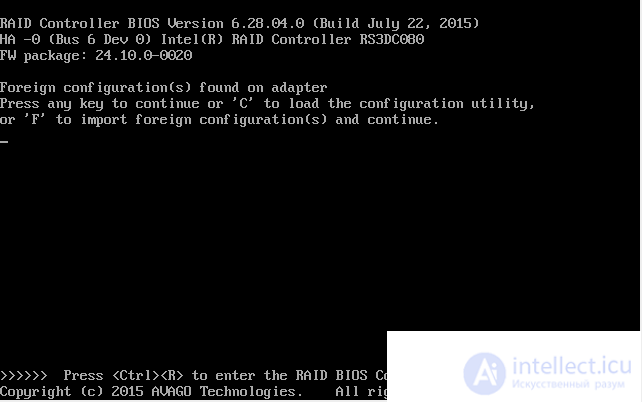
Foreign configuration(s) found on adapter. Press any key to continue, or ’C’ to load the configuration utility or ’F’ to import foreign configuration(s) and continue.
There are offline or missing virtual drives with preserved cache. Please check the cables and ensure that all drives are present. Press any key to enter the configuration utility.
Okay, you pulled the disk out and plugged it back in, and it seemingly lit up green at first, but then started blinking green-red. If you check with the controller, it will show this disk as "Unconfigured(Good)", but the RAID Volume itself will not come out of the "Degraded" state. Plus the controller will "delight" us with a message that it has detected a "foreign configuration" (Foreign configuration) on one of the disks.
This happens because, despite the "Auto-rebuild = Yes" option, the controller is in no hurry to accept the disk back, reporting that this disk was already part of some RAID Volume, and it does not care whether that RAID Volume was its own or the disk came from who knows where - the planet Krypton.
Or perhaps you simply replaced the disk with another similar one. And you need to attach it to the existing array and synchronize it.
This note assumes that MegaCLI (the so-called CmdTool2) is already installed on your system. For Windows or Redhat you can download and install it from the Intel website; for Debian, here is <> a note on how to do it.
You must not clear the foreign configuration, as this will delete the array.
If you import the foreign configuration, it will try to return the foreign disks to the array and write out the preserved cache.
Solution
1) First, let us find the replaced (reconnected) disk:
This command will display detailed information about all physical disks connected to all present controllers. In the list that comes out, look for something like this:
We need to note down 3 parameters:
* Adapter #0: the adapter number, which will be written on the very first line of the entire listing. In this example - number 0;
* Enclosure Device ID: the enclosure number, in our example =8;
* Slot Number: the slot number in the enclosure, in our example =3.
Note: If instead of "Unconfigured(Bad)" you have "Unconfigured(Good)" showing - skip to step 4.
2) If the device status is "Unconfigured(Bad)", we first need to raise the status to Good:
Notice the notation used here:
* [8:3] - this is Enclosure Device ID:Slot number [E:S],
* -a0 - this is adapter #0.
3) Erase the information about foreign configurations:
4) Now let us plug the disk back into the existing RAID.
To do this, we first need to find the dropped disk - its Array and Row:
That is, from the example above, the dropped disk has Array=1 and Row=1. Well then, let us plug the disk back into the RAID:
And now we start the rebuild (synchronization) of the disk:
You can check the current rebuild progress with the command:

Comments