
Practice
So, you have a file server (or just shared folders, even on a desktop version of Windows). And you need to see who is currently connected to which folder, or which file is opened by which user.
Viewing
To view:
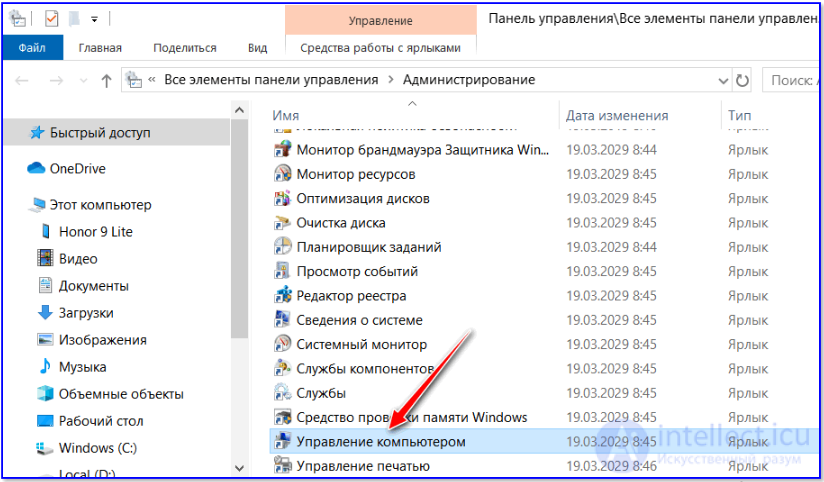
Start -> Administrative Tools -> Computer Management
For Windows Server 2008 users - don't confuse this with "Server Manager", which opens if you right-click on "Computer" and choose "Manage" - these are different snap-ins!
In the window that opens - expand "Shared Folders". This section has 3 subfolders:
Select the item you need and take a look. For example, to see current connections - who opened which files - choose "Open Files".
Force-close a connection
If you need to forcibly close a file that's open under a user (for example, someone needs to edit a file, but a careless current user didn't close it after working with it, left the computer running, and went off for half a day):
Open the "Open Files" folder, right-click the open file, and choose "Close Open File".
Keep in mind - the user currently working with the file:
Well, that's about it.
P.S. For Windows Server 2008 users - if previously, on earlier systems, you right-clicked "Start -> Computer" and chose "Manage", now instead of "Computer Management" that same click will open "Server Manager" - a completely different snap-in, so you'll have to go via "Start -> Administrative Tools -> Computer Management"! People get confused looking for the familiar snap-in in the familiar place and can't figure out where the shared-resource management went. Here's your hint.

Comments