
Lecture
Graphical user interface, graphical user interface (GUI) (English: graphical user interface, GUI) — a set of tools for user interaction with a computer, based on representing all system objects and functions available to the user in the form of graphical screen components (windows, icons, menus, buttons, lists, etc.). GUI is sometimes referred to as a WIMP interface.
A graphical user interface (GUI) provides a visual representation of a program or system, which makes interacting with it more intuitive and convenient for the user. A GUI includes elements such as windows, buttons, input fields, and other graphical elements that allow users to perform various operations without having to type commands manually.
Unlike a command-line interface, in a GUI the user has free access (using input devices — keyboard, mouse, joystick, etc.) to all visible on-screen objects (interface elements) and manipulates them directly. Most often, interface elements in a GUI are implemented on the basis of metaphors and display their purpose and properties, which makes it easier for untrained users to understand and learn programs.
The graphical user interface is part of the user interface and defines interaction with the user at the level of visualized information.
The most important properties of a GUI are the possibility of direct manipulation, support for a mouse or pointer, the use of graphics, and the presence of an area for the application's functions and data. Let us examine the components of a GUI in more detail. A window is an area of the display device used to present and interact with objects, information about objects, or to perform actions applied to an object. A window has a title bar, a set of move and resize operations, a set of menus, and an area for displaying information about objects. Usually a window is a rectangle, and an application that uses a window is a GUI-oriented application. A window displays information only on a certain part or area of the display device. Partial use of the display device allows several windows to be viewed for simultaneous interaction with several objects or control dialogs. The definition of a window also implies the use of graphics or visualization instead of textual information to indicate the available volume of information (for example, using a scroll bar instead of stating something like "line 1 of 35").
The graphical user interface was invented thanks to research conducted in the 1960s by Doug Engelbart at the Stanford Research Institute.
The GUI concept was subsequently adopted by scientists at the Xerox PARC research laboratory in the 1970s. In 1973, Xerox PARC gathered young scientists and gave them freedom to conduct research. As a result, among other things, the concept of the WIMP graphical interface (Windows, Icons, Menus, Pointers) emerged, and within this concept the Alto computer was created. It was never released as a commercial product, but was widely used within the company as a corporate tool by Xerox.
In 1979, Three Rivers Computer Corporation released the PERQ workstation, similar in design principles to the Alto. In 1981, Xerox released the successor to the Alto — the Star.
The GUI concept received its commercial embodiment in 1984 in the products of Apple Computer. Apple was criticized for abandoning the command line in favor of the graphical interface. In 1985, a multitasking GUI operating system was used in AmigaOS.
Later, the GUI became a standard component of most operating systems and applications available on the market. Examples of systems using a GUI: Mac OS, GEM, Atari TOS, Microsoft Windows, Solaris, GNU/Linux, NeXTSTEP, OS/2, BeOS, Android, iOS, Bada, MeeGo.
Although in the vast majority of systems the GUI is an add-on to the operating system, independent implementations of it also exist. A well-known variant is the graphical BIOS Setup program, where, even before the OS boots, the settings of an IBM PC-compatible computer are managed with a mouse, similar to a full-fledged GUI. There are also GUIs for microcontrollers that do not require an OS.
Ivan Sutherland developed Sketchpad in 1963, widely known as the first computer-aided design graphics program. He used a light pen to create and manipulate objects on technical drawings in real time with consistent graphics. In the late 1960s, researchers at the Stanford Research Institute led by Douglas Engelbart developed the oN-Line System (NLS), which used text hyperlinks manipulated with a device that was new at the time: the mouse. (The 1968 demonstration of NLS became known as «The Mother of All Demos.») In the 1970s, Engelbart's ideas were refined and extended to graphics by researchers at Xerox PARC, and in particular by Alan Kay, who went beyond text hyperlinks and used the graphical interface as the primary interface for the Smalltalk programming language, which ran on the Xerox Alto computer, released in 1973. Most modern general-purpose graphical interfaces are derived from this system.
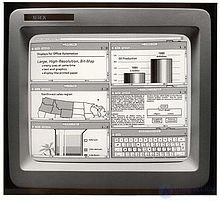
The first commercial graphical interface was introduced on the Xerox Star 8010 workstation.
The Xerox PARC user interface consisted of graphical elements such as windows, menus, toggles, and checkboxes. The concept of icons was later introduced by David Canfield Smith, who wrote his dissertation on the subject under Kay's supervision. The PARC user interface uses a pointing device together with a keyboard. These aspects can be emphasized using the alternative term and abbreviation for windows, icons, menus, pointing devices (WIMP). The culmination of these efforts was the creation of the Xerox Alto in 1973, the first computer with a graphical user interface, although the system never went into commercial production.
The first commercially available computer with a graphical user interface was the PERQ workstation of 1979, manufactured by Three Rivers Computer Corporation. Its design was heavily influenced by work at Xerox PARC. In 1981, Xerox eventually brought the Alto to market as a new improved system — the Xerox 8010 Information System, better known as the Xerox Star. These early systems spurred many other graphical-user-interface efforts, including Lisp machines from Symbolics and other manufacturers, the Apple Lisa (which introduced the concept of the menu bar and window controls) in 1983, the Apple Macintosh 128K in 1984, and on the Atari ST with Digital Research's GEM, and the Commodore Amiga in 1985. Visi On was released in 1983 for IBM PC-compatible computers, but was never popular due to its high hardware requirements. Nevertheless, it had a decisive influence on the modern development of Microsoft Windows.
Apple, Digital Research, IBM, and Microsoft used many of Xerox's ideas to develop their products, and the IBM Common User Access specifications formed the basis of the user interfaces used in Microsoft Windows, IBM OS/2 Presentation Manager, as well as the Unix Motif toolkit and window manager. These ideas evolved to create the interface found in current versions of Microsoft Windows and in various desktop environments for Unix-like operating systems, such as macOS and Linux. Thus, most modern graphical interfaces largely share common idioms.
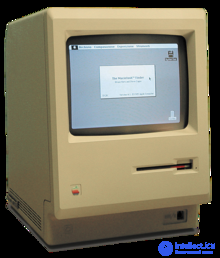
Macintosh 128K, the first Macintosh (1984)
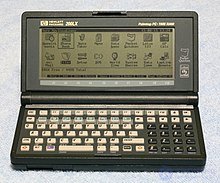
HP LX System Manager running on the HP 200LX.
Graphical user interfaces were a hot topic in the early 1980s. Apple's Lisa was released in 1983, and various windowing systems existed for DOS operating systems (including GEM and PC/GEOS). Individual applications for many platforms introduced their own variants of the graphical interface. Despite the advantages of the graphical user interface, many reviewers questioned the value of the whole concept, citing hardware limitations and difficulties in finding compatible software.
In 1984, Apple released a television commercial that introduced the Apple Macintosh during CBS's broadcast of Super Bowl XVIII, referencing George Orwell's famous novel «1984». The purpose of the commercial was to get people to think about computers, identifying the user-friendly interface with a personal computer that had moved away from earlier business-oriented systems, and it became a signature representation of Apple's products.
Windows 95, accompanied by an extensive marketing campaign, was a great market success at launch and soon became the most popular operating system for desktop PCs.
In 2007 with the iPhone, and later in 2010 with the introduction of the iPad, Apple popularized the post-WIMP interaction style for multi-touch screens, and these devices were considered milestones in the development of mobile devices.
The graphical interfaces familiar to most people from the mid-to-late 2010s are the interfaces of Microsoft Windows, macOS, and the X Window System for desktop and laptop computers, as well as Android, Apple's iOS, Symbian, BlackBerry OS, Windows Phone/Windows 10 Mobile, Tizen, WebOS, and Firefox OS for handheld devices (smartphones).
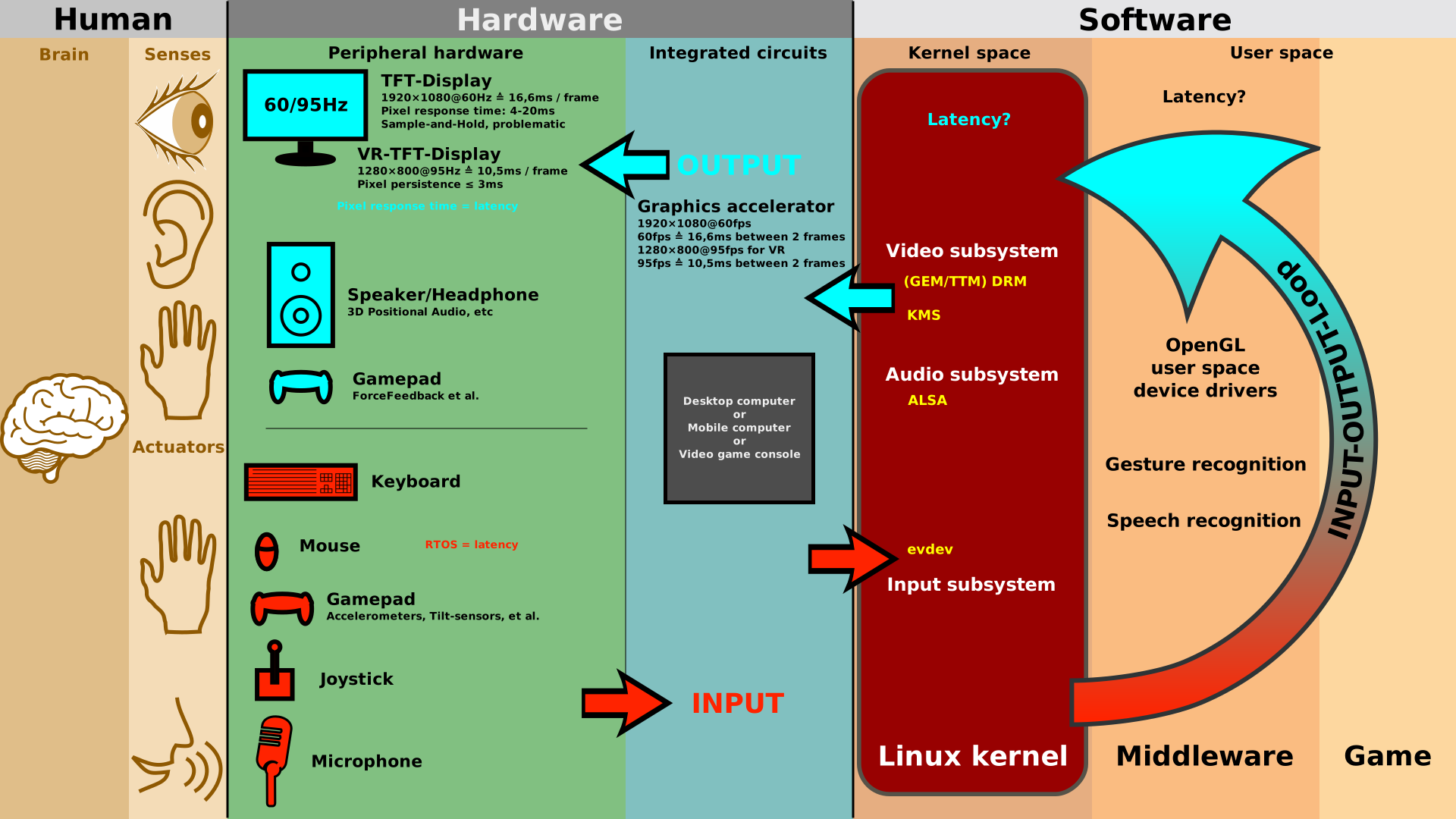
The graphical user interface is presented (displayed) on the computer screen. It is the result of processed user input and is usually the primary interface for human-computer interaction. In touch-based user interfaces, popular on small mobile devices, there is an overlay of visual output onto visual input information.
Designing the visual composition and temporal behavior of a graphical user interface is an important part of application programming in the field of human-computer interaction. Its goal is to improve the effectiveness and ease of use of the underlying logical design of the stored program — a design discipline called usability. User-centered design methods are used to ensure that the visual language presented in the design is well adapted to the tasks at hand.
The visible features of an application's graphical interface are sometimes called chrome or GUI (pronounced gooey). Users typically interact with information by manipulating visual widgets that allow interactions appropriate to the type of data they hold. The widgets of a well-designed interface are chosen to support the actions needed to achieve users' goals. The model-view-controller pattern provides a flexible structure in which the interface is independent of, and only indirectly linked to, application functions, so that the graphical interface can be customized easily. This allows users to choose or create a different skin as desired, and simplifies the designer's work in changing the interface as user needs evolve. Good user interface design focuses more on the users and less on the system architecture. Larger widgets, such as windows, usually provide a frame or container for the main content of a presentation, such as a web page, an email message, or a drawing. Smaller ones usually act as a tool for user data entry.
A graphical user interface can be designed to meet vertical-market requirements as graphical user interfaces for specific applications. Examples include automated teller machines (ATMs), point-of-sale (POS) touchscreens in restaurants, self-checkout registers used in retail stores, airline self-service and check-in kiosks, information kiosks in public places such as train stations or museums, and monitors or control screens in embedded industrial applications that use a real-time operating system (RTOS).
By the 1980s, mobile phones and handheld gaming systems also used specialized graphical interfaces for touchscreens. Modern cars use graphical user interfaces in their navigation systems and multimedia centers, or in combined navigation-multimedia centers.
Icons. An icon is in many respects similar to a window, although according to the formal definition, an icon is an area of the display device used to visually represent an object. Typical properties of an icon include a graphical symbol representing the object, a title or name, and direct-manipulation operations. The most important operation performed on an icon representing an object is the Open operation, which displays a window containing detailed information about the object.
There are many graphical symbols used in a GUI that are not formally icons. Graphical symbols used to represent actions, object attributes, and state may be perceived by end users as icons; however, from the standpoint of the GUI and standards developers, they should be regarded as graphical buttons. For such uses of graphical symbols, the terms "icon" and "graphic" are interchangeable.
Menus. A menu displays a set of alternatives from which the user can make a choice. Typically, the alternatives in a GUI-oriented menu are the names of commands the user selects to perform actions on objects. An example of a menu is the File menu, and an example of an alternative command placed in the File menu is the Print command. Menus contain the complete set of user commands. Non-graphical systems, by contrast, require the entire display to be used for the menu, with menus built in a hierarchical fashion.
There are several types of menus: menu bars, drop-down, pop-up, and cascading menus. Whatever their purpose and function, components such as toolbars represented by icons are also menus.
Pointers. Graphical systems typically include coordinate pointing devices in the form of a mouse or a trackball.
A specific location on the screen is associated with the coordinate pointing device, where the user can make input using that device. A pointer is a graphical symbol that visually shows the entry location on the screen for the coordinate pointing device. Pointers used in a GUI include the system arrow pointer, a graphical crosshair, and an I-beam or "beam" pointer (a pointer in the shape of an I-beam). In many respects, the pointer is analogous to the cursor, which marks the insertion point for characters typed on the keyboard on the display device's screen.
Direct manipulation. The most significant property of a GUI is direct manipulation, which allows the user to interact with objects using the pointer. For example, a window can be moved across the screen with the mouse by placing the pointer on the window's title bar, pressing and holding the mouse button, and moving the mouse (this operation is sometimes called "grab and drag"). Many actions performed by selecting alternatives or menu items can also be carried out using direct manipulation. For example, in many systems, dragging a document icon onto a printer icon on the desktop results in the document being printed. Other actions performed via direct manipulation include operations such as Move, Copy, Delete, and Link.
Other properties. Some other operating methods inherent to a GUI include the clipboard, key combinations, accelerator keys in menus and dialogs, and additional mouse-keyboard interaction capabilities. Despite their usefulness, these mechanisms are not considered essential properties of a GUI.
A GUI does not guarantee a higher level of practicality; however, a properly designed GUI-oriented software application can outperform its non-graphical counterpart in terms of user efficiency and satisfaction (provided the tasks are correctly defined and the user has an appropriate skill level).
Web User Interface (WUI). The basic WUI style (Web User Interface) is quite similar to the hierarchical menu structures that users know from experience working in non-graphical interface environments, except for a more visual presentation and the use of hyperlinks. The necessary navigation is performed within one or more applications using text or visual hyperlinks. Depending on the structure of the application's hyperlinks, navigation within a WUI interface results in web pages within the application's hierarchy being displayed one at a time within a single window. Below are the main features of an application using the WUI style:
- information is usually displayed in a single window called a browser, although several browser windows may be used to present data within an application;
- the browser provides the menu for the web application;
- the choice of actions is limited, since the menu providing access to functions is not readily available to the application;
- a web page has a small degree of internal control over the client area for opening specialized pop-up menus;
- creating specialized menus requires additional programming work;
- the client area does not contain traditional icons;
- many applications use graphics and animation for aesthetic or navigational purposes. This carries a potential risk of extraneous visual noise and increased response times when loading and rendering graphic files;
- the browser and applications provide the ability to disable the graphics contained in web pages, so that only their text version is displayed on the screen;
- pointer support is provided mainly for selection with a single mouse click or selection via navigation links. "Drag and drop" technology is not supported except in cases of special programming in certain environments. The actions of mouse button 2 are also limited.
Navigation. Moving from one page to another using hyperlinks or a search mechanism is the most frequently performed function of a WUI interface. The pages a user encounters exist within the same site or a different web site.
A web browser provides basic navigation capabilities for moving between web sites and within web sites in a linear fashion using the Back and Forward toolbar buttons. Navigation from one application page to another within the same application web site is performed using hyperlinks, the site map, buttons, and the navigation bar.
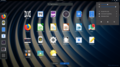
GNOME Shell
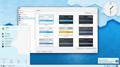
KDE Plasma 5
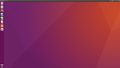
Unity
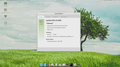
MATE
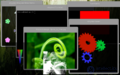
Windows as an example of the Wayland compositor
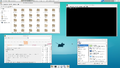
Xfce
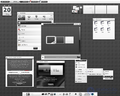
Enlightenment
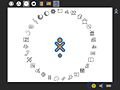
Sugar
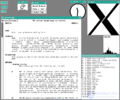
TWM, a X Window System environment
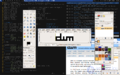
DWM, a tiling window manager

Cinnamon
The following types of graphical user interface can be distinguished:
There are a number of classifications of user interfaces used in the software industry. Let us consider the general classification currently applicable. In general, user interfaces can be divided into two large groups:
- the WIMP interface, whose components are: window, icon, menu, and pointer.
- the SILK interface: speech, icon, language, knowledge.
Interfaces of the WIMP group are the most widespread today. Interfaces of the SILK group are used relatively less often, mainly in specialized fields. Below we will examine in more detail WIMP interfaces, which have become widespread among software product designers.
Let us consider the classification of user interfaces currently in use; they are divided into four groups:
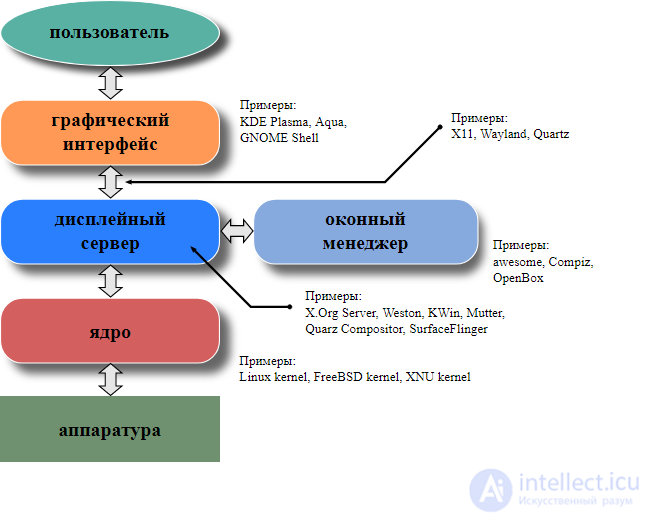
Layers of a graphical interface based on a windowing system
Further information: WIMP (computing), window manager, and desktop environment
A graphical user interface uses a combination of technologies and devices to provide a platform with which users can interact for the tasks of gathering and producing information.
A set of elements corresponding to a visual language has evolved to represent information stored in computers. This makes it easier for people with limited computer skills to work with and use computer software. The most common combination of such elements in a graphical user interface is the windows, icons, menus, pointer (WIMP) paradigm, especially on personal computers.
The WIMP interaction style uses a virtual input device to represent the position of the pointing device's interface, most often a mouse, and presents information organized in windows and represented by icons. Available commands are gathered together in menus, and actions are carried out by gestures with the pointing device. A window manager facilitates interaction between windows, applications, and the windowing system. The windowing system handles hardware devices such as pointing devices, graphics hardware, and pointer positioning.
In personal computers, all these elements are modeled using the desktop metaphor to create a simulation called a desktop environment, in which the display represents a desktop on which documents and folders of documents can be placed. Window managers and other software combine to model the desktop environment with varying degrees of realism.
One of the requirements for a good graphical interface of a software system is the «do what I mean» concept, or DWIM (Do What I Mean). This concept requires the system to behave predictably, so that the user can intuitively understand in advance what action the program will perform after receiving a command.
Human interface devices for effective interaction with a graphical interface include the computer keyboard, especially used together with keyboard shortcuts, pointing devices for controlling the cursor (or rather, the pointer): a mouse, a pointing stick, a touchpad, a trackball, a joystick, virtual keyboards, and projection displays (semi-transparent eye-level information devices).
There are also actions performed by programs that affect the graphical interface. For example, there are components such as inotify or D-Bus for facilitating communication between computer programs.
Mobile devices with small applications, such as personal digital assistants (PDAs) and smartphones, typically use WIMP elements with various unifying metaphors due to limitations in space and available input devices. Applications for which WIMP is not suitable can use newer interaction methods, which are collectively called post-WIMP user interfaces. [14]
As of 2011, some touchscreen-based operating systems, such as Apple's iOS (iPhone) and Android, use a class of graphical interfaces called post-WIMP. They support interaction styles using more than one finger touching the display, which allows actions such as pinching and rotation that are not supported by a single pointer and mouse.
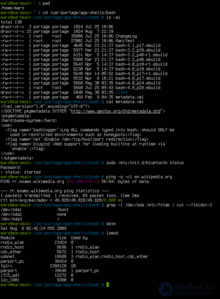
A modern command-line interface
Because the commands available in command-line interfaces can be numerous, complex operations can be performed using a short sequence of words and characters. This can improve efficiency and productivity after learning many commands, but reaching that level takes some time, because command words may not be easily discoverable or mnemonic. In addition, using the command line can become slow and error-prone when users must type long commands containing many parameters or several different file names at once. However, windows, icons, menus, pointer (WIMP) interfaces provide users with many widgets that represent, and can launch, some of the commands available in the system.
A graphical interface can become quite complex when dialogs are buried deep in the system or moved to different locations during a redesign. In addition, it is usually harder for users to write a script for icons and dialog boxes.
WIMP interfaces make extensive use of modes, since the meaning of all keys and clicks at particular positions on the screen is constantly being redefined. Command-line interfaces use modes only in limited forms, for example for the current directory and environment variables.
Most modern operating systems provide both a graphical interface and some level of command-line interface, although graphical interfaces are usually given more attention. The graphical user interface is usually based on WIMP, although other metaphors sometimes appear, for example those used in Microsoft Bob, 3dwm, or File System Visualizer.
Graphical user interface (GUI) wrappers find a way to bypass the command-line interface (CLI) versions of (usually) Linux and Unix-like software applications and their text user interfaces or entered command labels. Whereas command-line-based or text applications allow users to run the program in a non-interactive mode, GUI wrappers placed on top of them avoid the steep learning curve of the command line, which requires commands to be typed on the keyboard. By launching a GUI wrapper, users can intuitively interact with, start, stop, and change its operating parameters using graphical icons and visual indicators, for example a desktop environment. Applications can also provide both interfaces, and when they do, the graphical interface is usually a WIMP wrapper for the command-line version. This is especially characteristic of applications developed for Unix-like operating systems. The latter used to be implemented before the former, because it allowed developers to focus solely on the functionality of their product without worrying about interface details such as icon design and button placement. This way of designing programs also allows users to run the program in a shell script.
This section is devoted to three-dimensional user interfaces as software. For information about physical 3D input/output devices, see «3D interaction» § 3D user interfaces.
Several attempts have been made to create a multi-user three-dimensional environment or three-dimensional graphical interface, including Sun's Project Looking Glass, Metisse, which was similar to Project Looking Glass, BumpTop, where users can manipulate documents and windows with realistic motion and physics as if they were physical documents, and the Croquet Project, which transitioned into Open Cobalt and Open Croquet.
The zooming user interface (ZUI) is a related technology that promises to deliver the representational benefits of a 3D environment without the practical drawbacks of orientation problems and hidden objects. It is a logical step forward from the graphical user interface, combining three-dimensional motion with two-dimensional or 2.5-dimensional vector objects. In 2006, Hillcrest Labs introduced the first zooming user interface for television.
For typical computer displays, the term "three-dimensional" is a misnomer — their displays are two-dimensional; for example, Metisse described itself as a "2.5-dimensional" user interface. Semantically, however, most graphical user interfaces use three dimensions. Thanks to height and width, they offer a third dimension of overlaying or stacking screen elements on top of one another. This can be represented visually on screen using an illusory transparency effect, which has the advantage that information in background windows can still be read if it is not interacted with. Or the environment can simply hide the background information, perhaps making the distinction obvious by drawing a shadow effect over it.
Some environments use three-dimensional graphics techniques to project virtual three-dimensional user-interface objects onto the screen. These are often used in science-fiction films (see examples below). As the computing power of computer graphics hardware increases, this becomes less and less of an obstacle to seamless user interaction.
Three-dimensional graphics are currently used mainly in computer games, art, and computer-aided design (CAD). A three-dimensional computing environment can also be useful for other purposes, such as molecular graphics, aircraft design, and phase-equilibrium calculations / unit-operations and chemical-process design.
The use of three-dimensional graphics is becoming increasingly common in mainstream operating systems, from creating attractive interfaces called «eye candy» to functional purposes achievable only through the use of three dimensions. For example, user switching is represented by the rotation of a cube whose faces represent each user's workspace, and window management is represented by a Rolodex-style flipping mechanism in Windows Vista (see Windows Flip 3D). In both cases, the operating system transforms the windows on the fly while continuing to update the content of those windows.
Interfaces for the X Window System have also implemented advanced three-dimensional user interfaces through compositing window managers such as Beryl, Compiz, and KWin, using the AIGLX or XGL architectures, which allow OpenGL to be used to animate the user's interaction with the desktop.
Three-dimensional graphical user interfaces appeared in science-fiction literature and film before they became technically feasible or widely adopted. For example: the 1993 American film «Jurassic Park» features the three-dimensional File System Navigator from Silicon Graphics, an actual file manager for Unix operating systems. The film Minority Report has scenes where police officers use specialized three-dimensional data systems. In fiction, three-dimensional user interfaces have been depicted as immersive environments, such as William Gibson's Cyberspace or Neal Stephenson's Metaverse. Many futuristic depictions of user interfaces draw heavily on the object-oriented user interface (OOUI) style and, in particular, the object-oriented graphical user interface (OOGUI) style.
Web applications can also have their own GUI, presenting the interface in the user's browser. Technologies such as HTML, CSS, and JavaScript are used to create web interfaces.
There are various frameworks and libraries that make it easier to create GUIs in different programming languages. Some of them:
JavaFX: A framework for creating GUI applications in the Java language.
Swing (Java): A library for building graphical interfaces on the Java platform.
Qt (C++): A cross-platform framework for creating applications with a graphical interface in C++.
Tkinter (Python): A library for creating GUIs in the Python language.
WinForms (C#): A framework for creating applications for the Windows operating system using the C# programming language.
Electron: A framework for creating cross-platform desktop applications using web technologies such as HTML, CSS, and JavaScript.
The graphical interface plays an important role in the user's experience interacting with software, making it more accessible and understandable for a wide range of users.

Comments