
Practice
There are several ways to check for updates.
To forcibly check for Windows 7-10 updates "right here, right now" - run the following command with administrator rights:
The command won't display anything, but it will start a background update check. When the machine checks the WSUS server and if it finds updates, it will notify the user about this, offering to install them (though of course there can be variations here depending on group policy settings).
To forcibly check for Windows updates, it's enough to use the built-in update center or Microsoft's special tools. The fastest way — open «Settings» → «Update & Security» → «Windows Update» and click the «Check for updates» button. For more advanced users, PowerShell commands and the Windows Update Assistant utility are available.
Security: updates close vulnerabilities and protect the system from viruses.
Stability: they fix bugs and improve performance.
New features: they let you get the latest Windows 10/11 capabilities sooner.
Open the Start menu → Settings → Update & Security → Windows Update.
Click «Check for updates».
The system will immediately begin searching for and downloading available packages.
Launch PowerShell as administrator.
Enter the command:
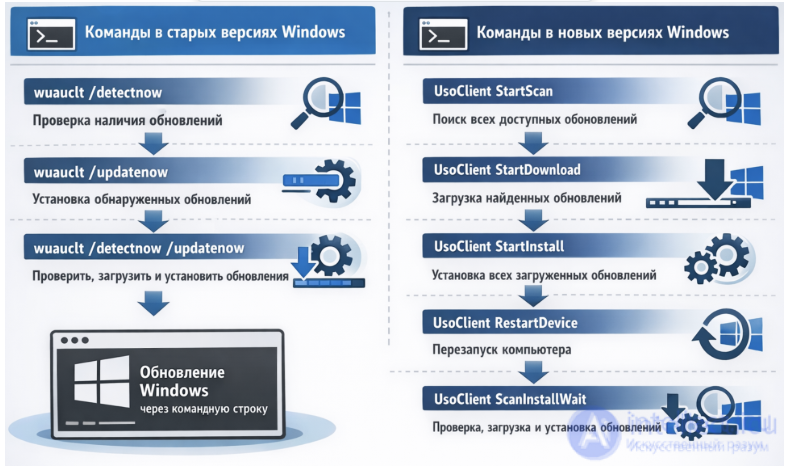
UsoClient StartScan
Additionally, you can use:
UsoClient StartDownload — downloads updates.
UsoClient StartInstall — installs updates.
These commands let you bypass delays and trigger the process manually.
Download the Windows Update Assistant utility from Microsoft's official website.
Run it and follow the instructions.
Suitable for updating to the latest version of Windows 10 or Windows 11.
Used for upgrading or a clean install.
Lets you create an ISO image or a bootable USB drive.
Useful if the standard update center doesn't find any updates.
Starts an immediate update search process through the Windows Update service.
Useful if the standard «Check for updates» button isn't responding or automation is required.
Open Command Prompt (cmd) as administrator.
Enter:
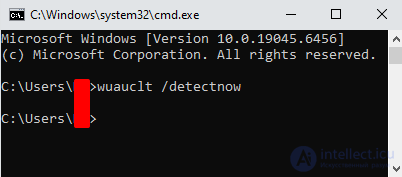
wuauclt /detectnow
To force-install any updates found, you can use:
wuauclt /updatenow
wuauclt /detectnow /updatenow (проверить, загрузить и установить обновления)
The command works in Windows 7, Windows 8, and Windows 10. In Windows 11 its functionality is partially limited, since Microsoft is gradually shifting update management over to UsoClient and PowerShell.
The result of execution isn't displayed directly in the console — the process runs in the background. You can check the status in Windows Update or through the event log.
| Method | Difficulty level | When to use | Features |
|---|---|---|---|
| Windows Update | Easy | For regular users | Fast and safe |
| PowerShell/Command Prompt | Medium | For administrators | Lets you control the process |
| Update Assistant | Medium | When moving to a new version | Requires downloading the utility |
| Media Creation Tool | Hard | For a full reinstall or upgrade | Creates ISO/USB |
| Method | Applicability | Advantages | Disadvantages |
|---|---|---|---|
| Windows Update | Windows 10/11 | Convenient interface | Requires a manual click |
| UsoClient StartScan | Windows 10/11 | Modern tool | Doesn't work on older versions |
| wuauclt /detectnow | Windows 7–10 | Simple command, suitable for scripts | Becoming obsolete, no visual feedback |
| Update Assistant | Windows 10/11 | Updates to the latest version | Requires downloading the utility |
Compatibility: make sure your device meets the requirements of the new Windows version.
Backup: it's recommended to save important files before updating.
Power: plug your laptop into the mains before updating it.
Network: use a stable internet connection, since updates can be large.
Forcing a check for Windows updates is possible both through the standard settings and through utilities and commands. For most users, the «Check for updates» button in system settings is enough, while PowerShell and Microsoft's tools are available for specialists. This approach lets you always keep the system up to date and secure.
wuauclt /detectnow remains a useful tool for system administrators and those working with older versions of Windows. On newer systems it's better to use UsoClient or PowerShell, but knowing this command helps when maintaining mixed infrastructures.

Comments