
Practice
You can disable the "Login keyring" prompt in Ubuntu, but keep in mind that this will reduce the security of your system, since this mechanism is used to protect passwords and keys.
To disable the "Login keyring" prompt, follow these steps:
Change the password for the keyring:
Press Super (the Windows key) to open the application menu and search for "Passwords and Keys" (Seahorse).
Launch the "Passwords and Keys" application.
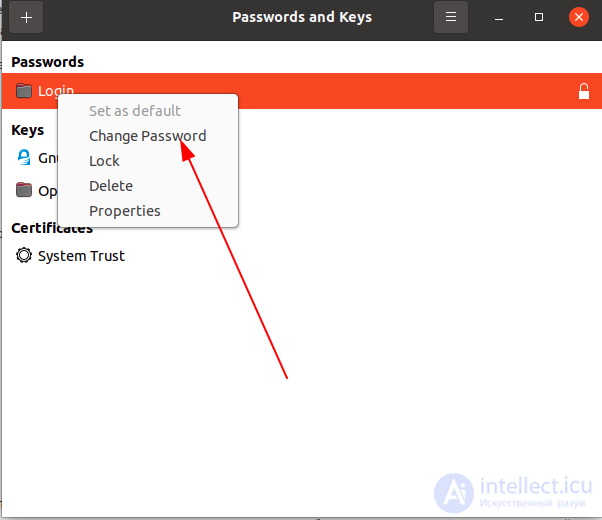
In the left panel, select "Login" and right-click it.
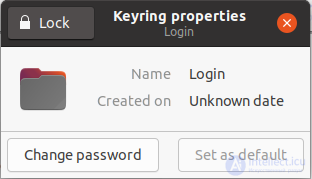
Select "Change Password".

Set an empty password:
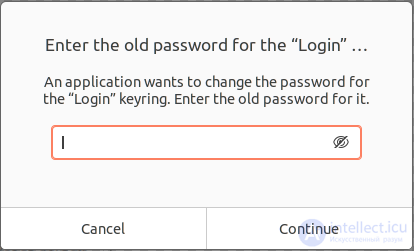
Leave the "Old Password" field empty.
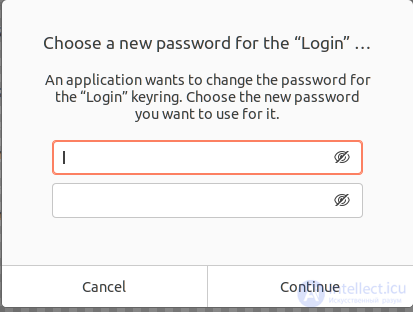
In the "New Password" field, enter an empty password (no characters).
Repeat the empty password in the "Confirm Password" field.
Click "OK" or "Continue" to save the changes. You may be asked to confirm the password change.
You can also disable the "Login keyring" prompt in Ubuntu by using automatic unlocking of the key store at login. This will let you avoid being prompted for the keyring password every time you start up.
It is important to note that disabling the "Login keyring" prompt reduces the security of the system, since the key data will be less protected. It is recommended that you carefully weigh the potential risks and make a decision based on your needs.
Here's how to do it:
Using automatic login:
Log in to the system automatically at startup to avoid being prompted for the keyring password. To do this:
After this, the keyring will be unlocked automatically when you log in.
Using an empty password for the keyring:
You can set an empty password for the keyring to avoid being prompted for a password every time you log in. This is a less secure solution, so be careful.
Open a terminal (Ctrl + Alt + T).
Run the following command to set an empty password for the keyring:
gnome-keyring-daemon --unlock
Then you may need to restart the system:
sudo reboot
After the restart, the keyring will be unlocked automatically.
Choose the method that suits you based on your needs and security requirements.
It is recommended to restart the computer to apply the changes.
After setting an empty password for the "Login keyring", you should no longer be prompted to enter the keyring password when logging in. However, to reiterate, disabling this security mechanism reduces the protection of stored passwords and keys, so use this option with caution and only in situations where security is not the top priority.

Comments