
Lecture 28 min.
A computer mouse (simply a "mouse" or "mousie") is a mechanical pointing device that converts motion into a control signal. In particular, that signal can be used to position a cursor or to scroll pages.
It came into widespread use with the arrival of the graphical user interface on personal computers. Besides mice, there are other input devices serving a similar purpose: trackballs, touchpads, graphics tablets, and touchscreens.
A mouse senses its own movement across a working plane (usually a patch of desk surface) and transmits that information to the computer. The program running on the computer responds to the movement of the mouse with an action on the screen that corresponds to the direction and distance of that movement. In various interfaces (windowed ones, for example) the user employs the mouse to control a special cursor — the pointer — which manipulates interface elements. Sometimes commands are entered with the mouse without any visible interface elements of the program being involved: by analyzing the movements of the mouse. This method is known as "mouse gestures" (mouse gestures).
In addition to the motion sensor, a mouse has one or more buttons as well as supplementary controls (scroll wheels, potentiometers, joysticks, trackballs, keys and so on), whose action is usually tied to the current position of the cursor (or to the components of a specific interface).
The controls of a mouse are in many respects an embodiment of the ideas behind the chorded keyboard. The mouse, originally created as a supplement to the chorded keyboard, in fact replaced it.
Some mice have additional independent devices built into them — clocks, calculators, telephones.
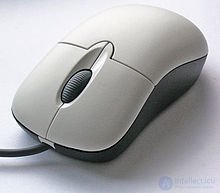 A typical modern mouse — optical, with two buttons and a clickable scroll wheel
On December 9, 1968, the computer mouse was presented at a demonstration of interactive devices in California . Douglas Engelbart received a patent for this gadget in 1970.
The first computer shipped with a mouse as part of its package was the Xerox 8010 Star Information System minicomputer (English), introduced in 1981. The Xerox mouse had three buttons and cost 400 US dollars, which corresponds to almost 1000 dollars in 2012 prices after adjusting for inflation . In 1983 Apple released its own single-button mouse for the Lisa computer, the cost of which was brought down to $25. The mouse became widely known thanks to its use in Apple Macintosh computers and later in Windows on IBM PC compatible machines. In the USSR a computer mouse was manufactured under the name "Manipulator Kolobok", with a heavy metal ball that at the time was not yet covered with rubber.
In the course of the computer mouse's "evolution", it was the motion sensors that changed the most.
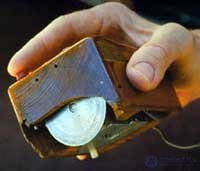 The first computer mouse
The original design of the motion sensor of the mouse invented by Douglas Engelbart at the Stanford Research Institute in 1963 consisted of two perpendicular wheels protruding from the body of the device. As the mouse was moved, each wheel rotated along its own axis.
This design had many drawbacks and was fairly soon replaced by the ball-drive mouse.
In a ball drive, the motion of the mouse is transferred to a rubber-coated steel ball protruding from the body (its weight and rubber coating provide good traction with the working surface). Two rollers pressed against the ball pick up its motion along each of the two axes and pass it to rotation-angle sensors (incremental encoders), which convert these movements into electrical signals.
The main drawback of the ball drive is the fouling of the ball and of the pickup rollers, which causes the mouse to stick and makes periodic cleaning necessary (this problem was partly mitigated by metallizing the rollers). Despite its drawbacks, the ball drive dominated for a long time, competing successfully with alternative sensor schemes. Today ball mice have been almost completely displaced by second-generation optical mice.
There were two variants of sensors for the ball drive.
A contact sensor is a laminate disc with radial metal tracks and three contacts pressed against it. The ball mouse "inherited" this sensor from the direct drive.
The main drawbacks of contact sensors are oxidation of the contacts, rapid wear and low accuracy. For this reason all mice eventually moved to contactless optocoupler sensors.
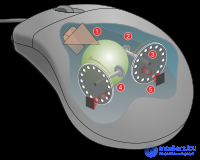 An optocoupler coordinate sensor in a ball-drive mouse
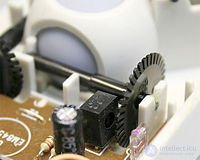 The construction of a mechanical computer mouse
An optical sensor consists of a double optocoupler — an LED and two photodiodes (usually infrared) — and a disc with holes or radial slots that interrupts the light beam as it rotates. When the mouse is moved, the disc rotates and a signal is taken from the photodiodes at a frequency corresponding to the speed of the mouse's movement. The phase difference of illumination between the two photodiodes determines the direction of rotation. A similar sensor is used on the scroll wheel.
Optical sensors are intended to track the movement of the working surface relative to the mouse directly. Eliminating the mechanical component provided higher reliability and made it possible to increase the resolving power of the detector.
The first generation of optical sensors was represented by various schemes of optocoupler sensors with indirect optical coupling — light-emitting diodes and photosensitive diodes that picked up the reflection from the working surface. Such sensors all shared one property: they required a special hatching (of perpendicular or diamond-shaped lines) on the working surface (the mouse pad). On some pads this hatching was applied with inks invisible under ordinary light (such pads could even carry a picture).
The drawbacks usually cited for such sensors are:
In the USSR, first-generation optical mice were as a rule encountered only in foreign specialized computing systems.[clarification needed]
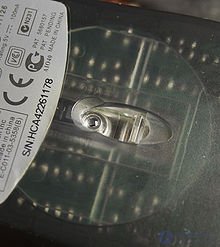 A mouse with an optical sensor
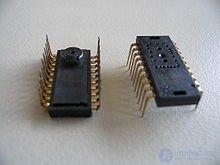 The chip of a second-generation optical sensor
The second generation of optical mice has a more complex design. A special high-speed video camera is installed in the underside of the mouse. It continuously takes pictures of the desk surface and, by comparing them, determines the direction and magnitude of the mouse's displacement. Special contrasting illumination of the surface by an LED or a laser makes the camera's job easier. Second-generation optical mice have an enormous advantage over the first: they do not require a special pad and work on virtually any surface except mirrored or transparent ones; even on PTFE (including black).
Practically the only manufacturer of optical mouse sensors is Avago Technologies. Its sensors have a resolution ranging from 16*16 to 40*40 pixels at several thousand frames per second. A dedicated digital signal processor for computing displacements is integrated on the same die as the sensor.
It was assumed that such mice would work on an arbitrary surface, but it soon turned out that many models on sale (especially the first widely sold devices) were not so indifferent to the texture of the surface or to the patterns on the pad. On certain parts of a pattern the graphics processor can go badly wrong, which leads to chaotic movements of the pointer that do not correspond to the actual displacement. For mice prone to such failures, a pad with a different pattern has to be found. The particulars of the contrasting illumination cause the mouse to fail on smooth surfaces such as mirrors.
Dust and lint on the sensor optics also lead to movement errors or to an effect of small movements while at rest, which manifests itself as jitter of the on-screen pointer, sometimes with a tendency to creep to one side or the other.
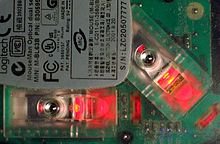 A mouse with a dual sensor
Second-generation sensors are gradually being improved, and today mice prone to failures are encountered far less often. Besides improvements to the sensors, some models are equipped with two motion sensors at once, which makes it possible to rule out potential errors by analyzing changes on two areas of the surface simultaneously. Such mice are sometimes able to work on glass, acrylic and mirrored surfaces (on which other mice do not work).
Mouse pads aimed specifically at optical mice are also produced. For example, a pad whose surface carries a silicone film with a suspension of glitter (the assumption being that an optical sensor detects movement over such a surface much more precisely).
Some people also count among the drawbacks of optical mice the fact that they glow even when the computer is switched off. Since most inexpensive optical mice have a translucent body, it lets through the red light of the LEDs, which interferes with falling asleep if the computer is in the bedroom. This happens if the PS/2 and USB ports are powered from the standby voltage line; most motherboards allow this to be changed with a +5V <-> +5VSB jumper, but in that case it will not be possible to turn the computer on from the keyboard. To eliminate this problem one can also buy a mouse with an infrared illumination LED.
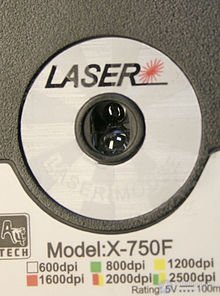 A laser sensor
In recent years a new, more advanced variety of optical sensor has been developed that uses a semiconductor laser for illumination .
Little is yet known about the drawbacks of such sensors, but their advantages are known:
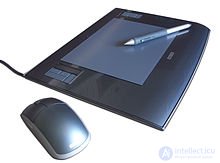 A graphics tablet with an inductive mouse
Inductive mice use a special pad that works on the principle of a graphics tablet, or they come as part of a graphics tablet package. Some tablets include a pointing device resembling a mouse with a glass crosshair that works on the same principle but differs somewhat in implementation, which makes it possible to achieve higher positioning accuracy by increasing the diameter of the sensing coil and moving it out of the device into the user's field of view.
Inductive mice have good accuracy and do not need to be oriented correctly. An inductive mouse can be "wireless" (the tablet on which it works is connected to the computer) and can also be inductively powered, and therefore does not require batteries as ordinary wireless mice do.
A mouse supplied with a graphics tablet will save a little desk space (provided that the tablet is permanently kept on the desk).
Inductive mice are rare, expensive and not always convenient. A graphics tablet mouse is practically impossible to swap for a different one (for example, one that fits the hand better, and so on).
A mouse fitted with a gyroscope detects motion not only on a surface but also in space: it can be lifted off the desk and controlled by moving the wrist in the air.
Gyroscopic sensors keep improving. For example, according to Logitech, the mechanical sensors built with MEMS technology that are used in the MX Air mouse are more compact than traditional gyroscopic ones. To date, the smallest gyroscopic sensor of all is fitted in the mice (NEO MOUSE) developed by the Korean company NEO REFLECTION. The "Neo mouse" weighs only 13 grams and is no larger than an AA battery.
Buttons are the mouse's main controls, used to perform the basic manipulations: selecting an object (by clicking) and active dragging (that is, moving the mouse with a button held down, in order to draw, or to mark the start and end of a segment on the screen that may be interpreted as the diagonal of a rectangle, the diameter of a circle, or the initial and final point when moving an object, selecting text, and so on).
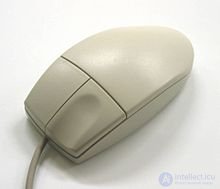 A two-button mouse
The number of buttons on a mouse is limited by the concept of operating them blind, much like the keys of a chord keyboard. However, unlike a chord keyboard, which can comfortably use five keys (one per finger), a mouse also has to be moved with three fingers (thumb, ring finger and little finger) or two (thumb and little finger). This means that two or three full-fledged buttons can be provided for use while the mouse is being moved across the desk — under the index, middle and ring fingers (for three buttons). The outer buttons are named by their position — left (under a right-hander's index finger), right and middle, in the case of a three-button mouse.
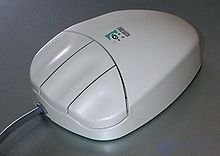 A three-button mouse
For a long time the two- and three-button concepts competed with each other. Two-button mice led at first, because besides simplicity (three buttons are easier to mix up), convenience and a lack of frills, they had software on their side that barely made use of even two buttons. Yet despite everything, three-button mice never stopped selling, until the rivalry came to an end.
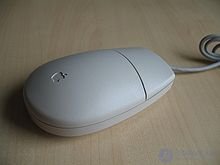 A single-button Apple mouse
The rivalry between two- and three-button mice ended with the arrival of screen scrolling, a popular new capability. Two-button mice gained a small middle (third) button for turning scrolling on and off, which soon turned into a scroll wheel that also acts as the middle button when pressed.
Apple arrived at the use of additional mouse buttons by its own route. Having initially considered even a second button superfluous, Apple built all of its interfaces around a single-button mouse until fairly recently. Modern Apple mice, however, beginning with the Mighty Mouse, can be programd for anywhere from one to four buttons.
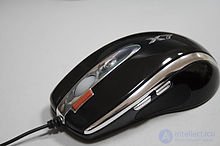 An A4Tech X7 mouse with additional buttons
Manufacturers constantly try to add extra buttons to their top models, most often buttons under the thumb or index finger and more rarely under the middle finger. Some buttons serve for the mouse's internal settings (for example, to change sensitivity) or produce double and triple clicks (for applications and games); others are assigned system functions in the driver and/or a dedicated utility, for example:
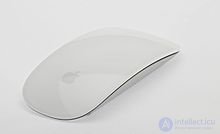 Apple Magic Mouse
In 2009 Apple introduced the Magic Mouse, the world's first mouse with touch control and support for multi-touch technology. Instead of buttons, wheels and other controls, this mouse uses a touch-sensitive trackpad that allows various gestures to perform clicks, scrolling in any direction, image zooming, navigation through a document's history, and more.
Most of the elements that are not buttons serve to scroll content (a web page, document, list, list box and so on) within application windows and other interface elements (scroll bars, for example). Several designs can be singled out among them.
Wheels and potentiometers are disks that protrude from the body and can be rotated. Unlike wheels, potentiometers have end stops.
A single wheel between the buttons (the "scroll wheel", for vertical scrolling) is the de facto standard today. Such a wheel may be absent on concept models that use other designs for scrolling.
Wheels and potentiometers can also be used for adjustments, such as volume.
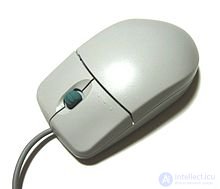 The Mitsumi Scroll mouse, which has a joystick instead of a scroll wheel
A mini joystick is a lever with two buttons that prevents both buttons from being pressed at once (or a doubled arm at right angles, oriented along the four main directions). The arm may have a central stick or, conversely, a central recess (as on the joysticks of game controllers). Mini joysticks with a potentiometer are occasionally encountered.
Besides vertical and horizontal scrolling, mouse joysticks can be used as an alternative way to move the pointer, or for adjustments, just like wheels.
A trackball is a ball that rotates in any direction. The ball's movements are picked up mechanically (as in a mechanical mouse) or optically (the method used in modern trackballs).
A trackball can be regarded as a two-dimensional scroll wheel. Like a joystick, a trackball can be used as an alternative way to move the pointer. Trackballs are usually used by specialists such as sound engineers and others, since rolling the ball with one's fingers takes quite a while to get used to. A trackball does, however, provide more precise cursor positioning than a mouse. Nowadays it is hardly used at all.
 A tilting scroll wheel
Touch strips and panels (touchpads) are elements that detect the movement of a finger across a surface. Strips detect movement in one dimension (like wheels), panels in two (like trackballs).
Touch strips and panels perform the same functions as wheels and trackballs, but have no moving parts.
Hybrid controls combine several principles in one.
Wheels, joysticks and trackballs may incorporate a button that is triggered by pressing straight down on the control. The standard scroll wheel, for instance, doubles as the middle mouse button.
A wheel may include joystick features — freedom to tilt about its axis of rotation. Such is the tilting scroll wheel (tilting the wheel provides horizontal scrolling); it is simultaneously a wheel, a joystick and a button.
The very first mice (the ball type) contained nothing inside but sensors and buttons, and connected to the computer through their own ISA-bus adapter (bus mice, English bus mouse), in which the sensor signals were processed.
Later, as electronic components became more miniaturized, mice began connecting to x86 computers through the RS-232 serial communication interface (serial mice) with a DB25F connector and, later, a DB9F one. By the 1990s most of the mice being produced already used a serial connection. A serial mouse drew its power from the DTR line ("computer ready") of the RS-232 connector.
In the PS/2 computer, IBM provided a dedicated mouse port with a mini-DIN connector, exactly the same as the one for the keyboard. Later the PS/2 keyboard and mouse connectors were incorporated into ATX, the modern x86 motherboard standard. Such mice led in sales in the period from 2001 to 2007 and are still in use, gradually yielding ground to the USB interface. Because of the way the hardware of IBM-compatible computers works, the PS/2 mouse interface was deactivated at boot if no mouse was connected, and plugging one in once the computer had booted was pointless; such mice, however, placed no load on the computer's central processor and worked more smoothly on early computers with a USB bus. Initially PS/2 and RS-232 mice had the advantage of being able to send samples to the computer at a higher rate — the polling rate of the first USB mice was limited by the frame rate of the USB 1.1 bus (1 kHz).
Many mice are produced with a "wireless" interface. Most often they are built around a proprietary radio channel, but wireless mice using Bluetooth, the universal wireless radio interface, are gaining in popularity.
The bulk of modern mice use the USB interface, sometimes with a PS/2 adapter. Apple currently ships mice for its computers with a Bluetooth interface only, although USB mice can be used as well.
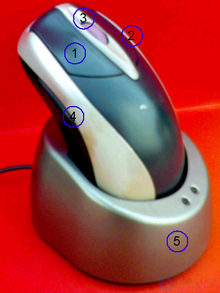 A wireless mouse on charge (4 — the mouse, 5 — the docking station)
A mouse's signal cord is sometimes seen as an obstruction and a limiting factor. Wireless mice are free of that factor. Wireless mice do, however, have a serious problem: along with the signal cable they lose mains power and are forced to run on their own supply, from rechargeable or disposable batteries, which have to be recharged or replaced and which also add weight to the device.
A wireless mouse's rechargeable batteries can be charged either outside the mouse or inside it (exactly as with the batteries in mobile phones). In the latter case the mouse must periodically be connected to mains power through a cable, a docking station or an inductive charging pad.
The first attempts involved an infrared link between the mouse and a dedicated receiver, which in turn plugged into a port on the computer.
In practice the optical link revealed a major drawback: any obstacle between the mouse and the sensor interfered with operation.
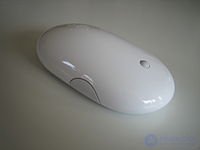 The Apple Mighty Mouse wireless mouse
A radio link between the mouse and a receiver plugged into the computer made it possible to get rid of the shortcomings of the infrared link, and it displaced it.
Three generations of wireless mice can be distinguished. The first generation used the frequency bands intended for radio-controlled toys (27 MHz). They had a low polling rate (typically 20–50 Hz), an unstable link, and interfered with one another when placed close together. These mice had an amusing problem: since their range was several meters and organizations usually bought identical equipment in batches, there were cases in which the cursor on a computer's screen was being controlled by a mouse located even one floor away. Such mice usually have a switch that lets the user select one of two radio-frequency channels, and in most cases switching to the other channel resolved the problem. First-generation mice are no longer manufactured today.
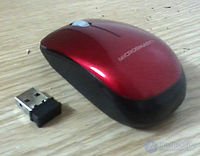 A wireless mouse with a dongle
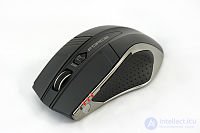 The Gigabyte Force M9 ICE Black wireless mouse with a laser sensor
The second generation of radio mice used the free 2.45 GHz band and was built on highly integrated high-speed radio channels. These designs managed to shed the "teething troubles" of the first generation entirely. Their main drawback is considered to be the need for a special USB dongle housing the mouse's receiver. Such a dongle occupies a USB slot on the computer. Losing the dongle turns the mouse into dead hardware, because different manufacturers' radio protocols are incompatible. Second-generation mice are the most widespread today.
The third generation of radio mice uses standard radio interfaces. As a rule, this is Bluetooth or (far less often) other standard personal-area-network radio interfaces. Bluetooth mice do not need a special dongle, since modern computers come equipped with this interface. Another advantage of Bluetooth mice is that no special drivers are required. The drawbacks of Bluetooth are its high price and greater power consumption.
Inductive mice are most often powered inductively from a special working surface (a "mat") or a graphics tablet. But such mice are only partly wireless — the tablet or surface is still connected by a cable. Thus the cable does not get in the way of moving the mouse, but it also does not allow working at a distance from the computer the way an ordinary wireless mouse does.
Siemens AG developed a mouse with a fingerprint scanner for control systems.
Since the end of the 20th century, the production of accessories made specifically for computer gaming enthusiasts has been gaining ever more momentum. This trend has not passed computer mice by either. This subtype differs from its ordinary office counterparts in its higher sensitivity (up to 8200 dpi in the Razer Taipan), the presence of additional, individually configurable buttons, a non-slip outer surface, and also its design. Top-class gaming mice have adjustable weight distribution — this is needed so that all of the mouse's feet are loaded evenly (the mouse then glides more smoothly).
Like every other computer component, the mouse has become an object of modding.
Some mouse manufacturers add functions to the mouse for notifying the user of various events taking place in the computer. In particular, Genius and Logitech produce models that signal the presence of unread email in the mailbox by lighting an LED or by playing music through a speaker built into the mouse.
 Water cooling installed on a mouse by a modder
There are known cases of a fan being placed inside the mouse body to cool the user's hand during operation with a stream of air through special openings. Some mouse models intended for computer gaming enthusiasts have small eccentric weights built into the mouse body, which provide a sensation of vibration when firing a shot in computer games. Examples of such models are the Logitech iFeel Mouse line of mice.
In addition, there are mini-mice created for laptop owners, having small dimensions and low weight.
Some wireless mice can work as a remote control (for example, the Logitech MediaPlay). They have a slightly altered shape so that they can be used not only on a desk but also while being held in the hand.
The mouse became the main pointing input device because of the following features:
The disadvantages of the mouse are:
According to the magazine "Domashniy PK" (Home PC) .
Gamers distinguish three main ways of gripping a mouse.
Office mice (except for small laptop mice) are usually equally suitable for all types of grip. Gaming mice, as a rule, are optimized for one grip or another — so when buying an expensive mouse it is recommended to "try it on" for your own grip style.
A distinctive feature of mice as a class of devices is the good standardization of their hardware protocols.
Thanks to this feature, a single standard driver included with the operating system, and even the computer's BIOS, can work with practically any mouse. Additional software is needed only to support the product's specific capabilities. Additional capabilities are non-standard and have limited software support.
For professional esports players the most important characteristic of a mouse is its DPI count .

Comments