
Practice
The creators of PHP thought not only about the huge audience of Unix system administrators, but also about those who, whether they like it or not, have to support Windows-based web server solutions as well.
So, we need to install PHP on a Windows WebServer. This cheat sheet applies to IIS version 7 and Windows WebServer 2008 or Windows Server 2008.
Downloading
Open the site http://windows.php.net/download/ and download the PHP version you need as an MSI file (VC9 x86 Thread Safe: Installer). Put the installer, for example, on your desktop.
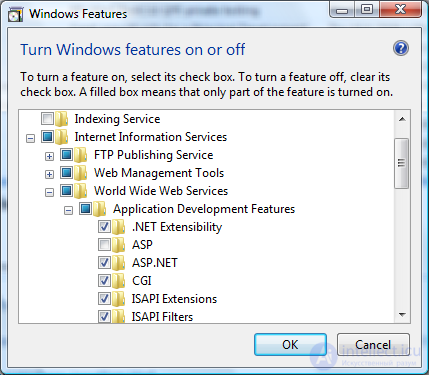
To enable FastCGI support on Windows:
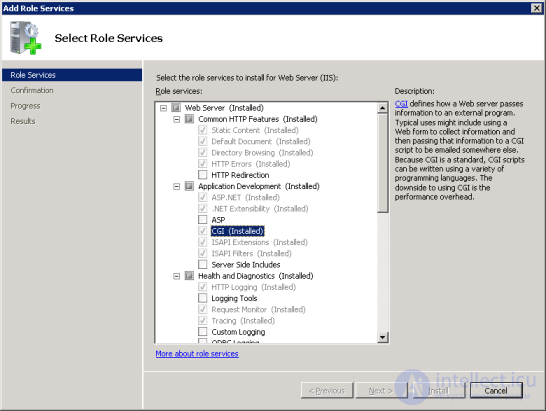
To enable FastCGI support on Windows Server:
Installing
The PHP installer is made very simply and clearly - no tricky questions.
Run the setup file. The installer asks where to install it. We agree with its default suggestion (in "C:\Program Files\PHP" for x86 or "C:\Program Files (x86)\PHP" for x64 systems).
We accept the license agreement and move on.
To the question "which server should the PHP module be automatically wired into" we answer: "IIS FastCGI".
Next comes the question of what to install.
After that - click "next" and the installation proceeds automatically.
Open the "php.ini" file, located in the directory where we installed PHP. Look for the line: "cgi.force_redirect", uncomment it and set its value to "0" instead of the default "1".
Now create a directory for storing PHP sessions. For example, let's call it "sessions" and create it in the directory where we installed PHP:
"C:\Program Files (x86)\PHP\sessions"
Obviously, on a 32-bit system the "(x86)" suffix won't be present in the path.
In the php.ini file, now find the "session.save_path" directive and set it to the path to our sessions directory:
PS. In my case the path was already set to "C:\Windows\Temp". That's fine too, overall, considering that PHP cleans up session files on its own.
The following steps will let you create an IIS handler for PHP in IIS Manager:
On Windows, from the Start menu, choose "Run:", type the command "inetmgr" and press "Ok";
In IIS Manager, select the server in the "Connections" tree;
On the "Home Page", open "Handler Mappings";
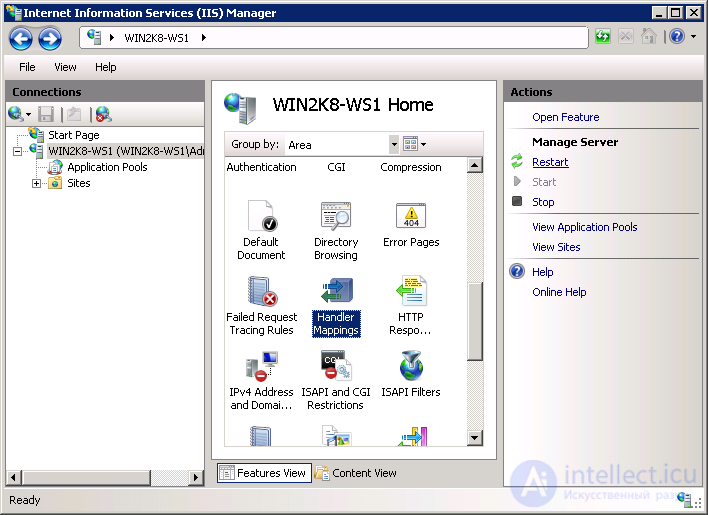
On the "Actions" tab, select "Add Module Mapping...";
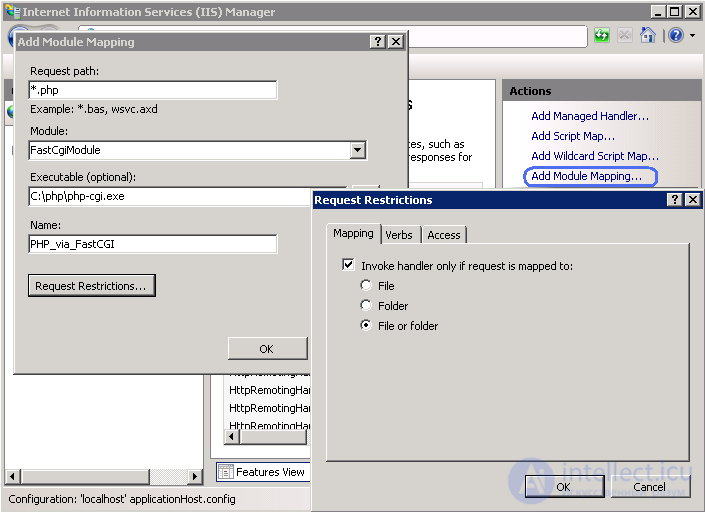
In the "Add Module Mapping" window, enter the following:
Click the "Request Restrictions" button and configure the mapping to invoke the handler only when mapped to a file or directory;
Click OK on all dialogs to save the configuration.
Use the commands below to create an IIS FastCGI process pool that will use php-cgi.exe to run PHP requests. Replace the value of the fullPath parameter with the absolute path to the php-cgi.exe file.
Verifying
Open the "IIS Manager" snap-in (Start --> Administrative Tools). On the left you see a list of servers connected through this snap-in. Select our server (by default, only it is connected) by left-clicking on it. On the right, a window appears with a number of icons.
In the IIS section, find and open the "Handler Mappings" icon. A window opens with a list of handlers and file extensions. Look for ".php" and if you see something like "PHP_via_FastCGI" next to it, then everything is fine - PHP has registered its module in IIS. If you don't find a line with the ".php" extension - it means something went wrong somewhere and the PHP installer wasn't able to register itself (or you chose the wrong server to integrate with during installation - not "IIS FastCGI").
In case of failure you can try to register the handler manually. To do this, click "Add Module Mapping" on the right. In the window that opens, enter:
and click "OK".
For a final check, create a new site in the IIS snap-in (it is assumed you know how to work with IIS), create an index.php file inside the site's folder, set the "Default Document" to "index.php", and write, for example, the following in the index.php file itself:
And open this site. If you see your message - it means PHP is working.
Applies to: IIS v7; Windows Server 2008

Comments