
Lecture 31 min.
The clipboard looks like the simplest thing on a computer: copy, then paste. But as soon as a web app needs to paste an image, it turns out the clipboard does not hold "one thing". It holds a list of items, and each item has several representations in different formats. On top of that, the browser shows the page only part of that list, and only with the user's permission.
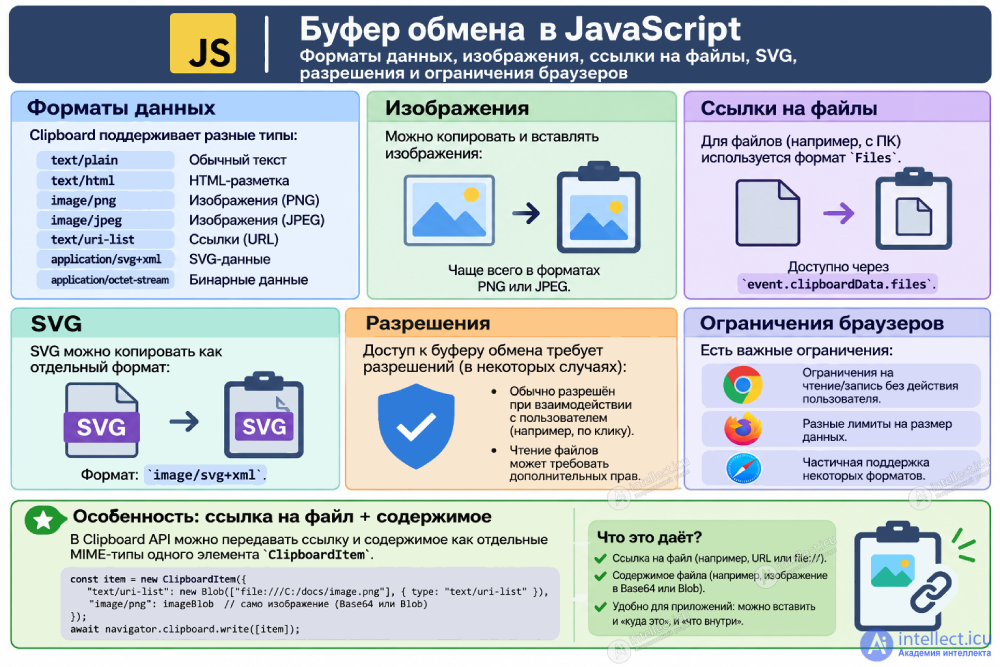
This article explains how the clipboard works in operating systems and in the browser, which JavaScript APIs exist, how the paste event differs from navigator.clipboard, which formats images, file references and SVG arrive in, and which permissions and restrictions apply in Chrome, Firefox and Safari. The theory is backed by a real case: fixing image paste from Telegram in the online Paint editor on this site.
A user copies a photo in Telegram for macOS, opens the online Paint, chooses "Edit → Paste" and gets the error The information on the Clipboard can't be inserted into Paint. The same kind of screenshot copied with the Flameshot tool pastes fine. The paste code looked like this:
// Typical "paste image" button code that breaks on real clipboards
const items = await navigator.clipboard.read();
const blob = await items[0].getType("image/png"); // NotFoundError
pasteImage(blob);
To see what goes wrong, let us look at what actually sits on the system clipboard after copying in Telegram:
# What is on the macOS clipboard right now (all items and all types)
osascript -l JavaScript -e '
ObjC.import("AppKit");
const items = $.NSPasteboard.generalPasteboard.pasteboardItems;
const out = [];
for (let i = 0; i < items.count; i++) {
  const types = items.objectAtIndex(i).types;
  for (let j = 0; j < types.count; j++) out.push(i + ": " + ObjC.unwrap(types.objectAtIndex(j)));
}
out.join("\n")'

# After "Copy" on a photo in Telegram for macOS:
0: public.file-url   -> file:///Users/.../ru.keepcoder.Telegram/Data/tmp/telegram-cloud-photo-....jpg
1: public.tiff       -> 3 751 422 bytes
There are two items. The first one (index 0) is a link to a file in Telegram's temporary folder, the second one is the picture itself in TIFF format. Flameshot puts a single item with a PNG. The code took only the first item and only the image/png type, so it worked with the screenshot tool and failed with Telegram. The bug is neither in Telegram nor in the browser. It is in the assumption that "the clipboard holds one PNG image".
In all popular operating systems the clipboard is not a string and not a file. It is a list of items, and each item can be offered in several formats at once. The source application puts as many representations as it can, and the target application picks the one that suits it best.
| OS | Mechanism | Typical formats for images and links |
|---|---|---|
| macOS | NSPasteboard: several pasteboard items, each with a set of UTI types | public.png, public.tiff, public.jpeg, public.file-url, public.url, public.html, public.utf8-plain-text |
| Windows | Clipboard with CF_* formats and registered formats | CF_DIB / CF_DIBV5 (bitmap), "PNG", CF_HDROP (file list), HTML Format, CF_UNICODETEXT |
| Linux X11 | CLIPBOARD and PRIMARY selections, a list of "targets" | image/png, image/bmp, text/uri-list, text/html, UTF8_STRING |
| Linux Wayland | wl_data_device, MIME types | image/png, text/uri-list, text/plain;charset=utf-8 |
What follows from this:
The browser does not give the page the system clipboard as it is. It acts as a filter and a translator:
text/plain, public.html becomes text/html;image/png, because it is the only image format the Async Clipboard API must support;File objects when pasting with the keyboard, and are usually not visible at all in the Async Clipboard API;web prefix, and only if a web page wrote them.That is why the same system clipboard looks different to a page depending on the browser, the OS and which API reads it.
When the user presses Ctrl+V (⌘+V on a Mac), the browser fires a paste event. It has an event.clipboardData property: a DataTransfer object, the same one used for drag and drop.
types: the list of formats, for example ["text/plain", "text/html", "Files"];items: entries with a kind ("string" or "file") and a type;files: the list of files, including images;getData(type): the text in the requested format.The big advantage: no permissions are needed. The user started the paste, and the browser trusts that action. The big restriction: the data is available only synchronously, while the event is being handled. When the handler returns, the DataTransfer switches to protected mode and becomes empty. So read everything at once and process it afterwards:
document.addEventListener("paste", (event) => {
  // Let inputs and text areas paste text as usual
  if (event.target.closest("input, textarea, [contenteditable]")) return;

  const cd = event.clipboardData;
  if (!cd) return;
  event.preventDefault();

  // 1. Read EVERYTHING synchronously: once the handler returns,
  //    the DataTransfer switches to protected mode and is empty
  const files = cd.files.length
    ? [...cd.files]
    : [...cd.items].filter((item) => item.kind === "file")
        .map((item) => item.getAsFile()).filter(Boolean);

  const texts = {};
  for (const type of cd.types) {
    if (type !== "Files") texts[type] = cd.getData(type);
  }

  // 2. Process asynchronously - only plain data is used from here on
  pasteFromClipboardData(files, texts);
});
The modern asynchronous API lets you read and write the clipboard at any time, for example when the user clicks a "Paste" button in your interface:
navigator.clipboard.readText() and writeText(): text only;navigator.clipboard.read() returns an array of ClipboardItem, each with types and a getType(type) method that returns a Blob;navigator.clipboard.write([new ClipboardItem({...})]) writes one or more formats.The price of convenience is permissions and restrictions. Reading the clipboard is sensitive: it may hold passwords, tokens or private messages, so browsers protect it the most (details below). A correct image read goes through all items and all types:
async function readImageFromClipboard() {
  if (!navigator.clipboard?.read) throw new Error("Async Clipboard API is not available");

  // NotAllowedError: no permission, the page has no focus, or not HTTPS
  const items = await navigator.clipboard.read();

  // Look through ALL items and ALL types, not just items[0] and image/png
  for (const item of items) {
    for (const type of item.types) {
      if (type.startsWith("image/")) return item.getType(type);
    }
  }
  // no binary image - maybe there is a link or SVG markup
  for (const item of items) {
    for (const type of item.types) {
      if (type === "text/plain" || type === "text/html" || type === "text/uri-list") {
        const text = await (await item.getType(type)).text();
        const found = extractImageUrls({ [type]: text })[0];
        if (found && !found.startsWith("file:")) return fetchBlob(found);
      }
    }
  }
  return null;
}
document.execCommand("copy") still works for copying selected text inside a click handler and appears in older code. execCommand("paste") is disabled for regular web pages in all browsers and returns false. For new code, use the Async Clipboard API or the events.
| paste event | navigator.clipboard.read() | |
|---|---|---|
| Who starts it | The user: Ctrl+V / ⌘+V, the browser's context menu | Page code, usually on a button click |
| Permissions | Not needed | Needed: a clipboard-read prompt or a browser "Paste" button |
| When the data is available | Only synchronously inside the handler | Asynchronously, any time after a successful call |
| Files (file links from Finder, Telegram) | Yes, as File objects | Usually not |
| Images | Files and image/png | image/png; newer Chromium versions also image/svg+xml |
| Requirements | The page has focus | HTTPS (or localhost), focused document, permission |
The key to pasting images is knowing that "an image on the clipboard" can arrive in one of five forms, and all of them have to be handled.
Screenshot tools, graphics editors, a browser's "Copy image". On the system side it is PNG, TIFF or DIB. The page receives image/png: as a file named something like image.png in the paste event, and as a ClipboardItem type in the Async Clipboard API. This is the most reliable case.
Copying a file in Finder or Explorer, and many messengers. The clipboard holds a file:///... path. A page cannot load such a URL: fetch and img have no access to the file system. But when pasting with the keyboard, Chrome reads the file itself and hands it to the page as a File object with the right MIME type. In our Telegram case the ⌘+V paste log looked like this:
// Paste with Cmd+V after "Copy" on a photo in Telegram (Chrome, macOS)
types=["Files"]
items=[{"kind":"file","type":"image/jpeg"}]
files=[{"name":"telegram-cloud-photo-size-2-...-y.jpg","type":"image/jpeg","size":68489}]
try image #0: type=image/jpeg size=68489
image #0 pasted: 1280x976

// The same clipboard through the menu "Edit - Paste" inside an embedded browser
clipboard.read() failed: NotAllowedError: Read permission denied.
Note that the event contained only the file (the original JPEG), and no PNG converted from the TIFF. Through the Async Clipboard API in an embedded browser, reading was denied altogether. Lesson: a "Paste" button and a keyboard shortcut are two different paths with different capabilities, and keyboard paste must always be supported.
The user copied an image address. It arrives as text/uri-list or text/plain with an https://... address. The image has to be downloaded, and CORS gets in the way: another server may not allow reading, and an image drawn on a canvas without CORS headers "taints" the canvas so it can no longer be exported. The usual fix is a proxy on your own server.
When part of a web page is copied, the clipboard gets text/html where the picture is an img tag with a src attribute: a regular URL or a data: URI. Parse it with DOMParser and extract the addresses:
function extractImageUrls(texts) {
  const urls = [];
  // text/uri-list: one URL per line, lines starting with # are comments
  for (const line of (texts["text/uri-list"] || "").split(/\r?\n/)) {
    if (line && !line.startsWith("#")) urls.push(line.trim());
  }
  // text/plain: a single link or a data: URI
  const plain = (texts["text/plain"] || "").trim();
  if (/^(https?:\/\/|data:image\/)\S+$/i.test(plain)) urls.push(plain);
  // text/html: <img src> from a copied fragment of a web page
  if (texts["text/html"]) {
    const doc = new DOMParser().parseFromString(texts["text/html"], "text/html");
    for (const img of doc.querySelectorAll("img[src]")) urls.push(img.getAttribute("src"));
  }
  return [...new Set(urls)];
}
SVG is special because it is text (XML), not pixels. It can arrive:
image/svg+xml file (copying a .svg file);text/plain (copied from a code editor or a design tool);text/html (an icon copied from a page);image/svg+xml type in the Async Clipboard API (newer Chromium versions).To rasterize an SVG, load it into an img and draw it on a canvas. There are three pitfalls:
const SVG_NS = "http://www.w3.org/2000/svg";

function svgToBlob(markup) {
  let doc = new DOMParser().parseFromString(markup, "image/svg+xml");
  let svg = doc.documentElement;
  // Not valid XML or no xmlns (inline <svg> copied from a page): use the HTML parser,
  // it puts <svg> into the right namespace by itself
  if (svg.namespaceURI !== SVG_NS || doc.querySelector("parsererror")) {
    const inline = new DOMParser().parseFromString(markup, "text/html").querySelector("svg");
    if (!inline) return null;
    doc = new DOMParser().parseFromString(new XMLSerializer().serializeToString(inline), "image/svg+xml");
    svg = doc.documentElement;
  }
  // Without width/height the picture has no intrinsic size: take it from viewBox
  if (!parseFloat(svg.getAttribute("width")) || !parseFloat(svg.getAttribute("height"))) {
    const box = (svg.getAttribute("viewBox") || "").split(/[\s,]+/).map(Number);
    svg.setAttribute("width", box[2] > 0 ? box[2] : 300);
    svg.setAttribute("height", box[3] > 0 ? box[3] : 150);
  }
  // The MIME type is mandatory: without image/svg+xml the <img> will not decode the SVG
  return new Blob([new XMLSerializer().serializeToString(svg)], { type: "image/svg+xml" });
}

function findSvg(texts) {
  for (const type of ["image/svg+xml", "text/plain", "text/html"]) {
    if (texts[type]?.toLowerCase().includes("<svg")) {
      const blob = svgToBlob(texts[type]);
      if (blob) return blob;
    }
  }
  return null;
}

// Rasterization: SVG -> <img> -> canvas -> PNG
async function rasterize(svgBlob) {
  const img = await loadImage(svgBlob);
  const canvas = document.createElement("canvas");
  canvas.width = img.naturalWidth;
  canvas.height = img.naturalHeight;
  canvas.getContext("2d").drawImage(img, 0, 0);
  return new Promise((resolve) => canvas.toBlob(resolve, "image/png"));
}
One more restriction: an SVG loaded as an image (through img) does not load external resources — no linked images, fonts or stylesheets. This is intentional, for security. If the SVG references external files, inline them in advance as data: URIs.
function loadImage(blob) {
  return new Promise((resolve, reject) => {
    const url = URL.createObjectURL(blob);
    const img = new Image();
    img.onload = () => {
      URL.revokeObjectURL(url);
      // an SVG without a size "loads" with naturalWidth = 0
      img.naturalWidth ? resolve(img) : reject(new Error("image has no size"));
    };
    img.onerror = () => {
      URL.revokeObjectURL(url);
      reject(new Error("cannot decode " + (blob.type || "untyped blob")));
    };
    img.src = url;
  });
}

// For bitmap formats there is a shorter way:
// const bitmap = await createImageBitmap(blob); // PNG, JPEG, WebP, GIF, AVIF...
navigator.clipboard exists only on HTTPS pages and on localhost. On plain HTTP the property is simply missing, and code fails with "Cannot read properties of undefined". The document must also have focus. If DevTools, the address bar or another window has focus at the moment of the call, Chrome throws NotAllowedError: Document is not focused.
| Chrome / Edge | Firefox | Safari | |
|---|---|---|---|
| read() / readText() | clipboard-read permission prompt; the decision is remembered per site | Available to web pages since version 125: needs a user gesture, the browser shows a "Paste" context button | Needs a user gesture, the browser shows a "Paste" button the user has to click |
| write() / writeText() | Allowed for the active tab with focus | Needs a user gesture | Needs a user gesture (a click or a key press) |
| paste event | No permission required: the user pressed the shortcut | ||
| permissions.query | Supports clipboard-read and clipboard-write | These names are not supported, the query throws a TypeError |
The permission state can be checked in advance, but only in Chromium:
async function clipboardReadState() {
  try {
    // Chromium only; Firefox and Safari throw TypeError for this name
    const status = await navigator.permissions.query({ name: "clipboard-read" });
    return status.state; // "granted" | "prompt" | "denied"
  } catch {
    return "unknown"; // the browser will decide when read() is called
  }
}

// <iframe> must be allowed explicitly by the parent page:
// <iframe src="https://editor.example" allow="clipboard-read; clipboard-write"></iframe>
allow="clipboard-read; clipboard-write" (Permissions Policy).read() then fails immediately with NotAllowedError: Read permission denied, without any dialog. Keyboard paste usually still works.On macOS paste is ⌘+V. Ctrl+V does not fire a paste event there. If an app intercepts keydown for Ctrl+V and calls preventDefault(), the native paste event never happens, and access to files is lost. Rule: for keyboard paste, do not intercept keydown — listen to the paste event.
Putting it all together gives an order that works with any source:
file:// links: the page cannot load them.
async function pasteFromClipboardData(files, texts) {
  // a) files and binary images: declared images first, then files without a type
  const candidates = [
    ...files.filter((f) => f.type.startsWith("image/")),
    ...files.filter((f) => !f.type || f.type === "application/octet-stream"),
  ];
  for (const file of candidates) {
    try {
      return insertImage(await loadImage(file));
    } catch (error) {
      console.warn("not an image:", file.name, error); // try the next one
    }
  }

  // b) links: uri-list, plain text, <img src> inside copied HTML
  const urls = extractImageUrls(texts).filter((url) => !url.startsWith("file:"));
  for (const url of urls) {
    try {
      return insertImage(await loadImage(await fetchBlob(url)));
    } catch (error) {
      console.warn("cannot load", url, error);
    }
  }

  // c) SVG markup copied as text or inline <svg> in HTML
  const svgBlob = findSvg(texts);
  if (svgBlob) return insertImage(await loadImage(svgBlob));

  showError(urls.length || texts["text/uri-list"]
    ? "The clipboard holds only a link to a local file - paste with Cmd+V / Ctrl+V or drag the file in"
    : "There is no image on the clipboard");
}
Tip: the same handler works for drag and drop. The drop event has event.dataTransfer with the same interface as clipboardData.
Writing is easier than reading, but it has its own rules. Only text/plain, text/html and image/png are written reliably. Convert JPEG or WebP to PNG through a canvas before writing. A good practice is to write several representations at once, so that each target application can pick its own:
// Text: the simplest case
await navigator.clipboard.writeText("Hello");

// Image: browsers reliably accept only image/png for writing
async function copyCanvas(canvas) {
  const item = new ClipboardItem({
    // Passing a Promise (not a ready Blob) keeps the user gesture alive in Safari
    "image/png": new Promise((resolve) => canvas.toBlob(resolve, "image/png")),
    "text/plain": new Blob(["Picture from the editor"], { type: "text/plain" }),
  });
  await navigator.clipboard.write([item]);
}

// Several representations from a copy event (synchronous, no permissions needed)
document.addEventListener("copy", (event) => {
  event.preventDefault();
  event.clipboardData.setData("text/plain", "plain text for notepad");
  event.clipboardData.setData("text/html", "<b>rich text</b> for Word and mail");
});
Most paste bugs come from wrong assumptions about the clipboard contents. So the first step is to record what the browser actually provided. It is handy to store it in a temporary global variable and log it to the console:
// Capture what the browser actually gave on paste
document.addEventListener("paste", (event) => {
  const cd = event.clipboardData;
  window.clipboardDebug = {
    time: new Date().toISOString(),
    types: [...cd.types],
    items: [...cd.items].map((i) => ({ kind: i.kind, type: i.type })),
    files: [...cd.files].map((f) => ({ name: f.name, type: f.type, size: f.size })),
    texts: Object.fromEntries([...cd.types]
      .filter((t) => t !== "Files")
      .map((t) => [t, cd.getData(t).slice(0, 300)])),
  };
  console.log("[clipboard]", window.clipboardDebug);
}, true); // capture phase: we see the event before the app handlers

// Then in DevTools:
// copy(JSON.stringify(clipboardDebug, null, 2))
This is exactly the debug log that showed that after copying from Telegram, a keyboard paste gives the page the original JPEG file, not a PNG. On macOS the system side is easy to inspect with the script from the beginning of the article; on Windows use a clipboard viewer; on Linux use xclip -selection clipboard -t TARGETS -o or wl-paste --list-types.
clipboardData asynchronously, after an await or in a setTimeout: by then it is already empty.file:// link from a page.
Comments