
Lecture
Events in JavaScript play an important role in building dynamic and interactive web pages. They let you perform certain actions in response to user actions or other events on the page. Here are the main concepts and examples of working with events in JavaScript:
Types of events in JavaScript
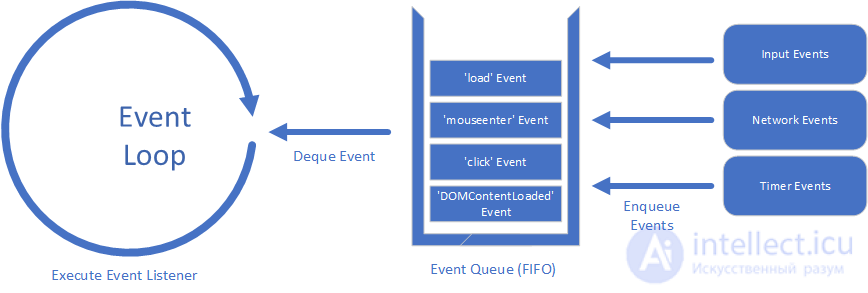
Optimising events in JavaScript is important for improving application performance, especially when you are dealing with a large number of events and DOM elements.
Here are several key optimisation strategies and approaches:
These techniques help reduce the number of calls to handler functions that may run too often (for example, on the scroll, resize or input).
resize of the browser window:
function debounce(func, delay)
{
  let timer;
   return function (...args) {
     clearTimeout(timer); timer = setTimeout(() => func.apply(this, args), delay);
   };
}

window.addEventListener('resize', debounce(() => { console.log('Window resized!'); }, 300));
function throttle(func, limit)
{ let lastCall = 0;
return function (...args) {
    const now = Date.now();
   if (now - lastCall >= limit) { lastCall = now; func.apply(this, args); }
  };
}

window.addEventListener('scroll', throttle(() => { console.log('Scrolling...'); }, 200));
Instead of binding events to every DOM element, you can use delegation through the nearest common parent.
Example: clicking on list items:
document.querySelector('#list').addEventListener('click', (event) =>
{
  if (event.target && event.target.tagName === 'LI') { console.log('Clicked:', event.target.textContent); }
});
Remove event handlers once they are no longer needed:
function handleClick()
{
console.log('Button clicked');
}

const button = document.querySelector('button');

button.addEventListener('click', handleClick);

// Remove the handler later
 button.removeEventListener('click', handleClick);
passive: trueFor events such as scroll and touchstart, enabling the passive flag can improve performance:
window.addEventListener('scroll', () => { console.log('Scrolling...'); }, { passive: true });
This lets the browser avoid blocking scrolling, which improves responsiveness.
Do not modify the DOM on every event call. Instead:
Example:
const fragment = document.createDocumentFragment();
 for (let i = 0; i < 100; i++)
{
  const item = document.createElement('div');
  item.textContent = `Item ${i}`;
  fragment.appendChild(item);
}
 document.querySelector('#container').appendChild(fragment);
Try to avoid adding several handlers to the same event. For example, instead of:
button.addEventListener('click', () => console.log('Handler 1'));
button.addEventListener('click', () => console.log('Handler 2'));
it is better to combine the logic:
button.addEventListener('click', () => { console.log('Handler 1'); console.log('Handler 2'); });
once: true for one-off eventsIf an event only needs to be handled once:
button.addEventListener('click', () => { console.log('Button clicked once!'); }, { once: true });
For resource-intensive computation, move the processing into a Web Worker:
const worker = new Worker('worker.js');
worker.postMessage({ type: 'heavyTask' });
worker.onmessage = (event) => { console.log('Result from worker:', event.data); };
Applying these approaches lets you minimise the load on the browser, improve interface responsiveness and make the application smoother and more pleasant to use.

Comments