
Lecture
The loading="lazy" attribute in HTML tells the browser to defer loading an image or iframe until it approaches the visible area of the screen (viewport). This helps speed up the page's initial load and reduce data usage.
In the
In iframes for embedded external resources (for example, YouTube, maps)
When the browser sees loading="lazy", it:
Does not load the image immediately when parsing the HTML.
Waits until the user approaches the element (usually ~300–500px from the viewport).
Only then starts loading the resource.
It's better not to use loading="lazy" for images that are critical for above the fold content, since this can slow down their appearance and worsen the user's perception of the site.

Above-the-fold images (hero image, logo, banner): They should load immediately, otherwise the user will see empty space or a delay.
Background images that affect the perceived design: If an image sets the style of the page (for example, a CSS background), deferring its load will create visual artifacts.
Key navigation elements: Menu icons, buttons, images in a carousel or slider that are needed for interaction right after loading.
SEO‑critical images: Lazy load can prevent search engines from indexing images if it's implemented incorrectly (for example, via JavaScript with no fallback).
Low network speed scenarios: If the user scrolls quickly, images may not have time to load, creating an effect of “empty blocks”.
Very small images (icons, decorative elements): Their weight is minimal, so deferred loading gives no real benefit but can cause visual delays.
Lazy load works great for galleries, long articles, and news feeds, where images only appear on scroll.
But for key visual elements, it's better to use normal loading so the user gets the full experience right away.
loading="eager" means the browser loads the image immediately, without deferring it. This is the opposite of loading="lazy", where loading is deferred until the image enters the viewport.
The loading attribute controls the image loading strategy in HTML.
Possible values:
loading="eager" → the image loads immediately, as soon as the browser starts processing the HTML.
loading="lazy" → the image loads only when it approaches the visible area (saves resources).
If the attribute isn't specified, behaviour depends on the browser, but images most often load right away (equivalent to eager).
For key above-the-fold images (hero image, logo, banner).
For navigation icons or interface elements that need to be available immediately.
For images that affect Largest Contentful Paint (LCP) — a key Core Web Vitals metric.
If you set eager on all images, it can slow down the page load, since the browser will pull all the images at once.
That's why it's recommended to combine them: main images → eager, secondary images below the fold → lazy.
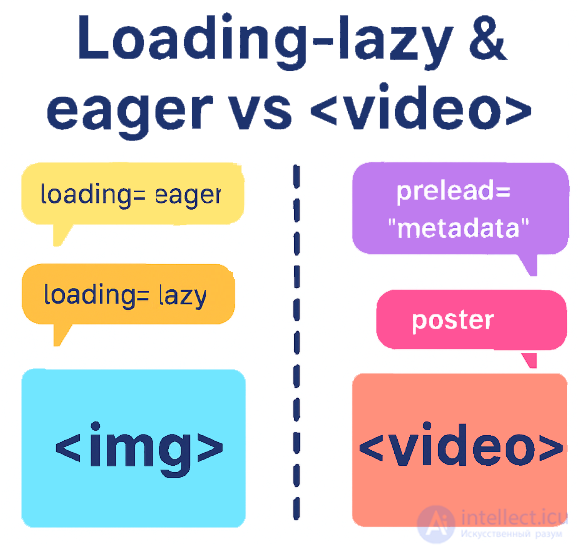
For video in HTML there is no direct equivalent of the loading="lazy" or loading="eager" attribute the way there is for img. But video has its own loading-control mechanisms that play a similar role.
videopreload Controls how much video data the browser loads before playback starts:
preload="none" → don't load anything in advance (saves bandwidth, but may delay the start).
preload="metadata" → load only the metadata (duration, dimensions, poster).
preload="auto" → the browser decides how much to load on its own (often the entire video gets loaded).
autoplay The video starts playing immediately after loading (often requires muted, otherwise browsers block it).
poster A placeholder image shown before playback starts. It's like a "quick preview" of the visual content in place of the video.
muted, loop, controls Not directly related to loading, but they affect behaviour at startup.

imgVideo doesn't have loading="lazy", because browsers already optimize media loading on their own.
To save resources and speed up the page, a combination is usually used:
preload="none" or preload="metadata"
poster="preview.jpg" to display an image before the video starts.
an autoplaying video above the fold can be heavy, and this creates a dilemma between UX and performance. Here's how you can approach the decision:
An autoplaying video needs to be ready to play immediately, otherwise the user will see an empty block or a delay.
Lazy load doesn't guarantee the video will load in time, especially if the browser doesn't immediately detect that it's in the viewport.
Core Web Vitals (LCP) can suffer if the video is the card's main visual element.
Use preload="metadata" instead of auto to load only the metadata (duration, poster) rather than the whole video.
Add poster="..." — this gives visual context before loading starts.
Apply muted autoplay playsinline so the video starts without user interaction and isn't blocked by the browser.
Use a compressed and optimized video (for example, H.265 or VP9), and an adaptive resolution (480p for mobile).
If the video is really heavy, you can:
Show a poster with a "play" button, and load the actual video on click (or on scroll).
Use a preview animation (a GIF or a short loop) instead of a full video above the fold.
Apply lazy load via JavaScript, but with priority loading on the first render.
If the video is a key element of an above-the-fold card and needs to play immediately, it's better not to lazy load it.
Instead — optimize the weight, use poster, and load the metadata. This will give a balance between UX and performance.
Use loading="lazy" only for secondary images below the fold.
For key images, use normal loading or the loading="eager" attribute.
Check the site with Lighthouse or WebPageTest to make sure lazy load isn't hurting Largest Contentful Paint (LCP) — one of the key Core Web Vitals metrics.
loading="eager" guarantees instant image loading and is suitable for critical interface elements and visual content
video has no loading="lazy/eager, but it does have preload and poster, which perform a similar loading and display control function.

Comments