
Practice
Hibernation in an operating system is the process of saving the computer's current state, including all running applications and data, to a hard disk or SSD, and then fully powering off the computer. When the computer is then turned back on, the operating system restores the state that was saved during hibernation.
Hibernation and sleep mode (standby) are different power-saving modes. In sleep mode (standby), the computer remains powered on but switches to a low-power state (program execution and most of the processor, the display, and audio are turned off), and the battery (in the case of a laptop) is used to keep the computer in standby.
For SSDs, hibernation, like for hard disks, is generally not dangerous. However, there are a few important points worth considering:
NAND flash wear: SSDs are limited in the number of write/erase operations they can perform before failing. Hibernation involves writing the operating system's state to disk, and this can increase the load on the SSD, which may ultimately shorten its service life. Thus this effect can be significant and can considerably shorten the drive's working life.
Duration of sleep mode: If a computer remains in hibernation for a long time (for example, several months), this can lead to a slight loss of battery charge in the case of a laptop, or to an unacceptably long disconnection from mains power. This can result in an excessively deep battery discharge and possibly damage to the battery. Thus, prolonged sleep mode can be less desirable.If a computer stays in sleep mode for an extended period, the battery may run down and sleep mode may be interrupted with the loss of data in RAM, especially if the battery already has a low charge. Recharging the battery after a deep discharge can shorten its service life. Thus, for battery-powered devices such as laptops, the computer should not be left in sleep mode for a long time when the battery charge is low, in order to prevent a deep battery discharge.
Overall, hibernation is not a serious threat to SSDs. However, if for any reason you need to limit the number of writes to the SSD, you can disable the hibernation feature in the operating system settings.
For an accurate quantitative assessment of SSD wear resulting from hibernation, specialized tests and SSD monitoring are required. Assessing NAND flash wear (the type of memory used in SSDs) can depend on many factors, including the specific SSD model, the amount of data that is frequently written and erased, and how often hibernation is used.
Hibernation typically results in a relatively small amount of data being written to the SSD, which will have a moderate effect on its service life. NAND flash memory is designed for high wear resistance, and modern SSDs usually have built-in wear-leveling mechanisms that distribute writes evenly across NAND memory cells, reducing wear.
For specific estimates of the wear on your SSD and its resistance to hibernation, it is recommended to consult the SSD manufacturer's technical documentation or use specialized programs to monitor SSD health. Such programs can provide information about lost memory cells and the overall wear of the NAND flash memory on the SSD.
To estimate the reduction of the SSD's TBW (Total Bytes Written) rating for an example scenario, let's take the following parameters into account:
Now let's calculate how much data will be written to the SSD over 3 years:
48 gigabytes/day * 365 days * 3 years = 52560 gigabytes, or 51.3 terabytes.
Given that the TBW rating for your SSD is 125 terabytes, we can calculate approximately how many years the SSD will last under such intensive use:
125 terabytes (TBW) / 51.3 terabytes (annual load) ≈ 2.44 years. To this should be added the traffic used besides hibernation during everyday operation, meaning the actual lifespan will be even shorter.
Thus, under the usage conditions you described, an SSD with a capacity of 250 gigabytes will last approximately 2.44 years before it reaches its rated TBW limit. Please note that this is a rough estimate, and the actual SSD lifespan may vary depending on the manufacturer and model of the SSD, as well as other factors such as temperature and operating conditions.
When an SSD reaches its rated TBW (Total Bytes Written) limit, this means it has exceeded its stated guaranteed data write throughput. However, the drive does not stop working instantly, and its further operation will depend on many factors, including the specific manufacturer and model of the SSD.
Possible scenarios after the TBW resource is exhausted:
Continued operability: The SSD may continue to work after reaching the TBW limit, but without the manufacturer's guarantee. In this case, the SSD will no longer reliably retain your data and may fail unexpectedly.
Switching to read-only mode: Some SSDs may switch to read-only mode after the TBW resource is exhausted, meaning you will no longer be able to write data to the drive, but you will be able to read existing data.
Complete failure with loss of both read and write access: In some cases, after TBW is exhausted, the SSD may fail completely and become unable to operate.
What happens to your SSD after the TBW resource is exhausted depends on the specific characteristics of the SSD, its manufacturer, and the particular circumstances of its use. It is important to regularly back up data from the SSD to other media and monitor the drive's condition to avoid data loss and, if necessary, replace the SSD if it is approaching the end of its service life
Disabling hibernation in Windows:
Disabling hibernation in Linux:
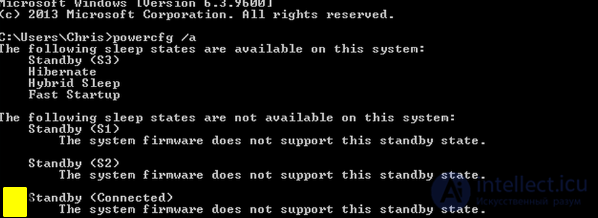
Disabling hibernation can be useful if you want to free up space on the SSD (in the case of Windows) or prevent undesirable actions in hibernation mode. However, in most cases hibernation is safe and does not pose a significant danger to the SSD, so the decision to disable it should be made based on your specific needs and preferences.

Comments