
Lecture
Kiosk Mode is a special operating mode of a digital device (tablet, terminal, computer) in which the user is restricted to a single application or service and has no access to the system functions of the device.
Systems of this kind are used in:
The essence of kiosk mode
From a technical standpoint, kiosk mode is a form of hardware and software isolation of the user interface, in which:
This turns a general-purpose device (a tablet, for example) into a specialized terminal.
An ATM is a specialized device that:
runs banking software only
blocks any system functions (HOME, BACK, OS settings)
restricts access to the file system and to the internet
ensures the security of transactions
In other words, an ATM is the classic example of a hardware kiosk.
How an ATM differs from a tablet kiosk
A tablet in kiosk mode can run one website or one application.
An ATM is always embedded software with hardware protection, completely closed.
On a tablet the restriction can be circumvented through system bugs; on an ATM this is almost impossible without physically breaking in.
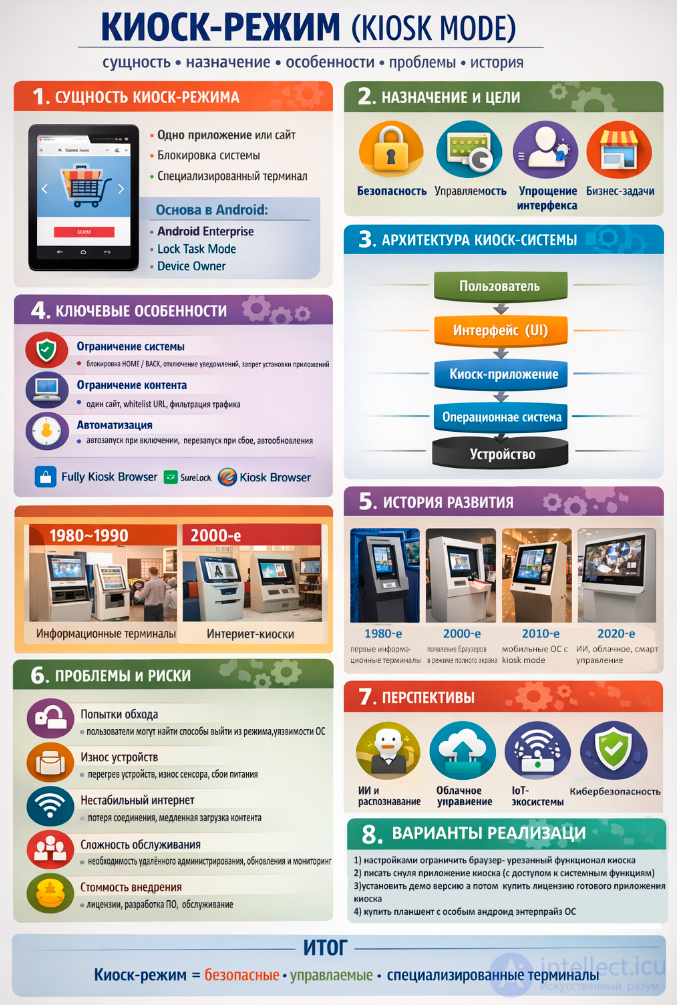
The first ATMs (1970s) were highly specialized and physically restricted.
the first information terminals in museums and airports
specialized computers with restricted software
Since the 1990s, the terminal kiosk approach has been used for ATMs: a single system, fullscreen, protected access.
the growth of internet kiosks
the appearance of full-screen browser modes
the spread of tablets
the appearance of mobile operating systems with kiosk mode support
the adoption of corporate MDM systems
cloud management
IoT terminals
digital panels and smart kiosks
Today's ATMs are full-fledged kiosk systems with banking-grade security, a camera, a microphone and other sensors and devices
The main goals of using it:
protecting the system against unauthorized access
preventing settings from being changed
protecting data
centralized device management
remote content updates
control over user behavior
only the buttons that are needed
no superfluous functions
minimizing user errors
self-service terminals
advertising and digital signage
POS systems
A typical architecture includes:
User
↓
Interface (UI)
↓
Kiosk application
↓
OS (Android / Windows / Linux)
↓
Hardware device
On Android, kiosk mode is implemented through:
Lock Task Mode
Device Owner
MDM systems
for example: Android Enterprise
In practice, specialized applications are widely used:
Fully Kiosk Browser
SureLock Kiosk Lockdown
Kiosk Browser Lockdown
Despite its advantages, kiosk mode has a number of problems:
In the coming years, kiosk mode will develop in the direction of:
integration with AI (face recognition, voice)
fully cloud-based management
IoT ecosystems
personalized interfaces
stronger cybersecurity
Ways of implementing kiosk mode
1) restrict the browser through its settings – a kiosk with cut-down functionality
2) write a kiosk application from scratch (with access to system functions)
3) install a demo version and then buy a license for a ready-made kiosk application
4) buy a tablet with a special Android Enterprise OS
On an Android tablet you can set up kiosk mode so that only the browser starts and only one website opens. There are several ways to do this – from the simple to the professional.
Suitable when you need to restrict the user quickly.
Open the browser (Chrome, for example)
Go to the website you need
Enable:
Settings → Security → Screen pinning
Open the list of applications → tap the pin icon
Now the user will not be able to leave the browser without a PIN or password.
Drawbacks:
a tab can be switched
another address can be entered
there is no complete protection
The best option when a full-fledged kiosk is needed.
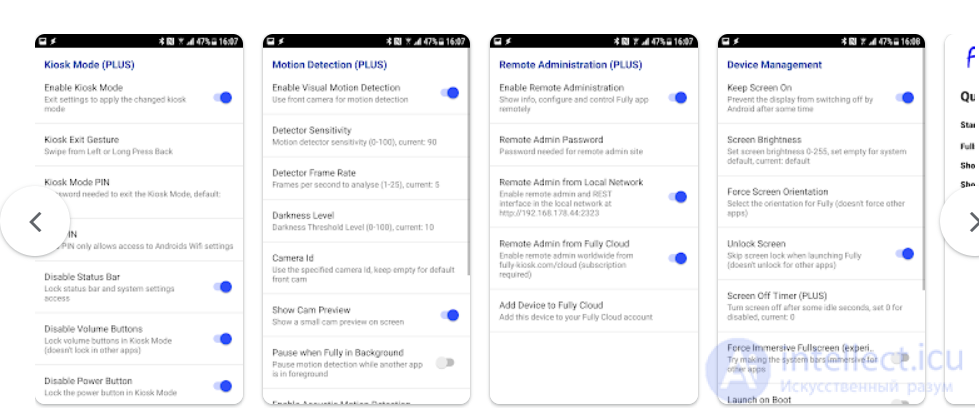
Popular applications:
built specifically for kiosks
a single URL can be set
blocks the back/home buttons
starts automatically when the device is powered on
password protection
Functions:
automatic startup when the tablet is powered on
hiding the system panel
blocking navigation to other websites
disabling gestures
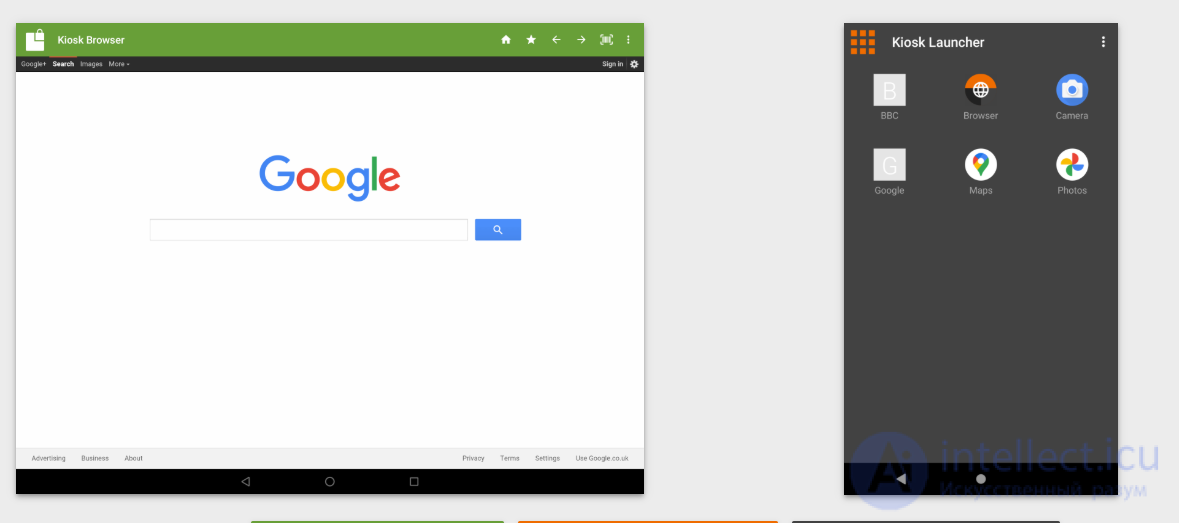
also produces a restricted browser
supports a whitelist of websites
administrator password
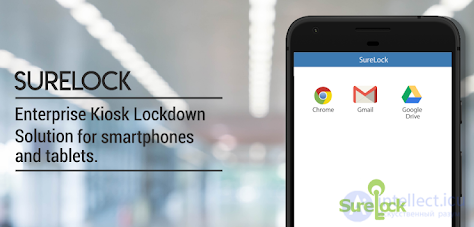
professional grade
suitable for businesses, schools and terminals
For a tablet used in a business or a project.
What is used:
Android Enterprise
MDM systems (Hexnode, Scalefusion and others)
What you can do:
block EVERYTHING except one application
prohibit settings and notifications
set a single website
manage the device remotely
A recommendation, if what you want is:
| task | solution |
|---|---|
| simply to restrict access | screen pinning |
| to build a proper kiosk | Fully Kiosk Browser |
| for business / at scale | Android Enterprise + MDM |
A mini guide
The simplest kiosk:
Install Fully Kiosk Browser
Open the settings
Specify:
Start URL (the site you need)
Kiosk Mode = ON
Auto Start on Boot = ON
Set an administrator password
That is all — the tablet becomes a terminal showing a single site.
You can build a kiosk application in Unity with an embedded browser (WebView):
The following plugins are used for this:
Here are the key Fully Kiosk features that are hard to implement in Unity:
This is the Android system level:
This is done through the Android API (Device Owner), and Unity cannot do it on its own
In Unity you cannot simply do this:
a BroadcastReceiver in Android Java is required
or MDM/Device Owner
Unity does not control:
the notification shade
the Android system buttons
system navigation
In Unity you can implement a UI password,
but the user will still be able to press HOME without a system lock task
If you still want to build it in Unity, the correct approach is as follows:
Unity (UI + WebView)
+
Native Android layer (Java/Kotlin)
+
Device Owner / Lock Task Mode
That is:
part of the logic in Unity
part in native Android code
Comparison: Unity vs Fully Kiosk
| feature | Unity | Fully Kiosk |
|---|---|---|
| a single site | + | + |
| fullscreen | + | + |
| UI locking | partial | + |
| automatic launch | difficult | + |
| locking HOME | - | + |
| hiding system panels | - | + |
| stability as a kiosk | medium | high |
Unity is suitable if:
Fully Kiosk is better if:
Kiosk mode is an important tool of digital transformation, making it possible to:
Despite the technical difficulties and the security concerns, kiosk mode remains a key technology for automating customer service and digital services.

Comments