
Lecture
The  tag
tag
accept-charset - Sets the encoding in which the server can accept and process data.
action - The address of the program or document that processes the form data.
autocomplete - Enables autocomplete for the form fields.
enctype - The way the form data is encoded.
method - The HTTP protocol method.
name - The name of the form.
novalidate - Disables the built-in validation of the form data for correct input.
target - The name of the window or frame where the handler will load the returned result.
Universal attributes and events are also available for this tag.
Required.
Example
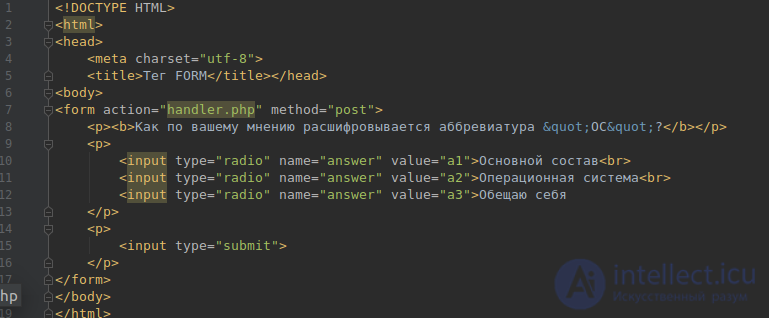
input type=email defines a field that must contain an email address. The value entered into the field is automatically validated before being sent to the server.
input type=url defines a field that must contain a url address. The value entered into the field is automatically validated before being sent to the server.
input type=tel defines a field for entering a phone number. Using the pattern attribute you can set the format of the accepted phone number. The format is specified using regular expressions.
input type=number defines a field that must contain numbers. You can restrict the range of accepted numbers using the min (minimum allowed number) and max (maximum allowed number) attributes. Using the step attribute you can set the step of the allowed numbers (for example, if the step is 2, then the field can accept the numbers 0,2,4,6 and so on)
input type=range defines a field that can contain values within a set interval. It is displayed as a slider that can be dragged with the mouse. You can restrict the range of accepted numbers using the min (minimum allowed number) and max (maximum allowed number) attributes. Using the step attribute you can set the step of the allowed numbers (for example, if the step is 2, then the field can accept the numbers 0,2,4,6 and so on)
input type=search defines a search field (can be used, for example, to create a search box on a site).
Nowadays, every site tries to provide interaction with the user. Blogs, comments under articles, polls, votes and so on — all of this requires transferring information from the user to the server. How exactly does this happen?
Let's take a closer look at the GET and POST data transmission methods.
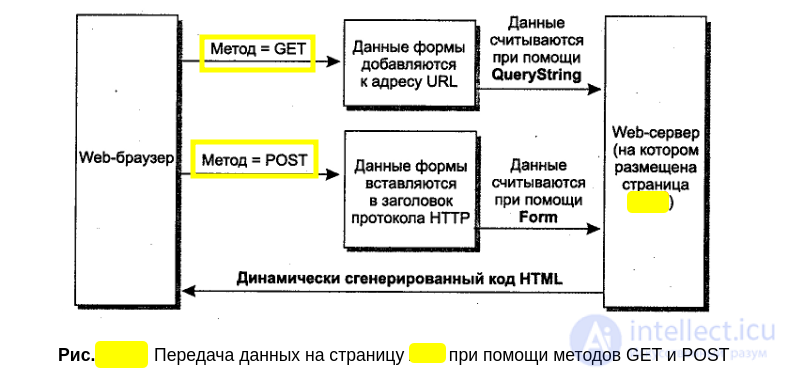
Most often, links are used to transfer data! That is, when you click a link, you're often sending data to the server. Most modern websites actively use this method of transmitting information. This method is called GET. When we click a link, we want to get (to get) some document from the server. That's why this method of sending data through a link is called get.
The GET method is convenient because it's simple to use. But it has drawbacks. First, the GET method cannot transfer large amounts of information, because the data sent by this method becomes part of the URL, whose length is limited.
Example: the link http://dayte2.com/?u=shaman&act=state&num=9 contains data sent by the GET method. This data comes after the question mark.
Since data sent by the GET method becomes part of the document's URL, anyone can see it. This has both advantages and disadvantages. The advantage is that you can send a link together with the data to a friend. The disadvantage is that the browser's address bar also displays the password you just entered. This is one of the reasons why valuable data should always be sent using the POST method.
Like the GET method, the POST method is used to send data to the server. However, data sent this way does not go into the document's URL, but into the body of the request, after the headers. This data can be received by the web server.
When data is sent using the POST method, the server receives something like:
POST lines.pl HTTP/1.1
Accept: */*
Referer: http://intellect.icu/shaman.shtml
Accept-Language: ru
Content-Type: application/x-www-form-urlencoded
Accept-Encoding: gzip, deflate
User-Agent: Mozilla/88.0 (compatible; MSIE 6.0; Windows NT 5.1; SV1)
Host: intellect.icu
Content-Length: 106
Connection: Keep-Alive
Cache-Control: no-cache
... some data...
After analyzing the headers, the server sees an empty line, which signals the end of the headers. After it, the server sees some data it doesn't understand. Without much thought, the server decides that this data is needed by the file being called, and sends this data to the document. If this document is a script, it will receive this data the same way it receives data from the keyboard when working with the console, that is, through STDIN.
The advantages of the POST method are obvious: you can transfer unlimited amounts of information, and moreover, no one will see this information after you've sent it (meaning, in the browser's address bar).
But there are drawbacks too. You can't send data on someone else's behalf. In addition, if you need to «carry» data through several forms or pages, this creates extra difficulties.
However, these can also be worked around. One common method: forming hidden fields  with the name and value of data that has already arrived. This method has drawbacks:
There are also methods based on cookies or server-side sessions, but that's the topic of a separate article.
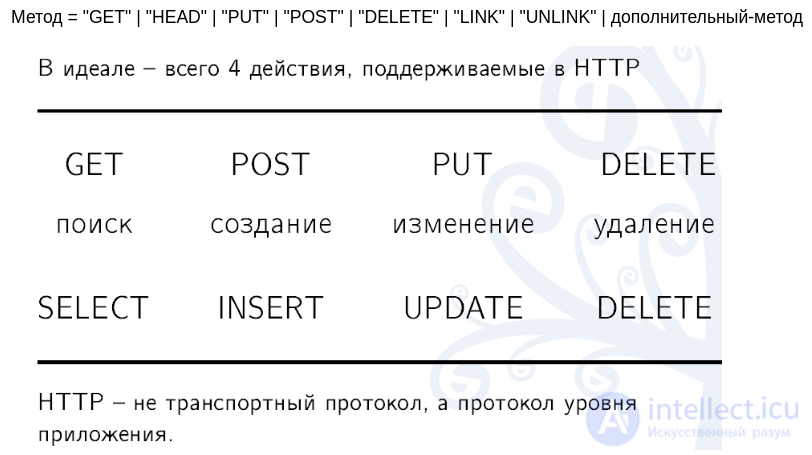
So, we've covered the main methods of data transmission (there's also PUT, but no one uses it). It's very important for a web developer to understand exactly how data transmission works and what happens on the server. Nowadays high-level programming languages like PHP handle the work of extracting data automatically, so many people don't understand the actual mechanism.
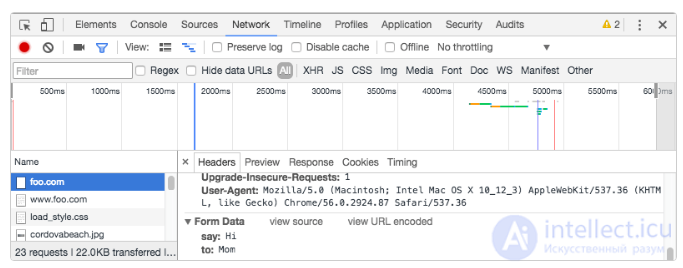
HTTP requests are never shown to the user (if you want to see them, you need to use tools like Chrome Developer Tools). For example, form data can be seen in the Network tab in Chrome as follows (after submitting the form):
Then you can get the form data as shown below.

Comments