Human-computer interfaces (Human-Computer Interaction, HCI) are the ways in which a user interacts with a computer or other digital devices. They have evolved along with technology and fall into several main types.
1. Text interfaces
Examples: CLI (Command Line Interface), TUI (Terminal User Interface)
- Features:
- The user enters commands from the keyboard.
- Minimal system requirements.
- High speed of work for experienced users.
- Applications:
- Servers, administration, scripting.
2. Graphical interfaces (GUI)
Examples: Windows, macOS, Android, iOS
- Features:
- Use windows, icons, buttons, menus.
- Controlled with a mouse, keyboard or touchscreens.
- Convenient for users with minimal experience.
- Applications:
- General-purpose programs, desktop systems, mobile devices.
3. Touch interfaces
Examples: Smartphones, tablets, touch kiosks
- Features:
- Controlled by touches, gestures, swiping.
- Often combined with a graphical interface.
- Applications:
- Mobile devices, ATMs, interactive screens.
4. Voice interfaces (VUI)
Examples: Siri, Alexa, Google Assistant
- Features:
- Controlled by voice commands.
- Use speech recognition technologies.
- Applications:
- Smart homes, voice assistants, navigation systems.
5. Gesture interfaces
Examples: Kinect, drone control systems
- Features:
- Controlled by hand or body movements.
- Use cameras and sensors to track movements.
- Applications:
- Games, virtual reality, robot control.
6. Virtual and augmented reality interfaces (VR/AR)
Examples: Oculus Rift, HoloLens
- Features:
- Full or partial immersion in a digital environment.
- Use headsets, glasses, controllers.
- Applications:
- Games, simulators, modeling, education.
7. Biometric interfaces
Examples: Eye-tracking, neural interfaces
- Features:
- Controlled by biometric data, for example eye movements or brain signals.
- High accuracy and adaptability.
- Applications:
- Medical technologies, devices for people with disabilities.
8. Smart text interfaces (Chatbot UI)
Examples: Chatbots, voice chats
- Features:
- Communication with the system through text or voice.
- Use AI to understand and process requests.
- Applications:
- Customer support, automation of routine tasks.
9. Tactile and vibration interfaces (Haptic UI)
Examples: Vibration on a smartphone, feedback in gamepads
- Features:
- Provide sensory feedback through vibration or pressure.
- Applications:
- Games, navigation devices, medical instruments.
10. Multichannel interfaces
- Features:
- Simultaneous use of several interaction methods, for example voice + gestures.
- Applications:
- Smart homes, multimodal systems.
An interface element is a primitive of a graphical user interface that has a standard appearance and performs standard actions.
Other names: control element, widget, control
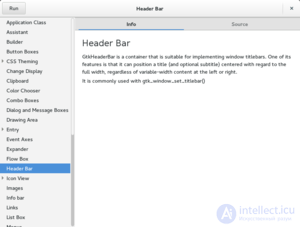
gtk3-demo is a program for demonstrating GTK+ interface elements.
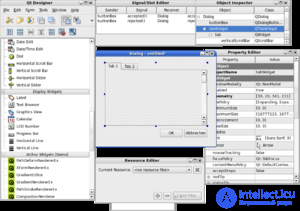
Qt Designer, a cross-platform editor of interface elements
Origin of the term "widget"
It has been used since about the 1920s in American English to mean a simple but necessary thing, a small article whose name the speaker has temporarily forgotten . The Online Etymology Dictionary suggests that its form may have been influenced by the word gadget, or that it comes from "which it" ("what's-it-called"). Other dictionaries suggest a blend of "window gadget", which also arose in the early 20th century .
The word "widget" is also used as the name of a class of auxiliary mini-programs: graphical modules that are placed in the workspace of the corresponding parent program and serve to decorate the workspace, provide entertainment, solve individual work tasks or quickly obtain information from the internet without a web browser.
Typical interface elements
- Accordion
- Button
- Split button: a button that opens a list with secondary action(s) (buttons)
- Radio button
- Check box
- Toggle button: can be in one of two states, active or inactive
- Icon
- List box
- Tree view: a hierarchical list
- Combo box, drop-down list
- Label
- Textbox, edit field
- Grid view: an element for displaying tabular data
- Menu
- Main menu or menu bar
- Context menu (popup menu)
- Pull-down menu
- Window
- Panel
- Tab
- Toolbar
- Scrollbar
- Slider
- Status bar
- Tooltip, hint
There are also other controls that may not be included in some toolkits:
- Pie menu (or radial menu): a circular menu around the cursor. A menu item is selected by moving the cursor in the direction of the item.
- Sequential selection button: an element whose value is selected by clicking on it repeatedly with the mouse. Unlike a drop-down list, such a button does not show any values other than the selected one.
- Spinner: a bidirectional control for numeric values. Clicking a button changes the value of the parameter up or down by one.
- Heads-up display: shows the values of certain parameters or important messages on top of all other elements.
- Balloon: a hint resembling a speech balloon in comics, pointing to the element that is the source of the message.
- Rotary encoder (valcoder): a rotating control resembling the tuning knob on many radio receivers. It can be either single-turn or multi-turn.
- Collapsible widget: an element that allows hiding some of the controls when they are not in use.
- Level indicator: an element for indicating the value of some quantity. A progress indicator is sometimes used instead of it, but some guidelines (for example, Apple's HIG ) prohibit this practice.
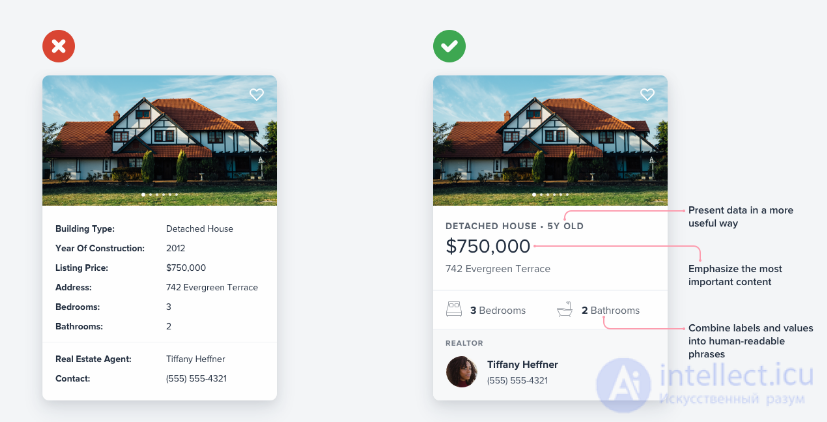
Types of interfaces
Single document interface (SDI)
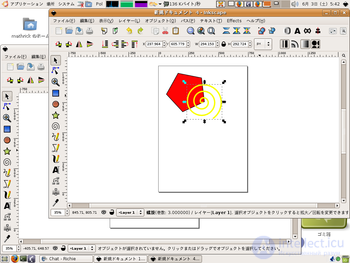
Inkscape, which runs on SDI
Single document interface (SDI) is a way of organizing the graphical interface of applications in separate windows. There is no "background" or "parent" window containing a menu or toolbars for the active one; each window carries these elements itself. Such applications, which allow editing more than one document at the same time, for example word processors, can give the user the impression that several copies of the program are running rather than one.
Usually, each window is displayed separately on the operating system's taskbar, and sometimes the taskbar can group entries for windows that belong to the same program. For example, Mac OS X provides the Exposé feature, which arranges the windows of a given application optimally on the screen's workspace.
Multiple Document Interface (MDI)
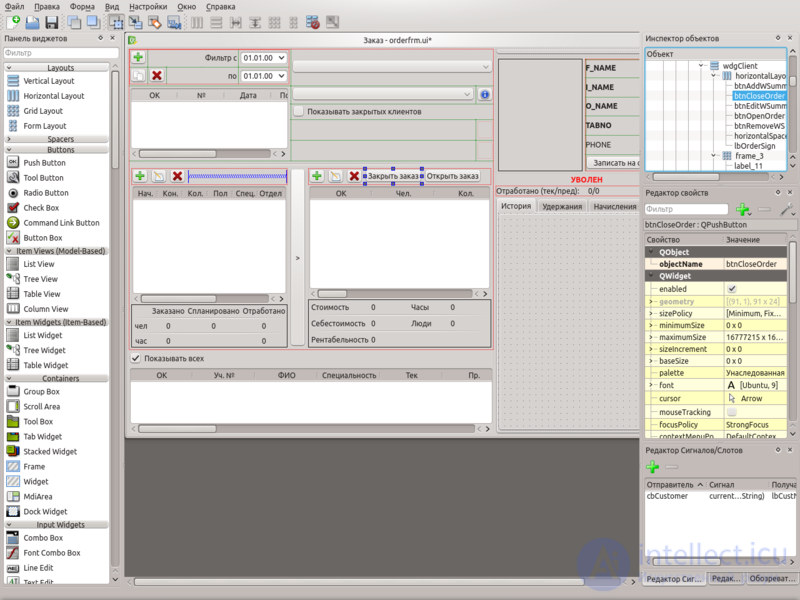
Qt Designer in MDI mode
Multiple document interface (MDI) is a way of organizing a graphical user interface that uses a windowed interface in which most windows (usually excluding only modal windows) are placed inside one common window. This is what distinguishes it from SDI, in which windows are placed independently of one another. Developers widely use both types of interface, and often a mixed type. For example, Microsoft changed the Microsoft Office interface from SDI to MDI and then went back to SDI, although the actual implementation includes both.
Among the drawbacks of MDI, people often pointed to the lack of clear information about open windows: to see the current list of open windows in an application, the user had to select a menu item such as "open windows/window list" or something similar. Recently, applications have begun to include taskbars and tabs for displaying open windows in MDI. This type of interface is sometimes called a tabbed document interface (TDI), although in fact it is a variety of MDI.
Almost all application builders and editors today provide at least one solution for creating an MDI interface. For example, the Java GUI library called Swing has the class javax.swing.JDesktopPane, which creates containers for individual frames (the class javax.swing.JInternalFrame). Another popular set of interface elements, GTK+, has no such capability.
Comparison with SDI
Advantages
- In an MDI interface (as in TDI), there is a common menu bar and toolbar for all child windows, which reduces screen clutter from interface elements and increases the usable area.
- All the application's windows can be hidden/shown, minimized/restored, and otherwise manipulated as a single window.
- Child windows can be arranged "tiled" or "cascaded" within the main window.
- Working in a single window increases speed and saves memory, and switching between child windows is also faster than switching between equal peer windows in the operating system environment.
- Some applications provide "hotkeys" for quick navigation, in particular for switching between windows. This further increases the speed and convenience of working with the application, since no additional operating system resources are involved.
- It is a logical solution if the windows are parts of one project.
Disadvantages
- It is difficult (most often impossible) to display the contents of different child windows on different monitors.
- It is likewise impossible to display their contents on different virtual desktops.
- MDI can make it harder to work with different applications in parallel, since switching between the external windows of different programs and the child windows of one program is inconvenient.
- Floating toolbars of one application may overlap the working window of another, blocking the view and sometimes confusing the user about which toolbar belongs to which application.
- The user has to get used to both types of interface, since the introduction of MDI does not completely eliminate the use of SDI, which is built into most operating systems.
- Many window systems (3D Desktop, Exposé) let you switch between programs comfortably. Such switching between document windows, as a rule, does not work.
- Chaos on the program's "desktop" when several documents are open at once.
- By default, the MDI interface used in Windows does not support means of switching between the program's windows, such as a taskbar.
Tabbed Document Interface
Tabbed document interface (TDI) is a variety of graphical user interface in which each document is displayed on a separate tab of a common window.
Applications
Thanks to its compactness and ease of implementation, the tabbed interface is widely used in a wide variety of software (browsers, programming environments, and so on), as well as in simple homemade software.
Some programs that use this approach:
- All major desktop, iOS and Android browsers (2016): Microsoft Edge, Mozilla Firefox, Google Chrome, Apple Safari.
- Many programming systems: Embarcadero RAD Studio, Code::Blocks.
Comparison with the single document interface
Advantages
- If the program has some common interface elements that apply to all documents, a tabbed interface is a logical step;
- Document windows are logically separated from the windows of other programs;
- Less memory is used;
- The control panels of different windows are in the same place;
- It is a logical step when all documents are parts of one "megadocument" or "project" (as in MDI).
Disadvantages
- It is hard to work with many programs at once (though the same is true of MDI);
- OS-level program-switching features such as 3D Desktop and Exposé do not work;
- It is impossible to see several documents at once. This problem is solved by hybrid schemes (see below);
- Multiple monitors cannot be used;
- A crash in one of the documents brings down the entire program (as in MDI).
Comparison with the multiple document interface
Advantages
- Easy access to different documents (as in SDI);
- When switching between several windows, window titles do not take up space;
- There is no chaos on the desktop when several documents are opened;
- As a consequence, the programmer does not need to write any workarounds to fight this chaos, and the user does not need to arrange windows in the desired order.
Disadvantages
- OS-level program-switching features such as 3D Desktop and Exposé do not work;
- It is impossible to see several documents at once. This problem is solved by hybrid schemes (see below);
- It is impossible to use multiple monitors;
- If documents are smaller than the screen, screen space is wasted.
Hybrids
The tabbed interface is fertile ground for various interface hybrids. Here are a few variants.
Frame interface
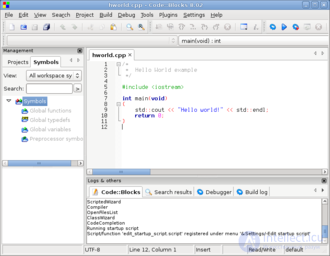
Code::Blocks uses a frame-and-tab interface.
The program window is divided into several frames. Each of them can hold several tabs with documents. A typical example is Code::Blocks.
Advantages: low screen space usage is combined with the ability to see several documents.
Disadvantages: hard to program; simplified implementations may impose their own restrictions (for example, some documents are placed in a gadget panel and are always visible, while others are on tabs); it is impossible to place documents on different monitors or different "desktops"; some types of panels (for example, a minimap in a level editor) take up more space than they actually occupy.
MDI windows as tabs
A hybrid of the tabbed and multiple document interfaces in which the user switches between MDI windows using tabs (as in Opera before version 12 on the Presto engine or IDA Pro).
Adobe Photoshop CS4 demonstrates a similar approach. By default, the program uses a tabbed panel; if you drag a tab off the panel, it turns into an MDI window.
Advantages: easy to program; the ease of switching and compactness of TDI are combined with the flexibility of MDI.
Disadvantages: formally this is MDI, with its high memory usage; the tab bar takes up space; often multiple monitors cannot be used; the problem of grouping documents is not solved.
Tabs inside MDI windows[
The reverse interface concept: there are several MDI windows, each of which has tabs. Examples: the traditional Delphi and C++ Builder interface, and the control panels in Adobe Photoshop.
Advantages: groups documents of different types.
Disadvantages: a universal interface is hard to program, and simplified implementations may impose their own restrictions (for example, the form designer in Delphi was for a long time a separate window).
TUI (Terminal User Interface) and CLI (Command Line Interface)
TUI (Terminal User Interface) is a text-based user interface used in terminals or console applications. Instead of graphical elements, as in a GUI (Graphical User Interface), a TUI uses characters, text and pseudographics to interact with the user.
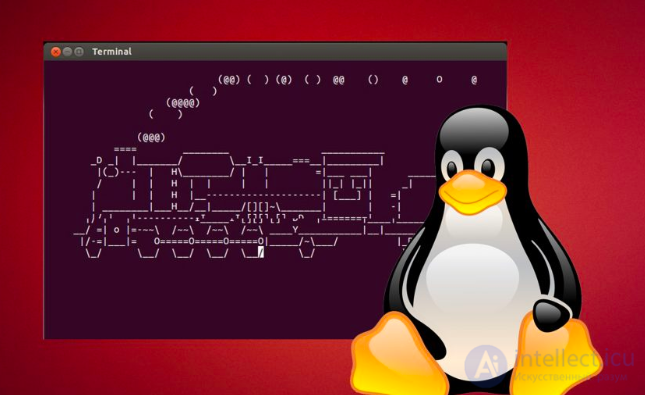
Main characteristics of TUI:
- Text format: All interface elements, such as menus, windows, buttons and indicators, are built from characters (letters, digits, lines and other pseudographics).
- Runs in a terminal: TUI programs run in text terminals or console emulators such as Bash, Zsh, CMD, PowerShell or Linux terminals.
- Keyboard control: Interaction takes place mainly through the keyboard, which makes the interface fast to use, especially for experienced users.
- Lower system requirements: TUI programs need fewer resources than full graphical interfaces.
- Pseudographics support: Special characters (such as lines, corners and blocks) are used to create visually pleasing structures that imitate windows, frames and other interface elements.
Examples of programs with a TUI:
- Midnight Commander (mc): a file manager.
- htop: process monitoring.
- nmtui: network management in Linux.
- vim: a text editor.
- dialog and whiptail: creating dialog boxes in a terminal.
Advantages of TUI:
- Simplicity and speed of work.
- Can be used over SSH or other remote connections.
- Suitable for server systems that have no graphical environment.
Disadvantages:
- Less intuitive for new users.
- Limited capabilities for visual display of data.
A TUI is ideal for system administrators, developers and users working in resource-constrained environments.
Interface Element Libraries
Every window system has its own set of "native" elements with a low-level interface for working with them.
Some control libraries are high-level "wrappers" around the existing standard widgets, simplifying work with them and extending their functionality.
Others provide their own single programming interface for building a user interface on several platforms or window systems, and, to achieve cross-platform support, bring them to an API common to all platforms.
Still others provide cross-platform capabilities through their own platform-independent implementation of the controls.
- Cross-platform, Java-based
- Standard Widget Toolkit — part of the Eclipse project
- Swing — developed by Sun, a component of Java Foundation Classes (JFC) based on AWT
- AWT — the partly obsolete Abstract Windowing Toolkit (Sun, 1995)
- JavaFX — a platform for developing RIAs in Java
- Cross-platform, C/C++-based, usable from other languages
- Tk
- GTK+
- Qt
- wxWidgets (wxWindows)
- IUP
- FOX toolkit
- FLTK
- Cross-platform, Pascal-based
- LCL
- CLX — an adaptation of the Qt interface for Borland Delphi & Kylix
- Cross-platform, AJAX-based
- Dojo
- ExtJS
- YAHOO User Interface library
- For AmigaOS
- Intuition
- Reaction
- MUI (Magic User Interface)
- For DOS
- Turbo Vision — part of Borland Turbo Pascal 6.0/7.0, a text interface
- Zinc — a library for Borland C++
- For Microsoft Windows
- Windows API
- Microsoft Foundation Classes
- Windows Template Library
- Object Windows Library (Borland Pascal 7.0, graphical interface)
- Visual Component Library (Borland Delphi)
- Windows Forms
- Windows Presentation Foundation (or Avalon)
- For Unix — for the X Window System
- Xlib
- Xt
- Xaw
- Motif (Open Motif, LessTif)
- Graphical interfaces for games
Conclusions
The evolution of interfaces is aimed at improving the convenience and speed of interaction, as well as adapting to users' individual needs.
See also
- [[b9531]]
- Gadget
- Portlet
- Skin
- GUI builder
|
Graphical interface elements
|
| Interface types |
- Single document (SDI)
- Multiple document (MDI)
- Tabbed multiple document (TDI)
|
| Control |
- Button (split button)
- Menu (menu bar
- context menu
- hamburger)
|
| Input/output |
- Spinner
- Drop-down list
- Combo box
- Checkbox
- Slider
- Radio button
- List
- Table (Grid view)
- Text field
|
| Display |
- Heads-up display (in games
- OSD)
- Splash screen
- Icon
- Progress bar
- Label
- Tooltip
- Status bar
- Toast
- Throbber
- Loading screen
|
| Containers |
- Ribbon
- Collapsible widget
- Frame
- Panel
- Tab
- Toolbar
- Window
|
| Navigation |
- Virtual desktop
- Hyperlink
- Tree view
- Scroll bar
- Breadcrumb
|
| Special windows |
- Dialog box
- Alert dialog box
- Modal window
- About box
- Object inspector window
- Palette window
- File dialog
|
| Game-related |
|
| Related concepts |
- WIMP
- Windowed interface
- Window manager
- Interface element library
- Look and feel[en]
- Layout manager[en]
- Mouse hover
|
See also


Comments