
Lecture 30 min.
Unity (unity is English for "unity", pronounced "YOO-ni-tee") is a cross-platform computer game development environment created by the American company Unity Technologies. Unity makes it possible to create applications that run on more than 25 different platforms, including personal computers, game consoles, mobile devices, web applications and others. Unity was released in 2005 and has been under continuous development ever since.
The main advantages of Unity are its visual development environment, cross-platform support and modular component system. Its drawbacks are said to include difficulties when working with multi-component schemes and difficulties in connecting external libraries.
Thousands of games, applications and visualizations of mathematical models covering many platforms and genres have been written in Unity. It is used both by large developers and by independent studios
The Unity editor has a simple drag-and-drop interface made up of various windows, which makes it possible to debug a game right in the editor. The engine uses C# for scripting. Boo (a Python dialect, support for which was removed in version 5) and a modification of JavaScript known as UnityScript (support ended in version 2017.1) were also supported previously. Physics calculations are performed by NVIDIA's PhysX physics engine for 3D physics and by Box2D for 2D physics . The graphics API is DirectX (currently DX 11, with DX 12 supported)
A Unity project is divided into scenes (levels) — separate files that contain their own game worlds with their own sets of objects, scripts and settings. Scenes can contain both actual objects (models) and empty game objects — objects that have no model ("dummies"). Objects, in turn, contain sets of components, which the scripts interact with. Objects also have a name (Unity allows two or more objects with the same name in one scene), may have a tag (a label) and a layer on which they are to be displayed. Thus, every object in a scene necessarily has a Transform component — it stores the object's position, rotation and size coordinates along all three axes.
Unity also supports rigid-body and cloth physics, as well as Ragdoll-type physics (rag-doll physics).
The editor has an object inheritance system; child objects will repeat all changes in the position, rotation and scale of the parent object.
Scripts are attached to objects in the editor as separate components.
When a texture is imported into Unity, it is possible to generate an alpha channel, mip levels, a normal map, a light map and a reflection map, but the texture cannot be attached directly to a model — a material will be created and assigned a shader, and then the material is attached to the model. The Unity editor supports writing and editing shaders. The Unity editor has a component for creating animation, but animation can also be created beforehand in a 3D editor and imported together with the model, and then split into files.
Unity 3D supports a Level Of Detail (LOD) system, the essence of which is that at a long distance from the player highly detailed models are replaced with less detailed ones, and vice versa, as well as an Occlusion culling system, the essence of which is that for objects that do not fall within the camera's field of view, geometry and collision are not rendered, which reduces the load on the central processor and makes it possible to optimize the project. When the project is compiled, an executable (.exe) file of the game is created (for Windows), and the game data (including all game levels and dynamically linked libraries) is placed in a separate folder.
The engine supports many popular formats. Models, sounds, textures, materials and scripts can be packed into the .unitypackage format and passed on to other developers or made freely available. The same format is used in the internal Unity Asset Store, where developers can make various elements needed when creating games available to everyone, for free or for a fee. To use the Unity Asset Store, you must have a Unity developer account.
UNet (a library for implementing multiplayer in Unity games) was removed starting with version 2018.4; there is no out-of-the-box multiplayer solution. You can also use whichever version control method suits you. For example, Tortoise SVN, Git or Source Gear.
Unity includes Unity Asset Server — a toolset for collaborative development on Unity, which is an add-on providing version control and a number of other server solutions.
As a rule, a game engine provides many functional capabilities that can be used in various games, including modeling of physical environments, normal maps, dynamic shadows and much more. Unlike many game engines, Unity has two main advantages: a visual development environment and cross-platform support . The first factor includes not only visual modeling tools but also an integrated environment and a build pipeline, which aims to increase developer productivity, in particular at the prototyping and testing stages. Cross-platform support covers not only the deployment targets (installation on a personal computer, a mobile device, a console, etc.) but also the availability of development tools (the integrated environment can be used on Windows and Mac OS).
The third advantage cited is Unity's modular component system, by which game objects are constructed as combinable packages of functional elements. Unlike inheritance mechanisms, objects in Unity are created by combining functional blocks rather than by being placed in the nodes of an inheritance tree. This approach makes prototyping easier, which is important in game development .
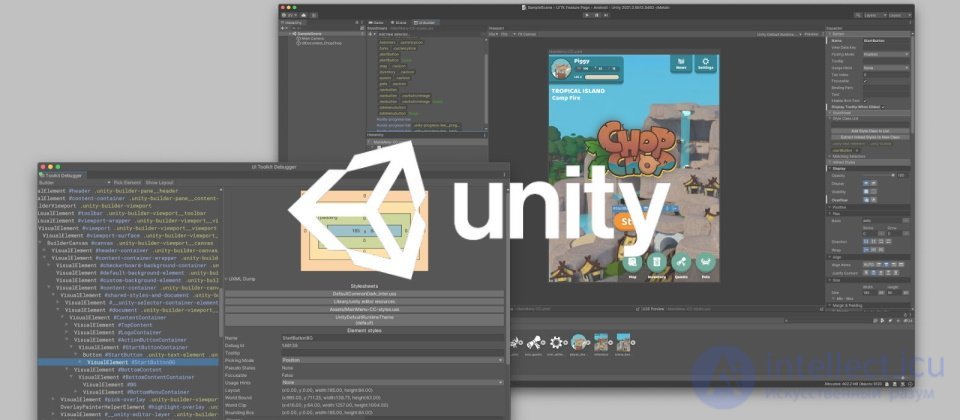
The disadvantages cited include the limitations of the visual editor when working with multi-component schemes, where visual work becomes difficult in complex scenes. A second disadvantage is said to be Unity's lack of support for references to external libraries, which programmers have to set up on their own, and this also complicates teamwork. Another disadvantage relates to the use of instance templates (prefabs). On the one hand, this Unity concept offers a flexible approach to visual editing of objects, but on the other hand, editing such templates is complicated. In addition, the WebGL version of the engine, owing to the specifics of its architecture (translation of code from C# to C++ and then to JavaScript), has a number of unresolved problems with performance, memory consumption and operation on mobile devices.
Unity is a popular game engine used to create various video games, virtual reality, animations and other interactive content. Here are some basic concepts related to Unity:
Scene: A scene in Unity is a space where game objects are placed and interact. It can include characters, objects, lights, cameras and other elements.
Game Object: A game object is the basic entity in Unity. It can be a character, an object, a camera, a light, etc.
Component: Components are attached to game objects and define their behavior. For example, components can control movement, rendering, sound, collisions and so on.
Transform: Every game object has a Transform component, which defines its position, rotation and scale in space.
Camera: The camera determines what the player sees. It defines the visible area of the scene and determines how the game world is displayed.
Resources are the entities stored on disk that make up a game project. They include meshes (models), textures, sprites, sounds, and other resources.
Material: Materials define the appearance of an object, including its color, textures, and reflection properties.
Asset: Assets in Unity are the resources used in a game, such as textures, sounds, models, and other files.
Script: Scripts are written in the C# or JavaScript programming language and are attached to game objects to define their behavior and interactions.
Physics: Unity includes a built-in physics engine that allows objects to interact with the surrounding world, taking into account gravity, collisions, and so on.
Animation: Unity lets you create animations for game objects by controlling their movement, rotation, and other properties.
Unity Physics is the physics system built into Unity that allows developers to create realistic physical effects in their games. Here are some basic concepts related to Unity Physics:
These basic concepts are the foundation for working with the Unity physics system and allow developers to create interesting and realistic physical effects in their projects.
In Unity, math plays an important role in developing game applications, especially in areas such as graphics, physics, and animation. Here are some basic math concepts that are commonly used in Unity:
Raycasting: This is one of the most common uses of rays. Raycasting lets you determine whether a ray intersects any object and obtain information about the point of intersection, the object that was hit, and other parameters. It is often used for collision detection, shooting at objects, or measuring distances.
Ray Lines: Rays can also be used to visualize lines or visual effects in a scene. For example, rays can be used to create laser beams, bullets, light rays, or other effects.
Distance Measurement: Rays can be used to measure distances between objects in a scene. By casting a ray between two points, you can determine the distance between them.
Debugging Rays: In game development, rays are also often used to debug and visualize certain aspects of game mechanics. For example, rays can be used to visualize a character's detection area or the area of effect of some object.
These basic math concepts help Unity developers create realistic and engaging games, as well as manage objects and data in game applications efficiently.
The basic concepts of graphics in Unity include the various components, settings, and technologies used to create visual content in the game world. Here are some of them:
This is only a general overview of the basic concepts of graphics in Unity. Each of these concepts has many details and settings that can be used to create beautiful and engaging visual effects in the game world.
In Unity, primitives are pre-built objects that can easily be added to a scene to quickly create simple shapes and objects. These primitives are usually used as a basis for creating scenery, test levels, or prototyping game mechanics. Some of the most commonly used primitives in Unity include:
To add a primitive to a scene in Unity, you can follow these steps:
Select the object to which you want to add a primitive, or create a new empty object.
Right-click the object in the Hierarchy or in the scene.
In the context menu, select "Create Empty" or "3D Object".
In the "3D Object" submenu, select the primitive you need, for example "Cube", "Sphere", and so on.
Unity will automatically add the selected primitive to your scene.
Once the primitive has been added to the scene, you can modify, move, scale, and rotate it just like any other object in Unity. Primitives are a convenient and quick way to create simple shapes and objects without having to model them from scratch.
A UI element in Unity is an object designed to display interface elements in a game's user interface (UI). It lets you create buttons, text fields, images, scroll bars, and other elements that the user can see and interact with.
UI elements in Unity are usually used to create a user interface, such as the main menu, inventory, character health, counters, and so on. They can be created for both two-dimensional and three-dimensional space, depending on the requirements of the project.
Some types of UI elements in Unity:
Button: Lets you create a button that the user can press to perform a specific action.
Text: Used to display text on the screen, for example the name or description of an object.
Image: Lets you display an image on the screen, for example an item icon or a background image.
Slider: Lets the user select a value from a given range by moving a slider.
Toggle: Lets the user switch between two states (on/off) by clicking a checkbox.
Dropdown: Lets the user choose one of several options from a drop-down list.
Input Field: Lets the user enter text from the keyboard.
Scroll View: Lets you display large amounts of content that can be scrolled vertically or horizontally.
These elements can be configured and styled using components and properties in Unity to match the design and needs of your project.
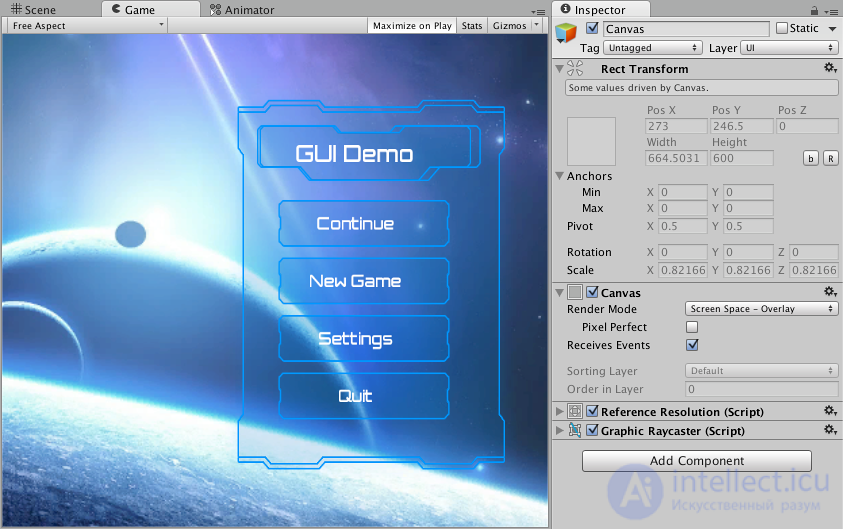
A HUD (Head-Up Display) in Unity is a user interface that is displayed on top of the game scene and usually contains information that helps the player interact with the game or track various aspects of gameplay. A HUD usually includes elements such as character health, ammunition count, a minimap, objective indicators, and other important information.
In Unity, a HUD can be implemented using a Canvas, as described in the previous answer. Here are examples of elements that may be present in a HUD in Unity:
Implementing a HUD in Unity usually requires creating and configuring user interface elements using Canvas, Text, Image, and other UI components. These elements can be placed on a Canvas and configured with scripts to update their content and behavior in accordance with the game logic.

Canvas:
Thus, the Hierarchy of Objects refers to the structure of objects in a Unity scene, while the Canvas is a special object designed to display user interface elements. Both concepts play an important role in game development in Unity, providing the organization and display of content in the game world.
ECS in Unity stands for "Entity-Component-System" and is a game development paradigm that differs from traditional object-oriented programming (OOP). It is based on DOP (data-oriented design), an approach to program optimization which holds that the layout of data structures in memory should be carefully optimized. It also requires taking into account how this approach affects automatic vectorization and CPU cache usage.
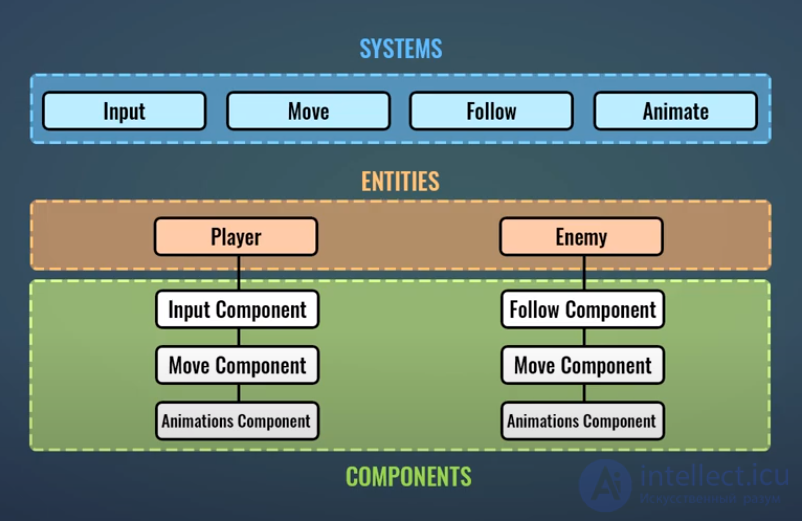
Here is a brief explanation of each ECS element:
The advantage of ECS in Unity is that it allows developers to scale and optimize their games better, especially for projects with a large number of objects and complex logic. It also simplifies parallel data processing, which can significantly increase game performance.
Unity implemented ECS through the DOTS (Data-Oriented Technology Stack) system, which offers tools and approaches for building high-performance, scalable game applications. DOTS includes not only ECS but also other technologies, such as the Job System and the Burst Compiler, which help optimize code and use multithreading to improve performance.
In Unity, components and systems within ECS (Entity-Component-System) are created using the DOTS (Data-Oriented Technology Stack) API. Here is a brief guide to creating components and systems:
Creating components:
Define the data structure of your component. For example, if you want to create a component that stores information about an object's speed, you can create a data structure containing variables for storing the speed values along the X, Y, and Z axes.
Inherit from IComponentData to declare your data structure as an ECS component. For example:
using Unity.Entities;
using Unity.Mathematics;
public struct SpeedComponent : IComponentData  // or MonoBehavior
{
    public float3 Value; // Speed value along the X, Y, and Z axes
}
Create an instance of your component and add it to an entity. For example:
var entity = EntityManager.CreateEntity(typeof(SpeedComponent));
EntityManager.SetComponentData(entity, new SpeedComponent { Value = new float3(1f, 0f, 0f) });
Creating systems:
Define your system class and inherit from SystemBase. This class will contain the component processing logic. For example:
using Unity.Entities;
using Unity.Physics;
using Unity.Physics.Systems;
public class MovementSystem : SystemBase // or MonoBehavior
{
    protected override void OnUpdate()
    {
        float deltaTime = Time.DeltaTime;
        Entities.ForEach((ref Translation translation, in SpeedComponent speed) =>
        {
            translation.Value += speed.Value * deltaTime;
        }).Schedule();
    }
}
Register your system in the World and add the necessary dependencies. For example:
using Unity.Physics.Systems;
public class GameWorldInitializationSystem : ComponentSystem
{
    protected override void OnCreate()
    {
        var physicsSystemGroup = World.GetOrCreateSystem();
        var movementSystem = World.GetOrCreateSystem();
        physicsSystemGroup.AddDependency(movementSystem);
    }
}
Run your system at the right moment. In the example above, the system will run automatically every frame.
This is a simple guide to creating components and systems within ECS in Unity. ECS provides powerful tools for building high-performance, scalable games, allowing developers to manage game data and logic efficiently.
Every game object is made up of components.
A component implements a well-defined set of behaviors needed for a GameObject to function. Everything that makes an object what it is comes from the contributions of the components it consists of:
The single "visible" element of a car will have a Renderer component, which draws the car, and probably a Collider component, which defines its collision boundaries.
If the car represents a player character, the car object itself may have a Player Input Controller that receives all events related to key presses and translates them into the code responsible for the car's movement.
While it is possible to write large, complex components where one component corresponds exactly to the object being coded (e.g., a player component contains code that fully describes the character, and an enemy component, in turn, fully encodes an opponent), it is usually customary to extract the logic, breaking it into small "streamlined" pieces that correspond to specific traits. For example:
In code there is MonoBehavior, the ubiquitous parent class for representing components. Most non-built-in components will inherit from MonoBehavior, which in turn inherits from Behavior and Component, respectively.
All objects that have health, whether a Player or an Enemy, can have a LivingObject component that sets the initial health value, takes damage, and carries out death when the object dies.
In Unity, the term "prefab" is used to refer to an object that contains a ready-made set of components, settings, and data that can be reused many times in a project. Prefabs let you create objects with specific properties and behavior and reuse them many times without having to create each object from scratch.
The main advantages of using prefabs:
Convenience and speed of object creation: Prefabs let you create objects with preconfigured components and properties, which simplifies and speeds up the development process.
Reuse: Created prefabs can be reused many times in different parts of the project. Changes made to a prefab are automatically reflected in all instances of that prefab in the project.
Updating: Changes made to a prefab can easily be applied to all of its instances in the project, which makes updating and maintaining the consistency of objects simpler and more convenient.
Improved management: Unity provides tools for managing prefabs, such as nested prefabs, prefabs with unsaved changes, and prefabs in the scene editor, which make it easier to organize and manage a large number of objects.
To create a prefab in Unity, you can simply drag an object from the Hierarchy or the scene into the Prefabs folder in the Project window. After that, the object becomes a prefab and can be used anywhere in your project.
Using prefabs is recommended for building a modular and efficient project in Unity, especially when you need to reuse objects of the same type many times.
All the resources, scenes, and objects in your project are stored persistently on disk. When you edit the game, these objects are loaded into memory and then saved back to disk using Unity's serialization system. During test runs of the game, objects and scenes in memory are loaded using the same serialization system. This system also maps the resources in the compiled package to the loaded/unloaded scene objects in memory.
The serialization/deserialization pipeline in the Unity engine loads resources stored on disk into memory (in your project: for editing or a test run of the game, or in the game itself when a scene loads) and is responsible for saving the state of the objects and components you have edited back into the corresponding scenes and prefab instances.
Consequently, the serialization system is also a key element of working with the Unity editor. For a MonoBehaviour to accept input when a scene is constructed during its initialization, those fields must be serialized.
Most of Unity's basic types, in particular GameObject, MonoBehaviour and assets, can be serialized and can receive their initial values at creation directly from the Unity editor. Public fields in your MonoBehaviour are serialized by default (if they are of a serializable type), while private fields must first be marked with the Unity [SerializeField] attribute, after which they can be serialized too.
These are only a few of the basic concepts in Unity. When working with the engine, it is important to master these and other terms in order to develop more efficiently.
For a deeper understanding, read the official documentation or take paid or free courses.
If you have any further questions, write them in the comments.
In Unity, a state machine is a way of organizing and managing the behavior of an object or system based on its current state. State machines are used to define various actions and transitions between states depending on certain conditions or events.
The main components of a state machine in Unity:
States: Each state represents a particular behavior or scenario the object is in. For example, states can be "walk", "run", "attack", "idle", and so on.
Transitions: Transitions define the conditions under which an object moves from one state to another. For example, a transition from the "walk" state to the "attack" state may occur when the object detects an enemy within a certain radius.
Actions: Actions define the specific things that are performed in each state. For example, in the "run" state an object may move along a certain path, while in the "attack" state it may perform attacking actions.
Advantages of using state machines in Unity:
Modularity and flexibility: State machines make it easy to add, change and remove states and transitions without changing the object's main logic.
Readability and debugging: The structure of a state machine is usually clear and easy to read, which simplifies debugging and understanding the object's behavior.
Managing complex behavior: State machines are ideally suited to managing the complex behavior of objects, such as characters in games or automated systems.
Unity provides several ways to implement state machines, including writing your own scripts, using third-party assets, or using built-in tools such as the Animator Controller for managing object animations.

Comments