Drag tasks by the ⠿ handle to change their order, or move them with the ↑ and ↓ arrows.
In the input field Enter adds the tasks and Shift + Enter starts a new line: every line becomes its own task.
The task text is edited right in the row, and the status is picked next to it from your own set.
All data is stored only in your browser (localStorage) and is never sent anywhere.
The online task list (todo list) helps you keep everything in a single column and see what is already done and what is still ahead. The service runs directly in the browser: tasks, their order, and the set of statuses are stored in the browser local storage (localStorage) and are not sent to the server.
Task list features:
- adding tasks to a single column in the order you choose;
- dragging tasks with a mouse or a finger by the ⠿ handle to change the order;
- arrow buttons for moving a task exactly one position up or down;
- your own set of statuses: name, color, and a "task is done" flag;
- changing the task status right in the row, next to the text;
- filtering the list by any status;
- task counters for every status and a completion bar;
- editing the task text right in the row, without a separate form;
- deleting a single task, all completed tasks, or the whole list;
- exporting and importing the whole list as JSON.
Custom task statuses:
The set of statuses is configured for your own process. It can be a simple pair of "to do" and "done", a longer chain such as "new, in progress, waiting, done", or your own stages: review, testing, postponed. Every status has a color that highlights the task row and a flag telling whether a task with this status counts as completed. That flag drives the progress bar and the removal of completed tasks.
Data storage:
The list is stored only in your browser. Tasks survive a page reload and are available on your next visit from the same device and browser. Clearing browser data, working in private mode, or switching to another device does not move the list automatically. To transfer the tasks, open the export and import block, copy the JSON, and paste it on the other device.
The task list is useful for personal errands, studying, household chores, planning a working day, running a small project, and any situation where you need a simple ordered list of things to do without registration and without installing software.


 Planning and assessing the complexity of tasks, Planning Poker online
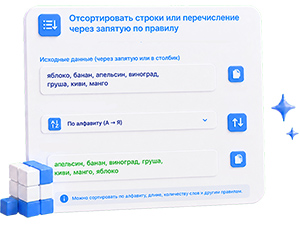 Sort strings or enumeration separated by commas by rule - online
 Remove duplicate rows leaving unique ones sorted ascending - online
 Select random string - online
 Determine the approximate reading time of any text online
 Online calendar for any year

Comments