
Pick Color in Paint Classic Online
The Pick Color page describes the exact tool available in the online Paint Classic editor on Intellect.
Use this page when you need to understand how the tool works before opening the editor, preparing a simple drawing, editing a screenshot, making pixel-art details, adding annotations, or combining several Paint tools in one workflow.

Main Features
- eyedropper color sampling
- RGBA color reading from canvas
- quick palette matching
- use existing image colors for drawing
Available Options
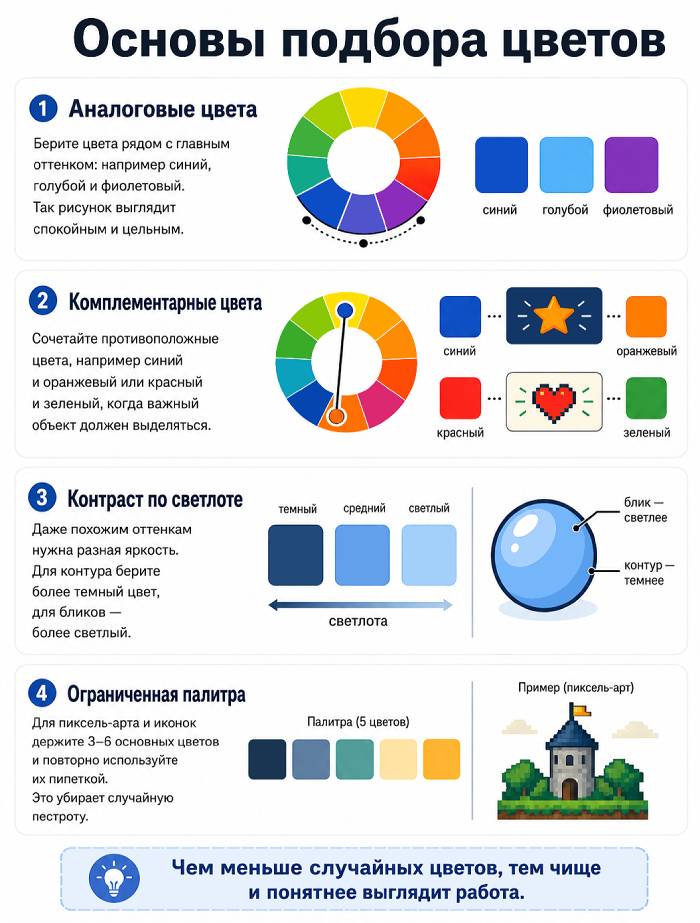
How To Pick Matching Colors
The Pick Color tool is useful not only for copying an exact pixel color. It is also the safest way to build a consistent palette from an existing drawing: sample the main object color, then reuse nearby shades for shadows, highlights, outlines and background details. A drawing looks cleaner when repeated colors are sampled from the canvas instead of being guessed manually.
Analogous colors. Pick colors that sit close to the main hue: for example blue with cyan and violet. This gives a calm, unified look.
Complementary colors. Combine opposite colors, such as blue and orange or red and green, when the important object must stand out.
Value contrast. Even similar hues need different lightness. Use a darker sampled color for outlines and a lighter one for highlights.
Limited palette. For pixel art and icons, keep 3-6 main colors and reuse them with the picker. This prevents noisy, accidental color variation.
Practical methods: sample an existing color with the eyedropper, choose a lighter version for illuminated edges, choose a darker version for shadow and contour, then test the color against the background. If the object disappears, increase contrast before adding details. For interface sketches, prefer neutral grays for large areas and reserve bright colors for buttons, marks and accents.
How This Tool Fits The Paint Online Workflow
Paint Classic keeps the familiar desktop-paint model: choose a tool, select its options, pick foreground and background colors, then draw directly on the canvas. Pick Color follows that model, so its result depends on the current color box, the selected option state, the mouse button used for drawing, and the current zoom level.
For accurate work, start with the magnifier when the image contains small details. Then use Pick Color with a deliberate option choice: thin strokes for outlines, filled styles for solid areas, transparent selection or text modes when the background must remain visible, and larger brush or eraser sizes when speed matters more than pixel-level precision.
Main features
The online Pick Color tool is suitable for quick browser-based image editing without installing a separate graphics application. It can be used for educational drawings, simple diagrams, icon drafts, screenshots, annotations, retro-style paint art, and fast corrections before sharing an image. Since the editor runs in the browser, the workflow is immediate: open Paint Classic Online, choose Pick Color, set the necessary option, apply it on the canvas, and save or share the result.
