
Image Settings in Paint Classic Online
The Image Settings page describes the exact menu command available in the online Paint Classic editor on Intellect.
Use this page when you need to understand how the menu command works before opening the editor, preparing a simple drawing, editing a screenshot, making pixel-art details, adding annotations, or combining several Paint tools in one workflow.

Main Features
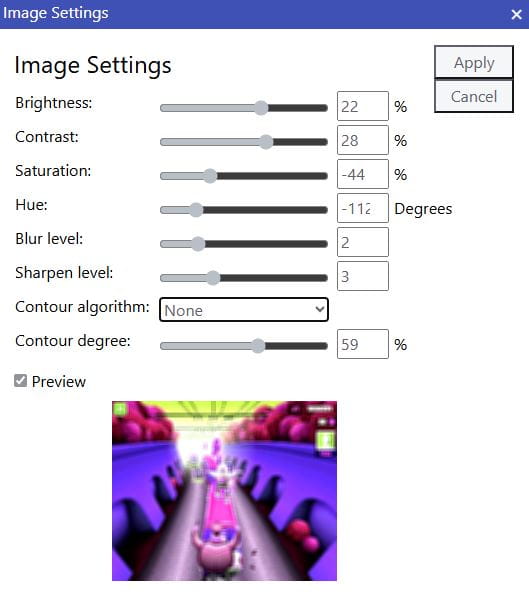
- Brightness changes the overall light level of the image from -100% to 100%, so you can darken an overexposed picture or make a too-dark drawing easier to read.
- Contrast controls the difference between light and dark pixels from -100% to 100%: lower values flatten the picture, higher values make borders, shadows and highlights stronger.
- Saturation controls color intensity from -100% to 100%: negative values move the image toward gray, while positive values make colors more vivid.
- Hue shifts all colors around the color wheel from -180 to 180 degrees, which is useful for recoloring a drawing without repainting every area by hand.
- Blur level softens the whole image from 0 to 10. It is useful for reducing harsh pixel noise, smoothing rough areas or preparing a softer image before contour detection.
- Sharpen level increases edge definition from 0 to 10. It helps restore detail after blur, make text or outlines clearer, and emphasize small shapes.
- Contour algorithm adds edge detection with None, Sobel, Prewitt, Roberts or Laplacian. These modes find image boundaries in different ways and can turn a photo or drawing into a more outline-focused result.
- Contour degree controls the strength of the selected edge-detection effect from 0% to 100%, so you can keep the contour subtle or make it dominate the image.
- Preview shows a scaled live result inside the dialog before Apply; turning Preview off temporarily shows the original image while keeping the selected settings.
Available Options
How This Command Fits The Paint Online Workflow
Paint Classic keeps the familiar desktop-paint model: draw or select an area, open the Image menu, choose the command, adjust the dialog fields when the command has a dialog, and apply the result to the canvas. Image Settings is part of that image-editing stage, so it is useful after the drawing or selected fragment is already prepared.
For accurate work, use selection first when the transformation should affect only part of the picture. If nothing is selected, the command applies to the whole canvas.
Main features
The online Image Settings menu command is suitable for quick browser-based image editing without installing a separate graphics application. It can be used for educational drawings, simple diagrams, icon drafts, screenshots, annotations, retro-style paint art, and fast corrections before sharing an image. Since the editor runs in the browser, the workflow is immediate: open Paint Classic Online, choose Image Settings, set the necessary option, apply it on the canvas, and save or share the result.
