You get a bonus - 1 coin for daily activity. Now you have 1 coin

Fill in Paint Classic Online

The Fill page describes the exact tool available in the online Paint Classic editor on Intellect.

Use this page when you need to understand how the tool works before opening the editor, preparing a simple drawing, editing a screenshot, making pixel-art details, adding annotations, or combining several Paint tools in one workflow.

Fill icon and drawing example in Paint Classic Online

Main Features

  • paint bucket fill
  • twelve selectable fill styles in the tool options panel
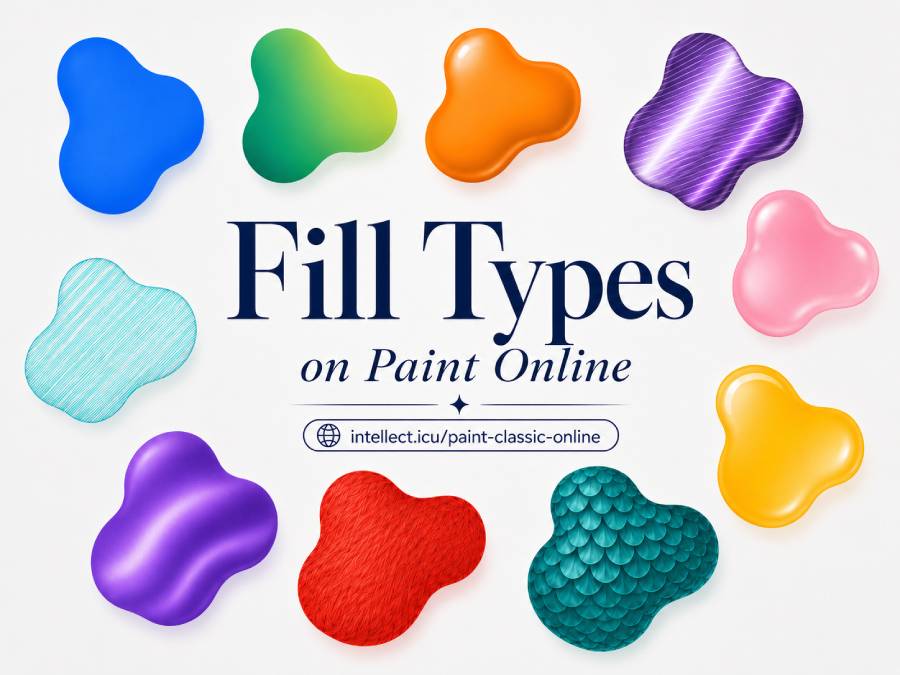
  • gradient, metallic, highlight, shadow, fur, amoeba, pencil hatching, inner-edge, edge-gloss and scales effects
  • effects derive light and dark shades from the active drawing color
  • global color replacement with Shift

Available Options

  • Color fill for a connected closed area

    The Fill tool may have the following options available. These options help adjust how the tool works on the canvas and make it easier to choose the behavior that best fits your task.

  • Linear gradient fill based on the active color

    The Fill tool may have the following options available. These options help adjust how the tool works on the canvas and make it easier to choose the behavior that best fits your task.

  • Radial gradient fill based on the active color

    The Fill tool may have the following options available. These options help adjust how the tool works on the canvas and make it easier to choose the behavior that best fits your task.

  • Metallic surface fill with tinted shine bands

    The Fill tool may have the following options available. These options help adjust how the tool works on the canvas and make it easier to choose the behavior that best fits your task.

  • Highlights fill with soft light spots

    The Fill tool may have the following options available. These options help adjust how the tool works on the canvas and make it easier to choose the behavior that best fits your task.

  • Shadows fill with darker edge depth

    The Fill tool may have the following options available. These options help adjust how the tool works on the canvas and make it easier to choose the behavior that best fits your task.

  • Fur fill with animal-fur style strokes

    The Fill tool may have the following options available. These options help adjust how the tool works on the canvas and make it easier to choose the behavior that best fits your task.

  • Amoeba fill with transparency and glossy highlights

    The Fill tool may have the following options available. These options help adjust how the tool works on the canvas and make it easier to choose the behavior that best fits your task.

  • Pencil hatching fill with shades of the active color

    The Fill tool may have the following options available. These options help adjust how the tool works on the canvas and make it easier to choose the behavior that best fits your task.

  • Inner line thickening fill for a stylized closed-area edge

    The Fill tool may have the following options available. These options help adjust how the tool works on the canvas and make it easier to choose the behavior that best fits your task.

  • Edge gloss fill with shiny highlights only near the border

    The Fill tool may have the following options available. These options help adjust how the tool works on the canvas and make it easier to choose the behavior that best fits your task.

  • Scales fill with overlapping gradient scales

    The Fill tool may have the following options available. These options help adjust how the tool works on the canvas and make it easier to choose the behavior that best fits your task.

  • Shift fill replaces the selected color across the image

    The Fill tool may have the following options available. These options help adjust how the tool works on the canvas and make it easier to choose the behavior that best fits your task.

Fill drawing example

Fill Options: Color, Gradients, Textures And Edges

The Fill tool keeps the classic closed-area bucket behavior, but its options can now turn the same connected area into a flat color, a gradient, a shaded surface, a fur-like texture, a translucent amoeba-style fill, pencil hatching, a stylized thicker inner edge, glossy edge highlights or overlapping gradient scales. Every effect is calculated from the active drawing color, so changing the color box changes the whole effect palette.

Color fill

Fills the connected closed area with the current foreground or background color.

Linear gradient

Creates a diagonal transition from a lighter shade of the active color through the base shade to a darker shade.

Radial gradient

Builds a soft light center and darker outer edge from the current color.

Metallic surface

Adds alternating bright and dark shine bands tinted by the active color, useful for metal-like areas.

Highlights

Fills the region with the active color and overlays soft bright spots and curved highlights.

Shadows

Adds darker shaded zones near the edges while preserving the main color inside the region.

Fur

Generates many short light and dark strokes clipped to the fill area to imitate animal fur.

Amoeba

Uses a partly transparent active-color layer with soft internal blobs and glossy highlights.

Pencil hatching

Fills the closed area with diagonal hand-drawn hatch strokes made from light and dark shades of the active color.

Inner line thickening

Keeps the active-color fill and adds an irregular thicker inner edge along the closed-area border.

Edge gloss

Fills the region with the active color and adds glossy white highlights only near the inner border of the closed area.

Scales

Fills the region with overlapping rounded scales; each scale has its own soft gradient, highlight and darker lower edge based on the active color.

How This Tool Fits The Paint Online Workflow

Paint Classic keeps the familiar desktop-paint model: choose a tool, select its options, pick foreground and background colors, then draw directly on the canvas. Fill follows that model, so its result depends on the current color box, the selected option state, the mouse button used for drawing, and the current zoom level.

For accurate work, start with the magnifier when the image contains small details. Then use Fill with a deliberate option choice: thin strokes for outlines, filled styles for solid areas, transparent selection or text modes when the background must remain visible, and larger brush or eraser sizes when speed matters more than pixel-level precision.

Main features

The online Fill tool is suitable for quick browser-based image editing without installing a separate graphics application. It can be used for educational drawings, simple diagrams, icon drafts, screenshots, annotations, retro-style paint art, and fast corrections before sharing an image. Since the editor runs in the browser, the workflow is immediate: open Paint Classic Online, choose Fill, set the necessary option, apply it on the canvas, and save or share the result.

Paint Classic tools guide